Skip to content

PIKA & AI VIDEO, STEP BY STEP

Start with an idea.
Make a clip
you can use.

Clear guides, real examples and small tools for your next video. Choose the right input, write the motion and know the cost before you generate.

Our tools need no account. Generating on Pika uses your Pika account and credits.

ONE PHOTO. ONE MOTION.Our Pika 2.5 test
THE MOTION PROMPT

“Steam rises gently from the coffee. The camera slowly moves closer to the mug.”

Image-to-video · selected 1080p · 5s · 45 credits · silentSee both inputs and results

PICK YOUR STARTING POINT

What do you need next?

MEET THE PLATFORM

What is Pika Labs AI about?

Pika is a platform for creating and editing video, images and audio. You can animate a photo, create a scene from words, change a clip or add speech, music and sound effects.

An app sets up the task; a model does the generation. Pika includes its own models and models from other providers, so the available controls and credit cost depend on your selection.

We help beginners and content creators choose a starting point, prepare an input and understand the settings. PikaLab Studio is an independent guide site.

Choose a model or feature

WHAT CAN YOU MAKE?

Explore Pika by your goal.

Start with the result you need. Open a group to see the features and their step-by-step guides.

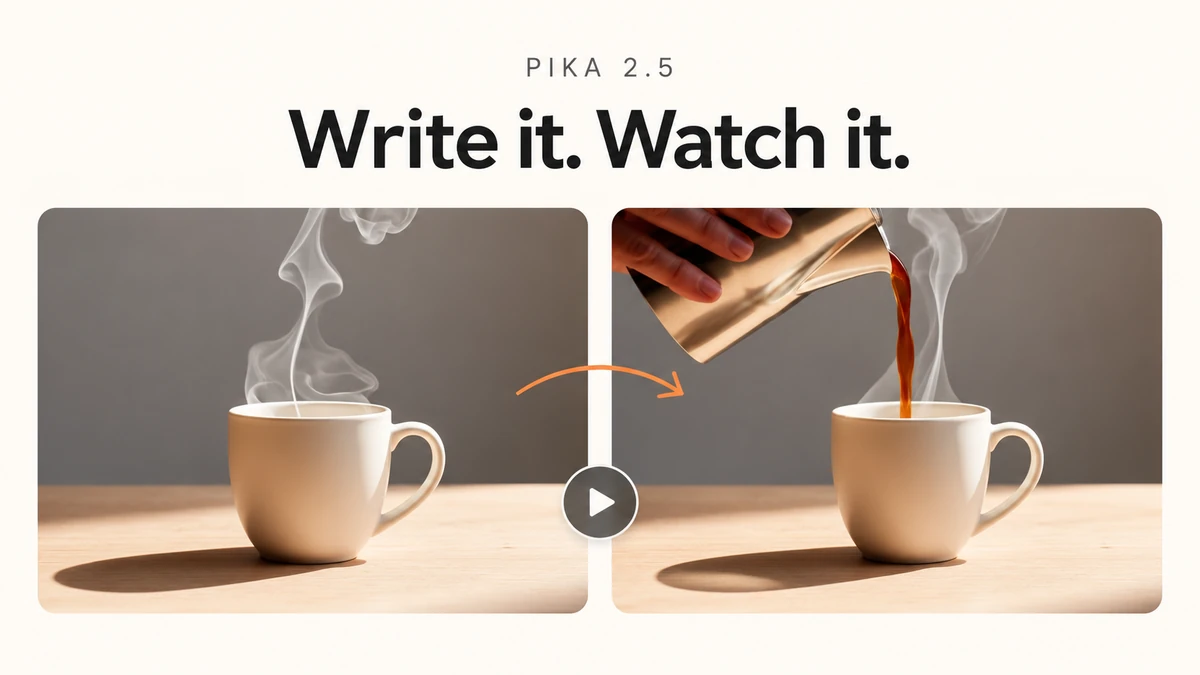
First and later mug video frames with the hook Write it. Watch it.
Frames from our Pika 2.5 coffee clip.

Make a moving scene

Animate a photo, write a scene or guide the movement with frames and a reference clip.

Explore 4 features
  • Pika 2.5 / Video Studio

    Create a clip from words or a photo. Video Studio also lets you choose other video models.

  • Pikaframes

    Use a sequence of images to guide changes between frames.

  • Motion Transfer

    Pair a character image with a motion clip to direct its movement.

  • Pikaffects

    Apply an effect to turn a subject into a playful transformation.
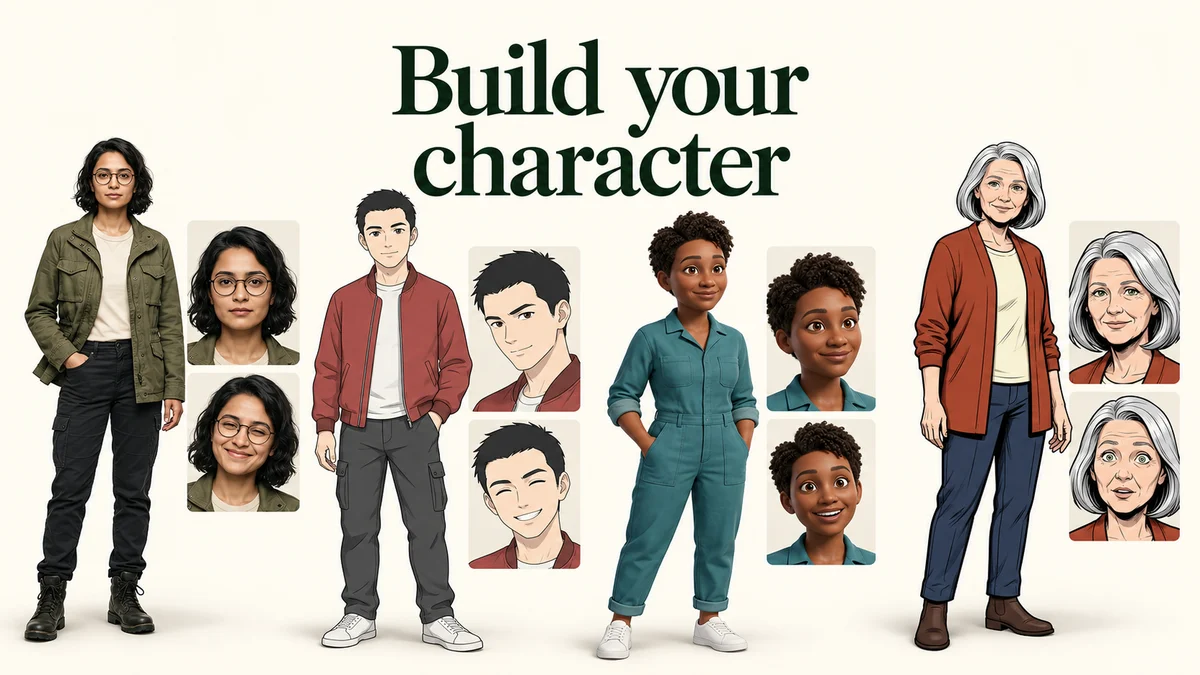
Four tested fictional characters in realistic, anime, 3D and comic styles with the words Build your character
Four character styles from our Character Studio guide.

Build a character or product scene

Prepare a person, character or product image before planning its animation.

Explore 4 features
  • Image Studio

    Create an image from a prompt; use Edit Image for changes to an existing picture.

  • Character Studio

    Start from an image, describe a character or build one from traits.

  • Headshots

    Choose portrait settings for a new headshot from your photo.

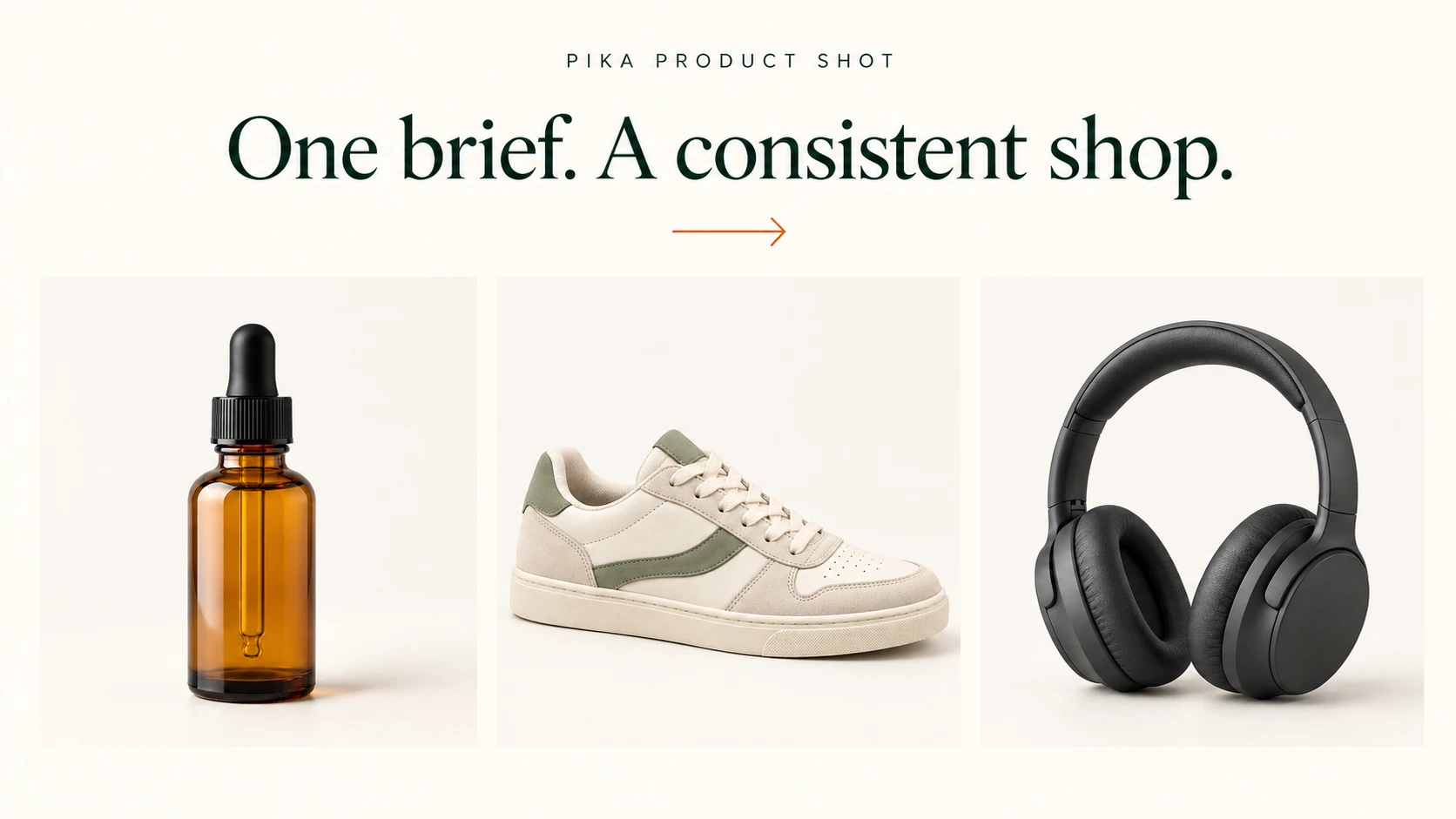
  • Product Shot

    Place a product in a styled scene, then plan a separate video step.

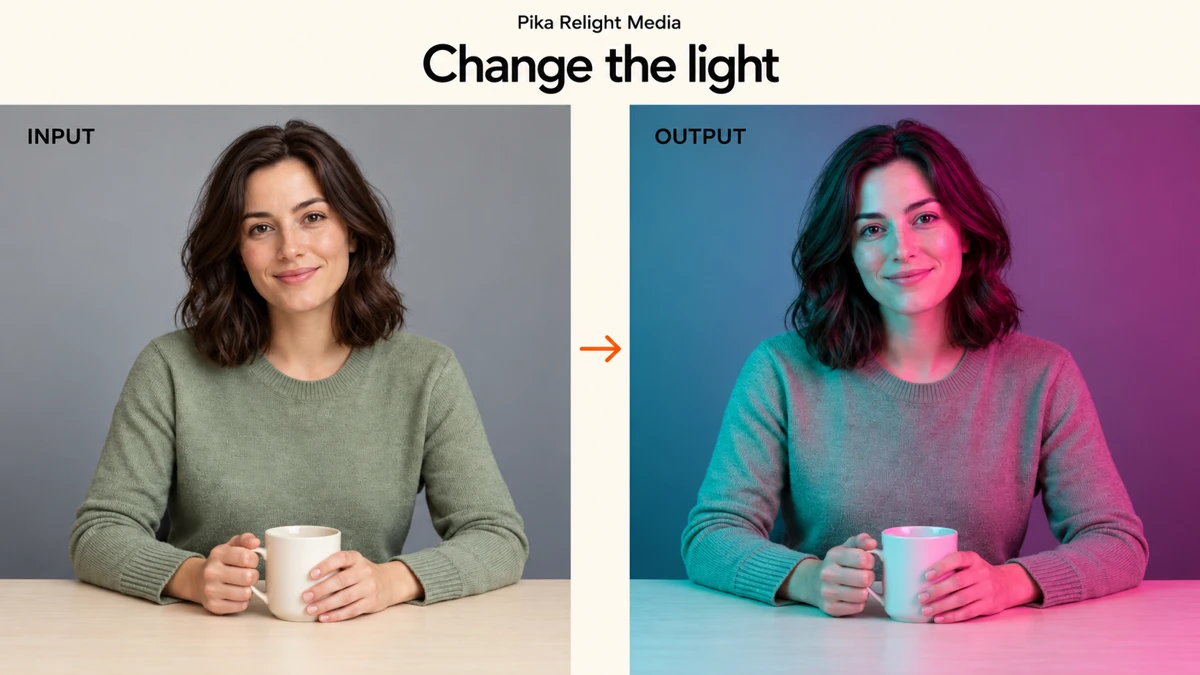
Original neutral portrait becomes a cyan and magenta Relight Media result
The same portrait before and after a lighting change.

Change the light and finish

Adjust an existing image or clip so it fits the mood and size you need.

Explore 4 features
  • Edit Image

    Edit part of an image, expand the canvas or upscale it.

  • Relight Media

    Change lighting with its available options and position the light using the drag point.

  • Color Grade

    Set a colour direction for a photo or video, including a reference image.

  • Upscale

    Choose the available enlargement settings for an image or video.

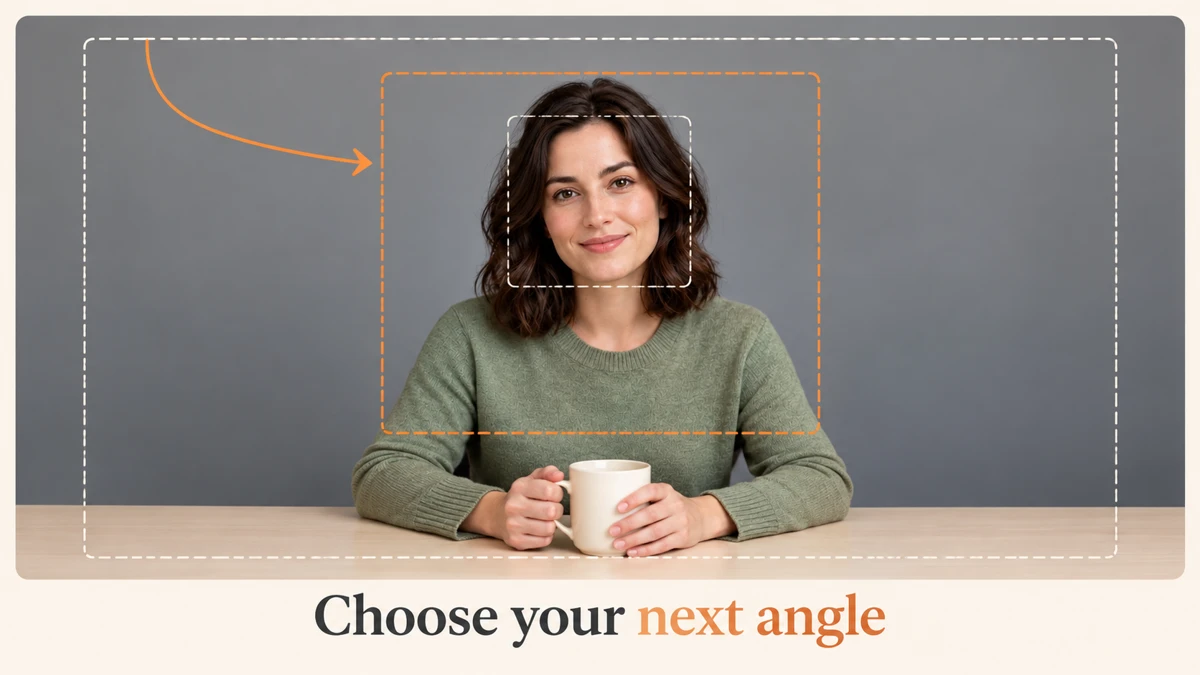
Camera crop guides around our portrait clip with the hook Choose your next angle
Camera framing from our Camera Director guide.

Rework an existing clip

Start with footage and choose the part of the shot you want to change.

Explore 5 features
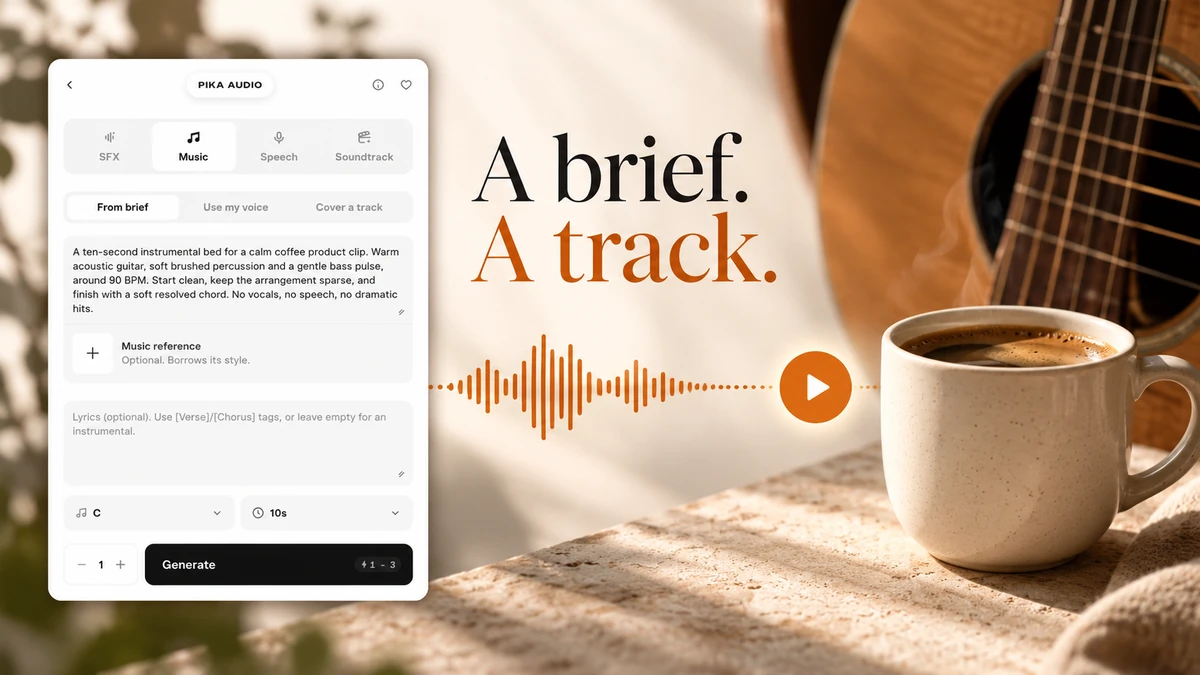
A real music brief connected to a coffee cup and guitar with the hook A brief. A track.
A music brief from our Pika Music guide.

Give the scene its sound

Choose speech, a song, a sound effect or a soundtrack for your scene.

Explore 7 features
  • Music Studio

    Choose music, speech, SFX or a soundtrack from one studio.

  • Pika Music

    Explore track creation, voice samples and covers.

  • Speech Studio

    Choose a voice and speech settings for your text.

  • Pika Speech

    Create spoken audio from a script and selected voice.

  • SFX Studio

    Describe the sound effect your scene needs.

  • Pika SFX

    Choose a category and sound characteristics.

  • Pika Soundtrack

    Set the sound direction for an uploaded video.

Bottle, sneaker and headphones arranged as a matching product photo set
Product scenes from our Product Shot guide.

Plan a complete format

Use a format-specific app when the brief needs more than a single shot.

Explore 4 features

Before generating, review the selected model, supported settings and credit estimate in Pika. Use our credit calculator to budget for another attempt.

PREPARE BEFORE YOU GENERATE

Five tools for a better first attempt.

All tools

The Prompt Checker sends text to Jev for analysis. Other tool entries and photo previews stay in your browser.

EXAMPLES, EXAMPLES & DECISIONS

Learn what to make—and how.

Browse all guides
PROMPT LIBRARY7 min read

Pika prompt examples by goal and camera motion

Choose a product, portrait or scene prompt, pair it with one camera move, and see what our Pika 2.5 tests actually made.

01
ONE BRIEF · FOUR TEST IMAGES17 min read

Create consistent product photos with Pika: an e-commerce workflow

Use our four-image Product Shot test, copyable catalogue brief and quality checklist to plan consistent e-commerce photos. Includes inputs, screenshots and costs.

02
PLAN THE ENDING6 min read

When to use Pikaframes instead of ordinary image-to-video

Choose one photo for a small movement or ordered keyframes for a planned ending. Follow our two-image Pika 2.5 test, with settings, costs and checks.

03
SPEND WITH A PLAN6 min read

Zero to Hero Guide for Low-budget AI video Using Pika AI

Compare Pika, Runway and Adobe Firefly access, choose a small test budget, and account for retries before subscribing.

04

WHAT YOU CAN CHECK HERE

The prompt. The settings.
The result.

Our practical guides show the inputs and settings we used, with screenshots and recorded results where available. Starter examples are labelled separately from tests.

I check the brief against the whole clip. A polished opening does not tell us if a face, product or camera move stays right through the ending.

About our guides

BEFORE YOU SPEND OR SWITCH

Choose the workflow
that fits your shot.

Start with a photo, words or ordered frames. Then compare control, retries and the cost of your next attempt.

Photo or text?