I start a voiceover with the sentence the viewer needs to hear. For a product clip, that might be a benefit, a handling instruction or one clear next step. Speech Studio lets us turn those words into a separate audio file and try another voice without rewriting the whole edit.
We generated five short recordings on 8 October 2026: three coffee-script comparisons, one product instruction and one Pika Speech version. The files run 5.53–7.53 seconds. Hear them first, then use the exact inputs and screenshots below to repeat the steps.
Hear the five real outputs
These are the actual downloaded outputs, served here as MP3 copies. No player starts automatically. We checked generation, downloads and file lengths; listen to judge delivery and pronunciation yourself. Five attempts do not establish a quality ranking between models.
What is Pika Speech Studio?
Pika Speech Studio is a text-to-speech workspace: enter a script, choose an available voice and generate an audio recording. You can download the result and place it under a video, tutorial or presentation.
The dedicated Speech Studio page opened with ElevenLabs Multilingual v2, Rachel and Stability 0.50 selected in our session. The model menu also offered Pika Audio — Speech. Those two options show different controls.
This workflow creates audio. We did not upload a face, create a talking character or test lip synchronisation here. If your goal is a spoken explanation over footage, this is the right kind of input to start with.
Who should use it, and when?
| Your goal | Script to write | First choice to try |
|---|---|---|
| Product reel | One benefit or a short introduction | Coffee script and a voice comparison |
| How-to clip | Actions in the order shown on screen | Sarah instruction example |
| Course or explainer | One short idea per passage | Default voice first; check difficult words |
| Story or animation narration | A brief scene description | A narrator preset on the Pika workflow |
| Presentation | A concise introduction or transition | A short script you can time to one slide |
Creators, educators, editors and small product teams can use it to test narration before finishing an edit. I would write and time a small section first. A full page of text makes mistakes harder to spot and increases the amount you may need to regenerate.
Use SFX Studio for action sounds, or Music Studio for music and soundtrack work. A voiceover should tell the viewer something useful; it does not need to describe every object already on screen.
Step 1: open Speech Studio and check the model
Open Speech Studio. From Create home, find Speech Studio in the apps area; use the app list or search if it is not shown in the first group.
Open Speech Model and keep ElevenLabs Multilingual v2 to follow our first four examples. After generation, its project heading changes to Eleven Multilingual v2. The fresh app form is the place where we changed models for the fifth example.
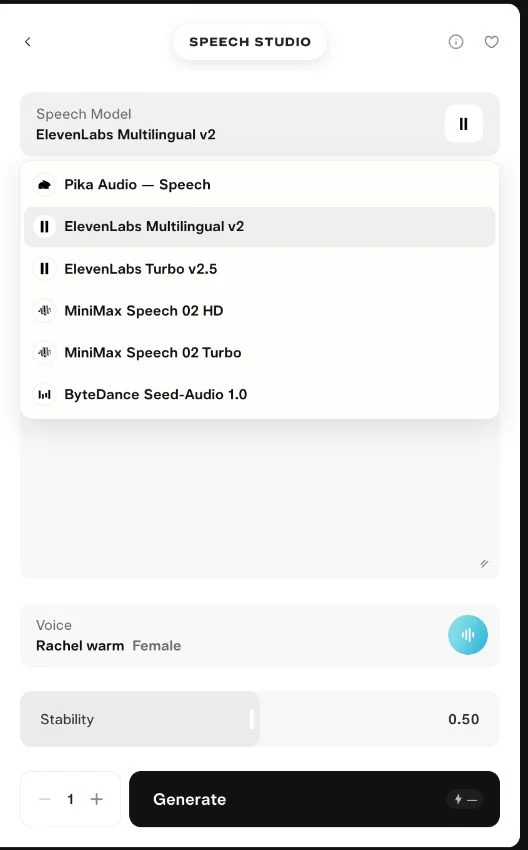
| Control we checked | Default ElevenLabs workflow | Pika Speech workflow |
|---|---|---|
| Script | Text to read | Text to read |
| Voice | Named voice presets | A separate preset list |
| Stability | Slider; default 0.50 | No slider in the checked form |
| Generations | Default 1 | No count control in the checked form |
| Duration | No setting | No setting |
| Speed or language selector | Not shown | Not shown |
There is no ten-second setting in either form we used. We kept the scripts short instead. Reading pace and pauses affect the final length, so check the downloaded file before planning a cut around it.
Step 2: enter the words you want spoken
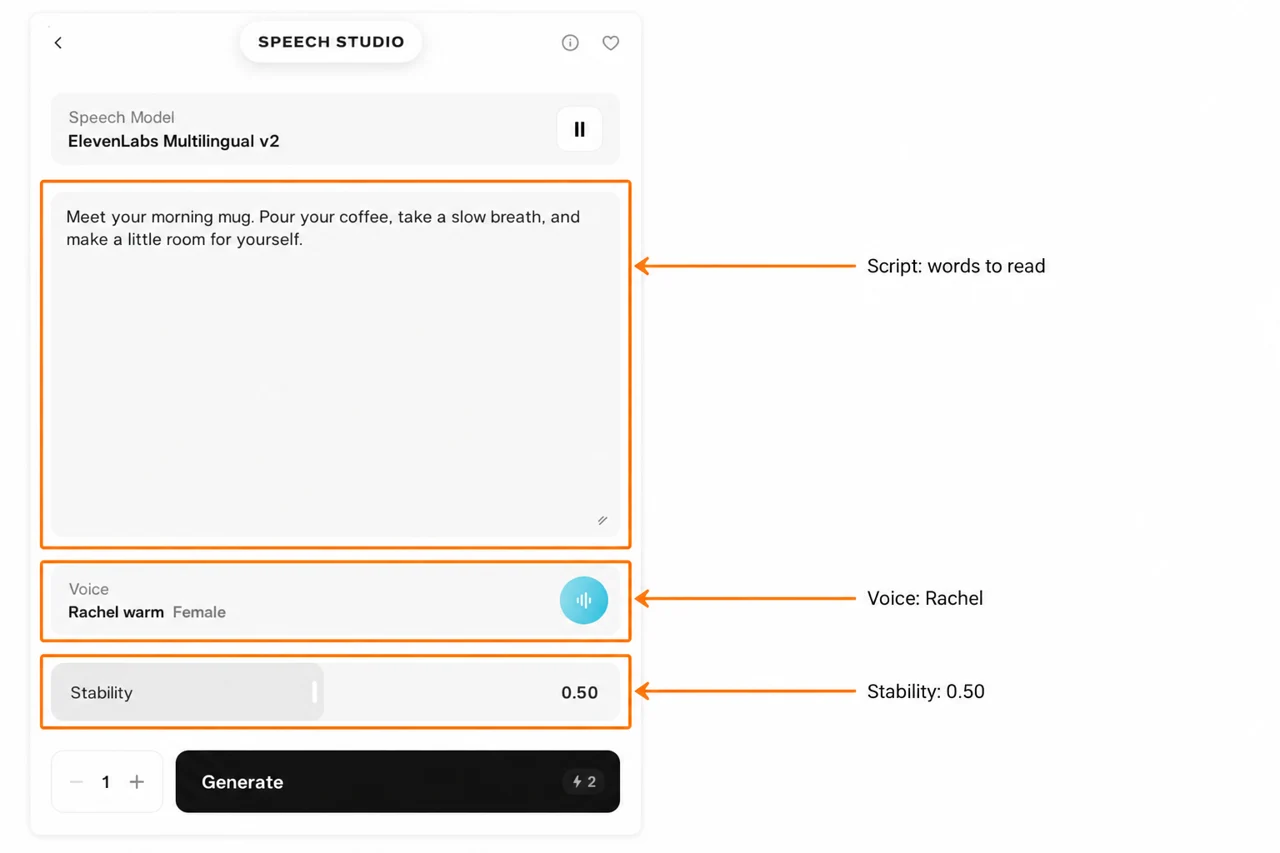
The Script box is the text the voice should read. I keep production notes outside it. If you write “say this warmly” inside the script, you risk getting those words spoken too.
Our coffee-product script
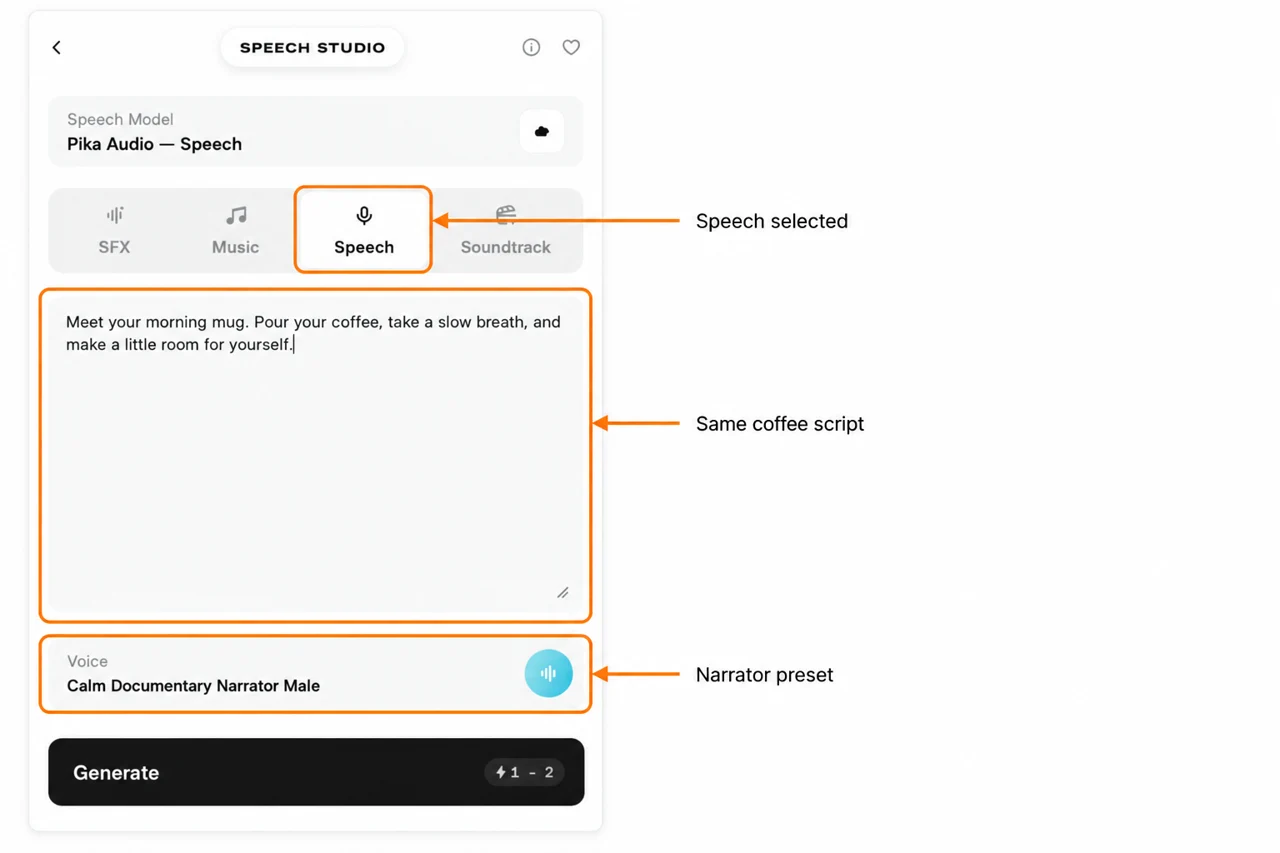
Meet your morning mug. Pour your coffee, take a slow breath, and make a little room for yourself.
We reused this exact text for Rachel, Adam, Adam at 0.80 and the Pika narrator. That makes the comparison more useful than changing both the voice and the message at once.
For your own clip, replace the product and message. Use short sentences and punctuation where you want a natural pause. Read the draft aloud before spending credits; remove anything you would not say to a customer.
I check names, numbers and abbreviations before generating. If pronunciation matters, start with a short test containing that word. A successful ordinary sentence does not prove the model will handle a brand name correctly.
Step 3: choose a voice, then generate once
Open Voice. Our default menu included Rachel, Adam, Sarah, Antoni, Domi, Charlie and George, with further voices available by scrolling. The short descriptions beside names are menu labels, not our listening scores.
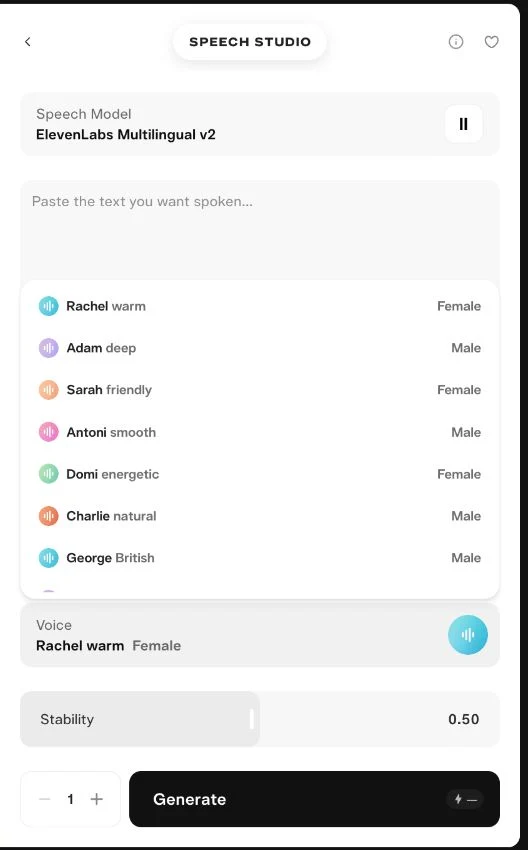
Keep Stability 0.50 and Generations 1 for the first attempt. Wait for the credit estimate to settle, then press Generate. The first four short scripts quoted and charged 2 credits each in our account.
After submission, Pika opens a project with the completed recording. Wait for that result before pressing Generate again. Another click is another attempt, not a way to open the file faster.
Variation A: change Rachel to Adam
Keep the coffee script and Stability 0.50. Change only the voice to Adam. Our Rachel and Adam downloads both measured 5.53 seconds; equal length does not mean equal delivery.
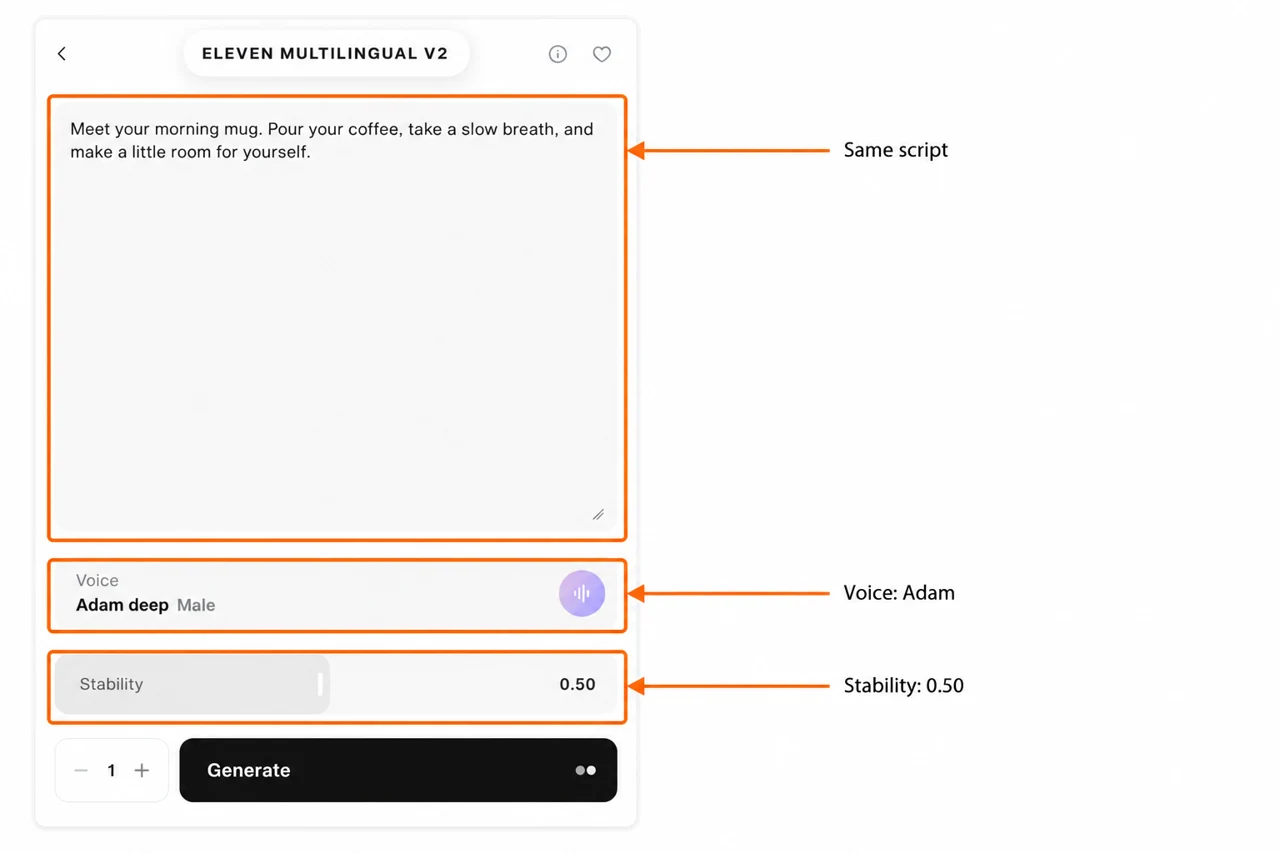
Play the first two files above. Listen for clear words, useful pauses and a delivery that fits your footage. I would choose the voice that serves the message, rather than treating a deeper or warmer menu label as a quality score.
Variation B: keep Adam and change Stability to 0.80
We kept the same coffee script and Adam voice, then moved Stability from 0.50 to 0.80. This file measured 6.41 seconds and cost 2 credits.
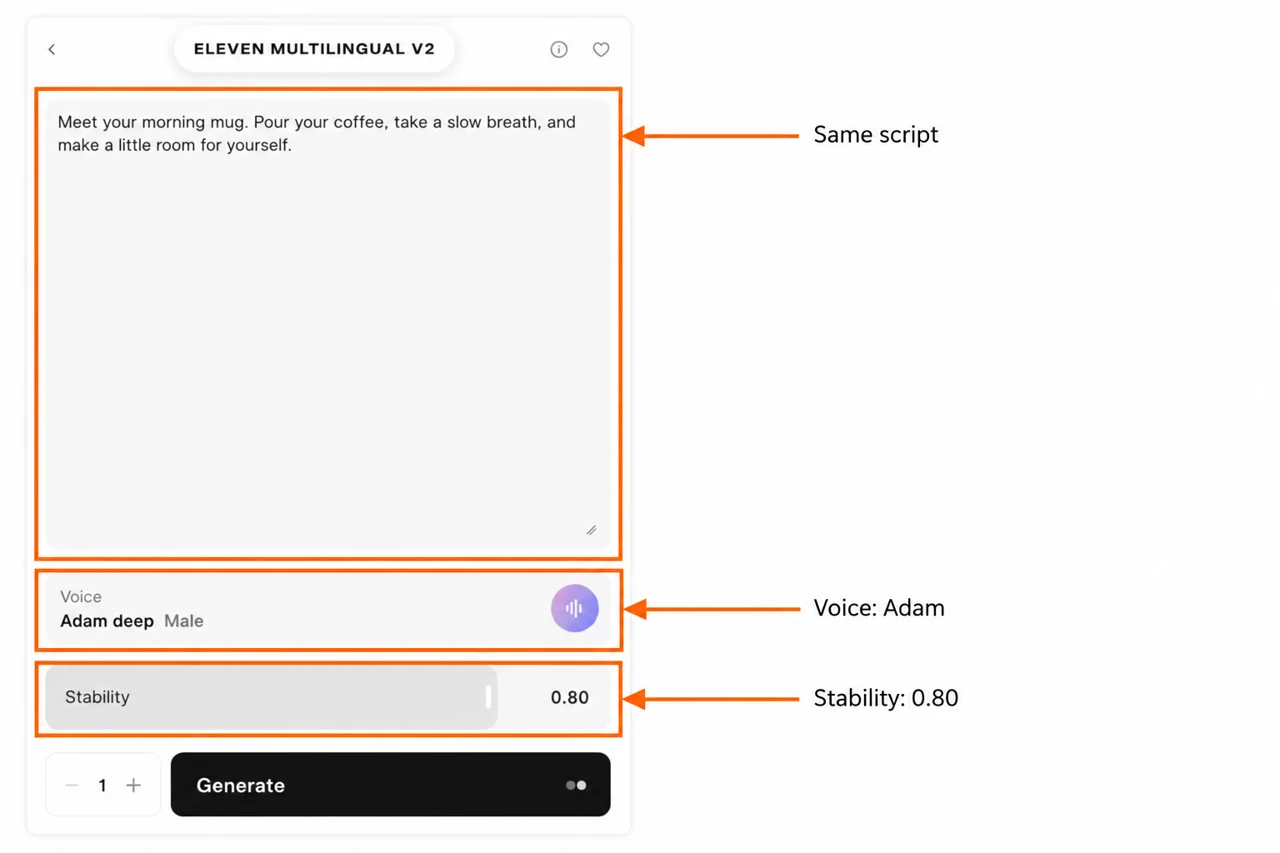
ElevenLabs describes lower stability as allowing a wider emotional range; higher values can produce a more restrained delivery. It is a delivery control, not a quality percentage. See the official voice settings reference.
Listen to both Adam files before deciding. We ran each once, so the result also includes normal variation between generations. This is not a repeated controlled study that proves the slider caused every difference.
Variation C: narrate product instructions with Sarah
For a how-to clip, I make the script follow the actions. Our second use case uses Sarah, Stability 0.50 and one generation.
Open the box. Lift out the bottle, then place it on the table. Keep the label facing the camera.
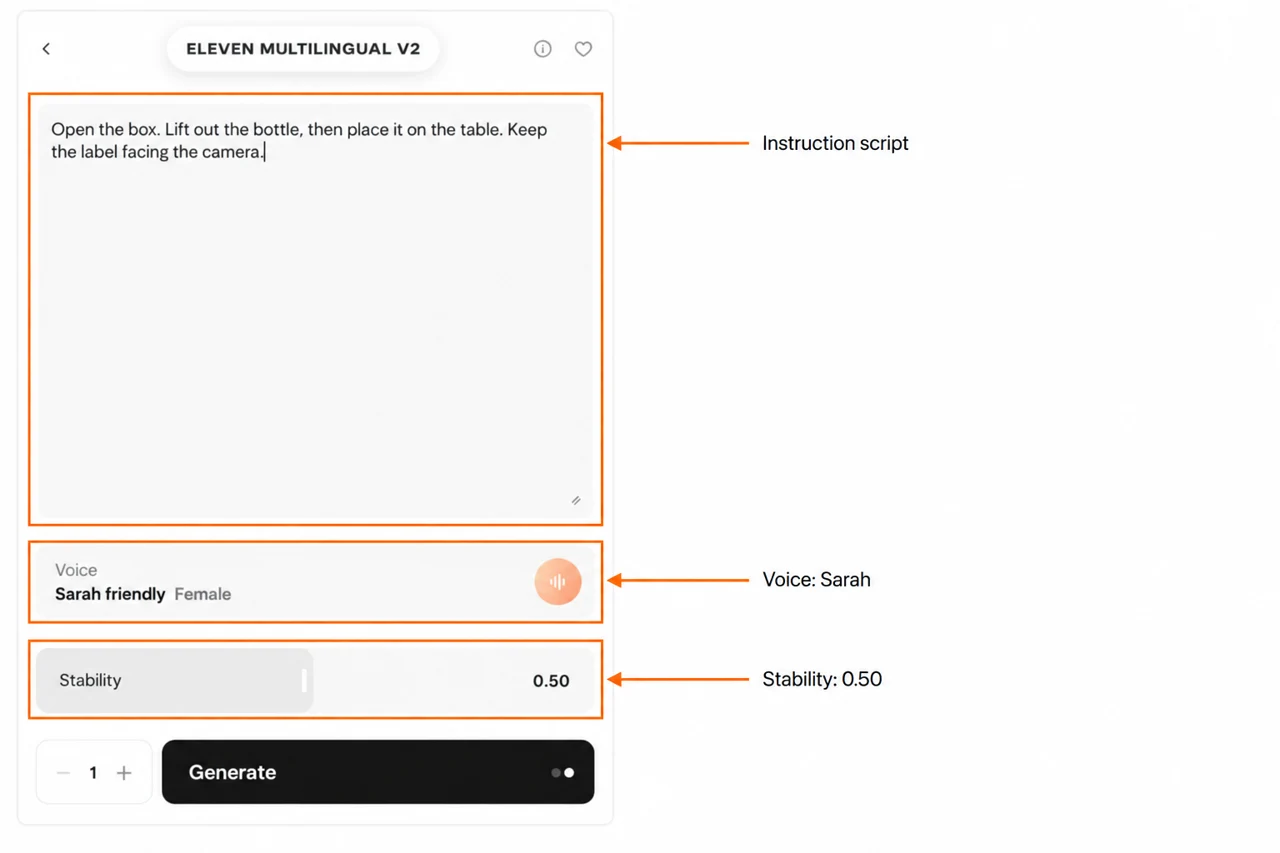
The fourth player contains the result. It is a separate example, not a fair same-script comparison with Rachel. To compare Sarah directly, reuse the coffee text and keep the other settings fixed.
Before putting this recording into an edit, check that the footage actually follows those instructions. If the box opens after the narrator says “lift out the bottle,” move the cuts or change the script. Clear sequencing matters more than adding extra words.
Step 4: try Pika Audio — Speech
Return to the fresh Speech Studio form and select Pika Audio — Speech under Speech Model. Keep Speech selected in the mode row.
The default voice was Calm Documentary Narrator · Male. We pasted the same coffee script and kept that preset. This form did not show a Stability slider or duration setting.
Choose a Pika preset for your purpose
Open Voice to see the separate preset list. It includes many choices; the following are a few labels we saw, paired with starting ideas.
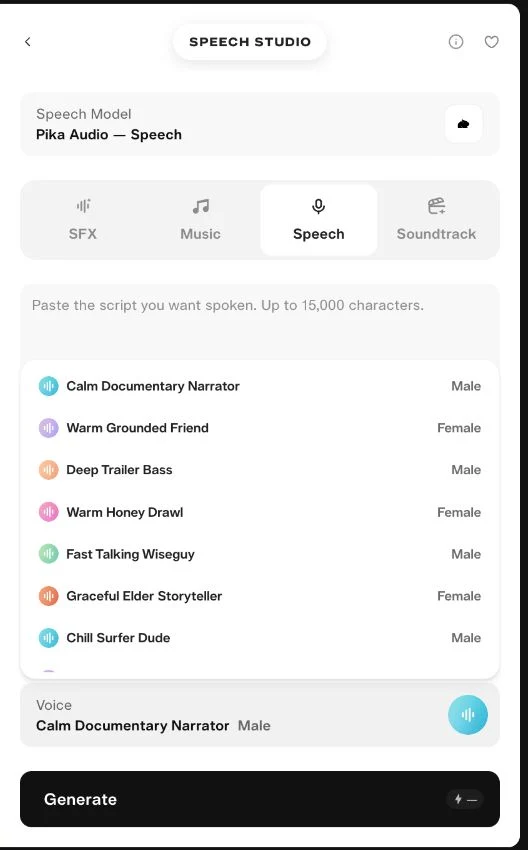
| Preset label shown | A script you could test |
|---|---|
| Calm Documentary Narrator | A short factual explanation |
| Warm Grounded Friend | A personal introduction |
| Crisp Founder Pitch | A concise product benefit |
| Polished News Anchor | A brief update |
| Fast Nerdy Reviewer | A short feature explanation |
| Gentle Hushed Librarian | A quiet reading passage |
The labels suggest a starting point. Hear the finished file before assuming it fits your audience. We did not test every preset or the other speech providers listed in Speech Model.
Our Pika narrator file measured 7.53 seconds. It is the fifth player above. Its asset details listed Cost 1 tokens, while the account balance fell by 2 credits after this attempt. Keep that discrepancy in mind when budgeting.
Step 5: play, download and place the speech
Open the completed recording’s details. Use the audio player to preview it, then the download arrow in the upper toolbar to save the file. The details panel records the voice and rounded duration.
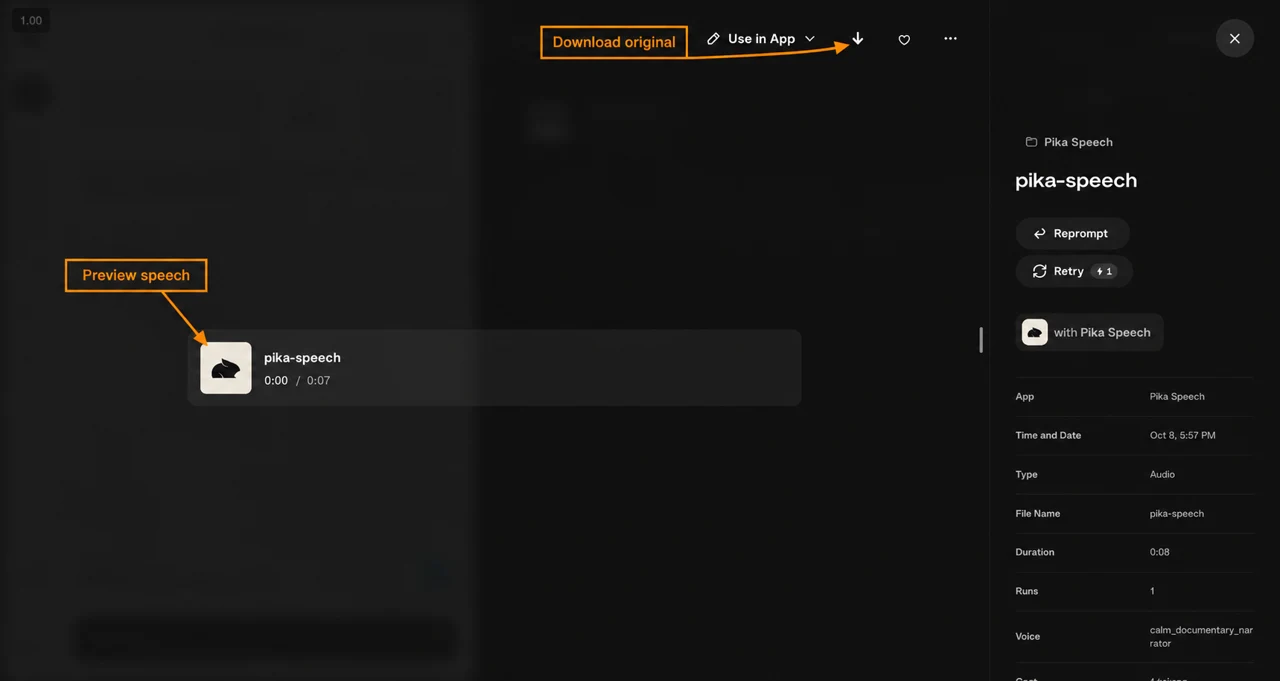
Our ElevenLabs downloads were MP3; the Pika download was WAV. The page players use MP3 copies for a smaller transfer. Keep the original download for editing.
Reprompt lets you revise the input for another attempt. Retry creates another paid output; check its estimate before clicking. Neither is needed to download the existing recording.
- Import your footage and downloaded speech as separate tracks.
- Position the first spoken phrase beside the relevant opening shot.
- Match the instruction or benefit to the action it describes.
- Leave enough room for pauses; adjust cuts before forcing a rushed voiceover.
- Lower music and effects beneath the words, then export a short preview.
- Check the exported preview on a phone speaker as well as headphones.
For a ten-second slot, a six-second voiceover can leave room for the product and closing title. If the speech exceeds the slot, shorten the script first. We did not pad these recordings to ten seconds or test a speed control in Pika.
What did the five attempts cost?
| Attempt | Length of downloaded source | Asset charge | Balance change |
|---|---|---|---|
| Rachel · 0.50 | 5.53s | 2 credits | 2 credits |
| Adam · 0.50 | 5.53s | 2 credits | 2 credits |
| Adam · 0.80 | 6.41s | 2 credits | 2 credits |
| Sarah · instructions · 0.50 | 5.76s | 2 credits | 2 credits |
| Pika narrator | 7.53s | 1 listed token | 2 credits |
| Total | Five short files | 9 listed | 10 credits deducted |
The account moved from 618 to 608 credits across these five jobs. We could not reconcile the final Pika asset’s listed cost with its balance change. Its initial quote was 1–2 credits; budget from the displayed estimate and check the account after completion.
These are Pika workspace charges from our session, not direct provider subscription prices. Longer scripts, another model or multiple generations can change the estimate. I would start with one short attempt and buy another attempt only to address a specific issue.
Make the next attempt more useful
| Problem you hear | First change to try |
|---|---|
| Brand name sounds wrong | Test that word in a short sentence; revise its spelling if needed |
| A sentence feels rushed | Split it into two shorter sentences |
| Too much text for the clip | Remove a secondary claim or instruction |
| Production notes are spoken | Keep notes outside Script; paste only the spoken words |
| Voice does not suit the message | Change the voice while keeping the script fixed |
| Delivery varies more than you want | Try a higher Stability on the default workflow, then listen again |
| Speech competes with music | Adjust track levels in your editor before regenerating |
Each new generation is a test, not a guaranteed fix. Save the script, selected model, voice and settings alongside the file so you can repeat a useful starting point.
Questions before your first voiceover
Do I need an image or video input?
No image or video was required in the two speech forms we used. We entered a script. Add the downloaded audio to footage in your editor afterward.
Can I use my own voice?
We used preset voices. We did not find or test a voice-cloning upload control in these Speech Studio forms. The music app’s voice-reference workflow is a different workflow; it does not establish a Speech Studio cloning feature.
Can I select another language or model?
The Speech Model menu offered other providers, but we generated English scripts with the default and Pika options only. We did not verify other languages here. Test a short passage in your target language before preparing a full recording.
Which voice should I choose first?
Start with Rachel at the default 0.50 to follow our first example, or the default narrator if you select Pika Speech. Listen beside the intended footage. Change one thing if it does not fit.
Can I publish it in a client project?
Check the applicable plan and selected provider terms for your intended use. These tests demonstrate the workflow and account charges; they do not establish usage rights for every account or model.
My first attempt: one short message, one voice, one output. Hear it against the footage before expanding the script or spending credits on more variations.