
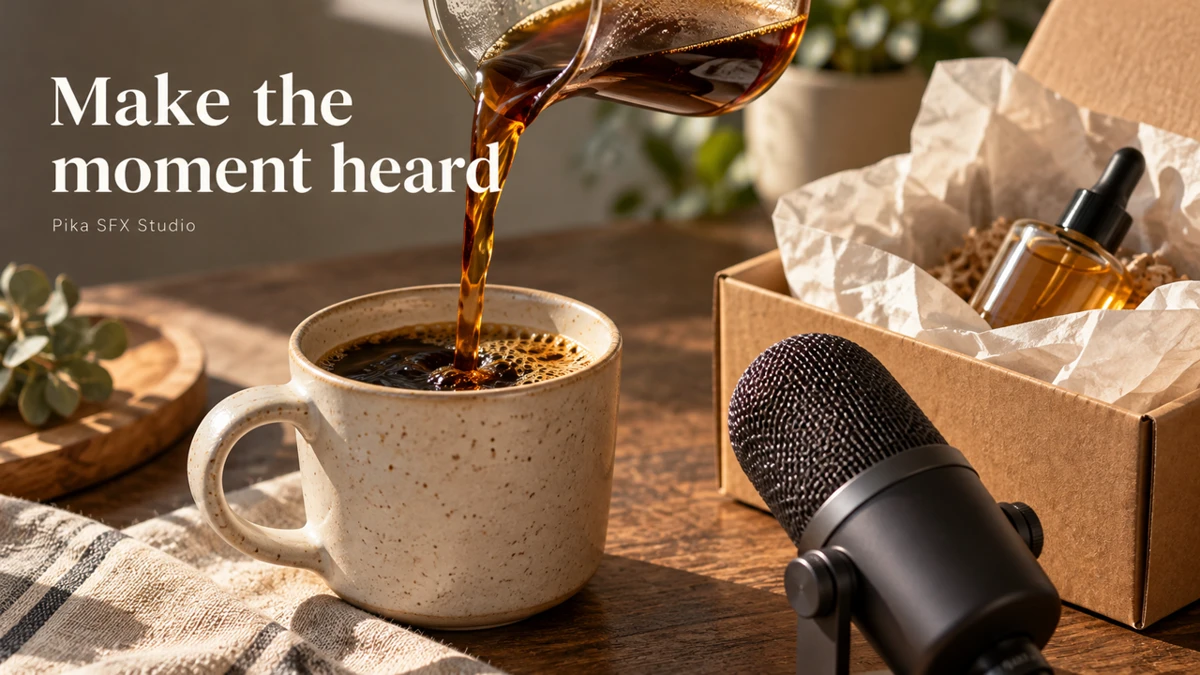
I use sound effects to make a small action easier to notice. A cup touching a counter, paper opening around a product or a short whoosh beside a title can give an edit a clearer rhythm. Start with the action on screen, then describe the sound it needs.
We tested five 10-second outputs on 8 October 2026, spending 13 Pika credits. Four use the default ElevenLabs Sound Effects model; one uses Pika Audio — SFX. Below are the actual downloaded results, followed by the inputs and steps to repeat the work.
Play the five real outputs
The labels describe our requested briefs. Play the files to judge the sounds yourself. We checked generation, downloads and duration; these five attempts are a practical walkthrough, not a listening score or a provider ranking. No player starts automatically.
What is Pika SFX Studio?
Pika SFX Studio is an audio workspace where you describe a sound effect and generate a separate audio file. You can make action sounds, transition cues or background textures, then place the result in your video editor.
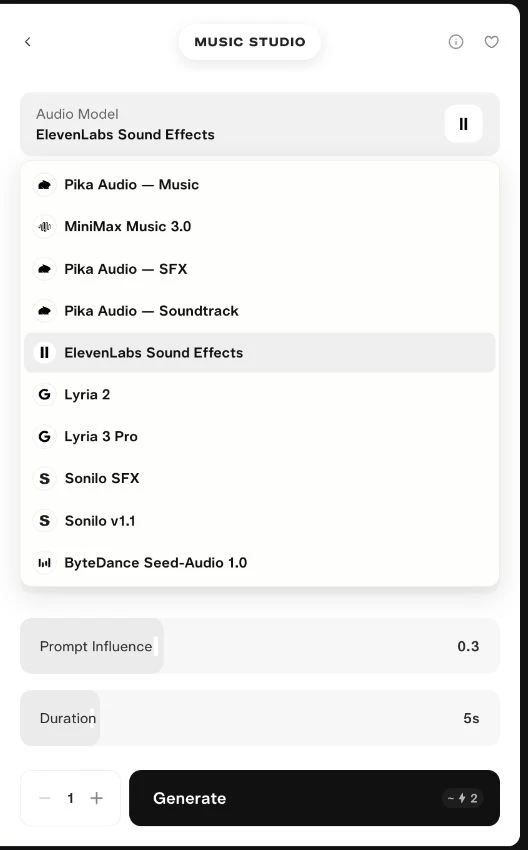
The SFX Studio link opened with ElevenLabs Sound Effects selected in our session. Its page heading said Music Studio. Check Audio Model rather than assuming the heading tells you which model is running.
Selecting Pika Audio — SFX changes the form to Pika’s category, characteristic, key and duration controls. After we submitted that workflow, its project showed Pika SFX. Pika 2.5 is a video model; these examples use audio models.
Who should use it, and for what?
| Your project | Sound to try | What it adds | Where to start |
|---|---|---|---|
| Coffee or cooking reel | Pouring, stirring, cup contact | Makes a close-up action audible | Coffee brief below |
| Product unboxing | Seal, cardboard and tissue sounds | Helps the viewer follow each handling step | Unboxing brief below |
| Title or product reveal | One short whoosh | Marks the change between shots | Transition brief below |
| App demonstration | A quiet click | Calls attention to a confirmed action | One click, then trim |
| Short film or animation | Footsteps, cloth or room tone | Adds sound for an action you could not record | One sound family per attempt |
Creators, editors, small product teams and animation makers can use this workflow. I would record the real object first when it is available and easy to capture. A generated effect is useful when you need a different texture, cannot record the scene or want a quick cue to test in an edit.
For narration, songs or a score made around an existing video, use the relevant workflow in our Music Studio guide. SFX produces an audio asset; it does not attach the sound to your video automatically.
Step 1: open the app and check the model
Open SFX Studio. You can also start at Create home, open the apps list and find SFX Studio.
Open Audio Model. Keep ElevenLabs Sound Effects to follow the first four examples. Choose Pika Audio — SFX for the fifth. Other audio providers appeared in the menu, but we did not generate with them for this guide.
| Control | ElevenLabs Sound Effects | Pika Audio — SFX |
|---|---|---|
| Sound description | Prompt | Prompt |
| Main direction | Prompt Influence | SFX Category and optional characteristics |
| Length | Duration slider | Duration menu |
| Pitch setting in checked form | No separate key field | Key menu; we kept Any key |
| Our 10-second charge | 3 credits per output | 1 credit per output |
These are the controls and charges we observed, not a promise about every model or future price. Switching providers can change the form.
Step 2: describe a sound you can judge
I write the brief in four parts: source → action → space → exclusions. “A mug” is an object. “Coffee pouring into a ceramic mug in a quiet kitchen, no music or voices” is a sound request.
For the coffee test, we deliberately requested a short sequence. That lets you check how well one generation handles several actions. If the sequence is hard to use, split it into pouring, spoon contact and cup set-down, then combine those files in an editor.
Copy our coffee input:
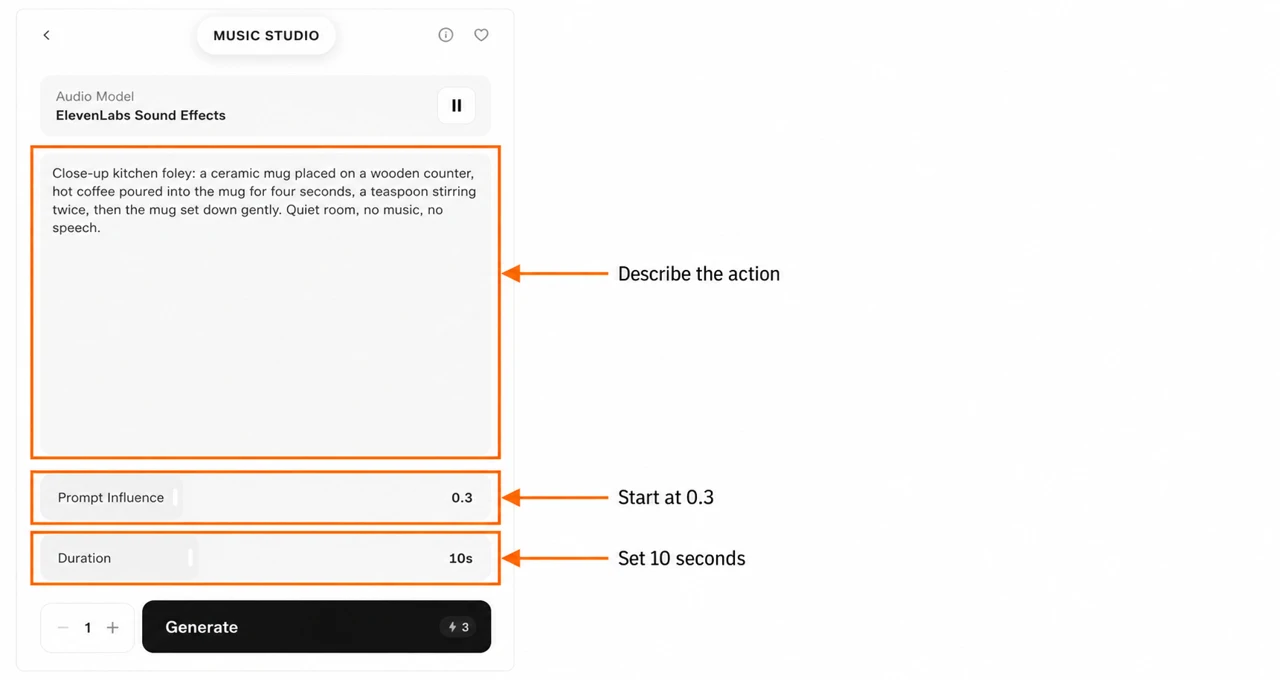
Close-up kitchen foley: a ceramic mug placed on a wooden counter, hot coffee poured into the mug for four seconds, a teaspoon stirring twice, then the mug set down gently. Quiet room, no music, no speech.
A time written in a prompt is a request, not a guaranteed cue point. “Four seconds” does not replace the Duration setting or a timing check in your editor.
Step 3: set influence, duration and one generation
On the default ElevenLabs form:
- Enter the prompt.
- Keep Prompt Influence = 0.3 for the first attempt.
- Set Duration = 10s. This form started at 5s in our session.
- Keep Generations = 1.
- Wait until the quote settles, then select Generate once.
Our settled button showed 3 credits. A temporary “about” estimate appeared while settings changed. Check the final quote before submitting.
What does Prompt Influence do? It controls how closely the model follows the written prompt, according to ElevenLabs’ sound effects documentation. A higher value asks for closer adherence. It is not a loudness control, and a larger number does not guarantee a better result.
Variation 1 and 2: compare the same coffee brief
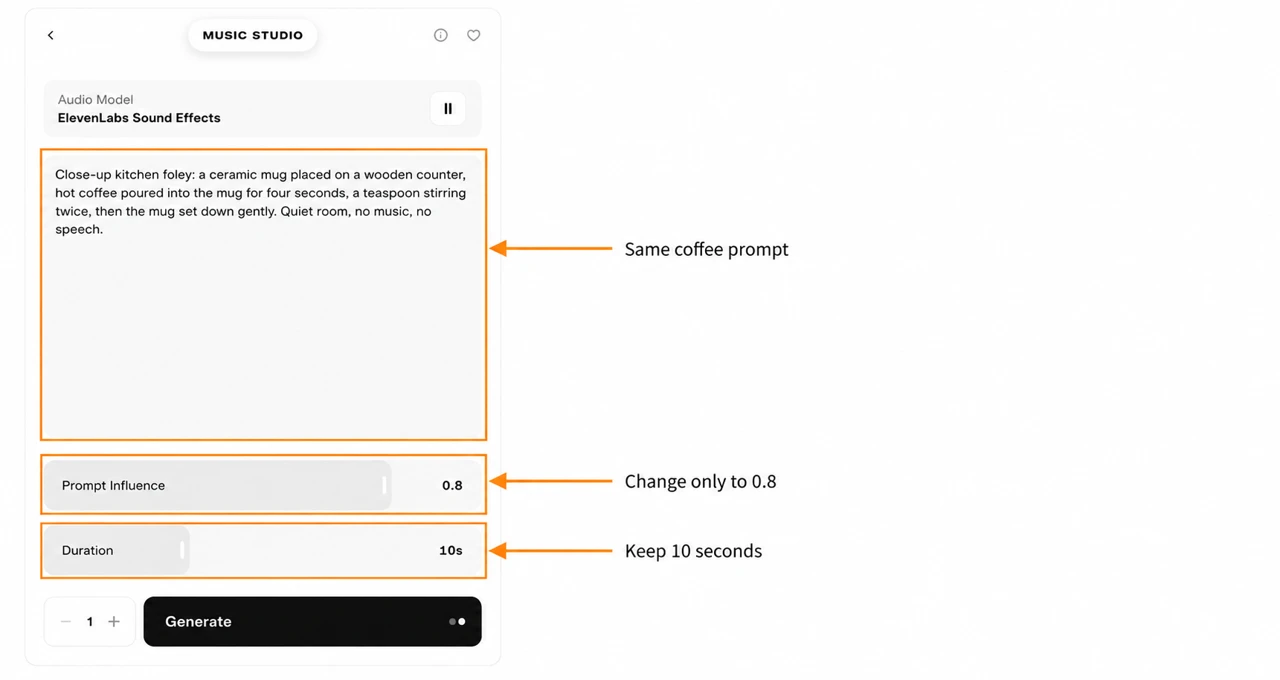
We generated the coffee prompt twice. The model, prompt, duration and number of generations stayed the same. Only Prompt Influence changed from 0.3 to 0.8. Each attempt cost 3 credits.
Use the two coffee players at the top of this page. Listen for the cup contact, pour and spoon sounds. Check if their order helps your edit, if the room stays quiet and if an unwanted sound appears.
One sample at each setting cannot establish which value always works better. I would keep the version that fits the actual shot. If neither fits, simplify the prompt before spending another 3 credits.
Variation 3: a soft title-transition cue
Use it for: a title sliding in, a product name appearing or a short cut between shots. We requested three spaced cues so an editor could choose and trim one.
Input: ElevenLabs Sound Effects · influence 0.3 · 10s · one generation.
Three separate soft airy whooshes for a product title transition, each with a quick swell and short clean tail, spaced apart across ten seconds. Dry studio sound, no music, no speech, no loud impact.
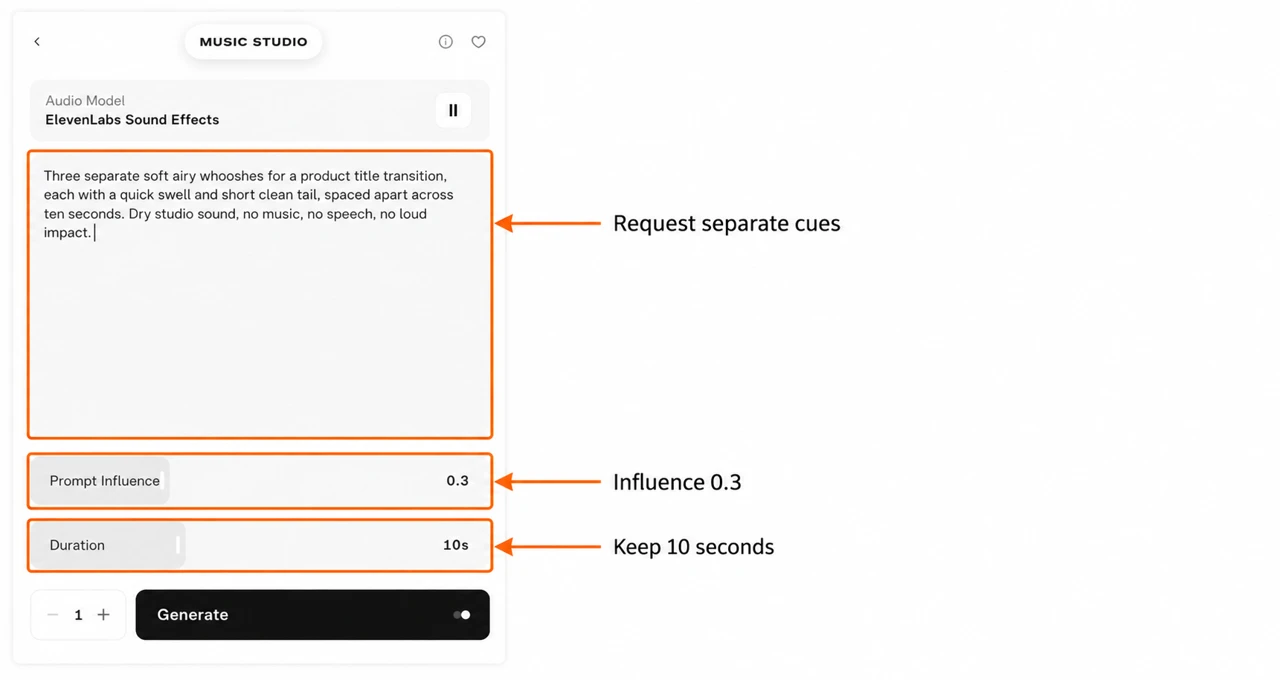
Check the output for: a cue you can cut out cleanly, a tail that finishes before the next line of speech and enough quiet space between events. Three cues were requested; count the events in the actual file rather than assuming the prompt was followed exactly.
Place the strongest part of one cue at the title’s arrival. Lower the level if it distracts from the message. Keep a short fade at the cut to avoid an abrupt edge.
Variation 4: product-unboxing foley
Use it for: a skincare parcel, a gift box or a small desk product being unpacked. Here we named each material rather than asking for a vague “premium unboxing sound.”
Input: ElevenLabs Sound Effects · influence 0.3 · 10s · one generation.
Close microphone product unboxing foley: hands peel a paper seal, open a small cardboard box, lift tissue paper, and place a glass skincare bottle on a wooden table. Gentle dry textures, quiet room, no music, no voices. Ten seconds.
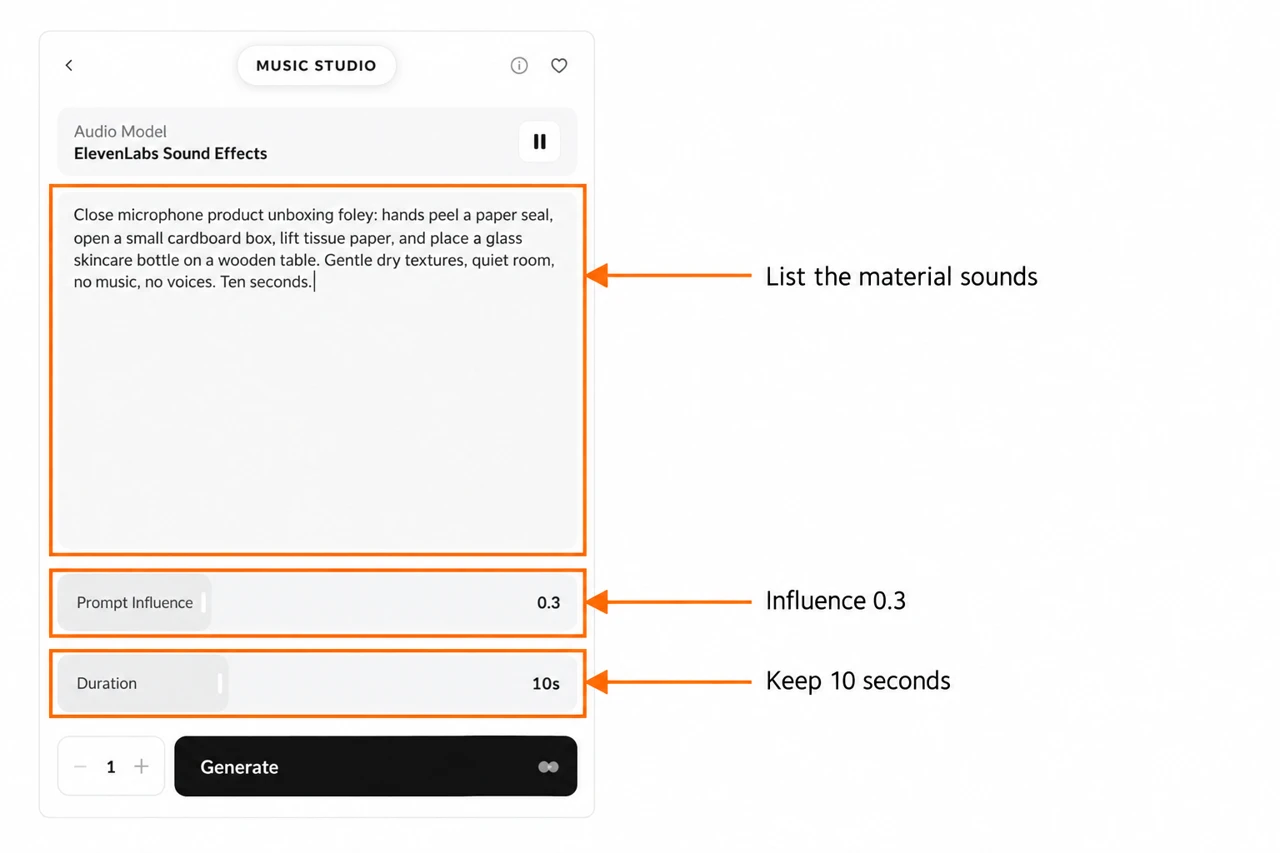
Check the output for: distinct paper or cardboard textures, an appropriate bottle contact and room sound that matches the shot. A generated glass contact may not suit a plastic bottle; change the material in the prompt when your product changes.
For a longer edit, I would generate each action separately. A single 10-second sequence is quicker to test, but separate files let you place the seal, paper and bottle sounds at their own cue points.
Variation 5: make the coffee brief with Pika SFX
This is a second workflow inside the audio workspace. We used the same coffee text so you can hear an example from Pika’s own SFX model. The model and its controls changed, so this is not a controlled influence comparison.
1. Select Pika Audio — SFX and a category
In Audio Model, choose Pika Audio — SFX. Keep SFX selected, then open SFX Category → Foley.
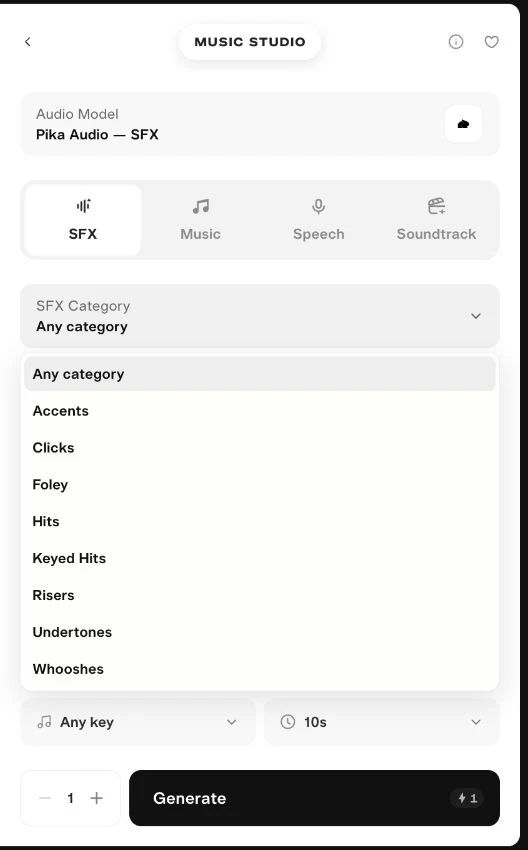
| Category shown in the menu | A practical starting idea |
|---|---|
| Foley | Pouring, footsteps, cloth or packaging |
| Clicks | Small interface or switch cues |
| Hits / Keyed Hits | Contact or a short emphasis cue |
| Risers | A sound building toward a reveal |
| Undertones | A low background texture |
| Whooshes | Movement or transition cues |
| Accents | A small sound to mark a moment |
| Any category | A brief you want to describe without picking a category |
These are starting ideas for choosing a category, not results we tested across the whole menu.
2. Add one characteristic
Select the + / Add characteristic control. We chose Subtle. The menu also included Airy, Bold, Bright, Crisp, Dark, Deep, Dramatic, Fast, Textural and other directions.
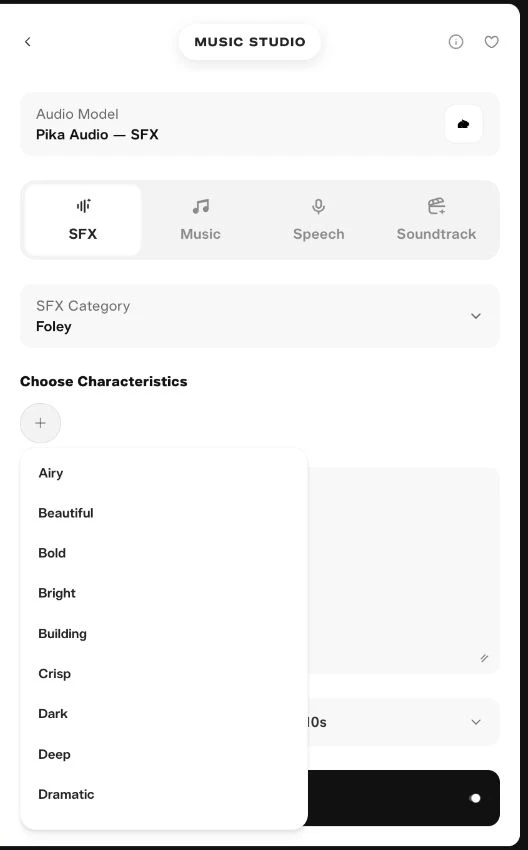
I start with one direction. Several competing tags make it harder to know what to change next. Remove a selected tag with its × if it no longer fits.
3. Submit the coffee prompt at 10 seconds
Paste the same coffee brief. Keep Key = Any key, Duration = 10s, and Generations = 1. Our button quoted 1 credit, and the completed result charged 1 credit.
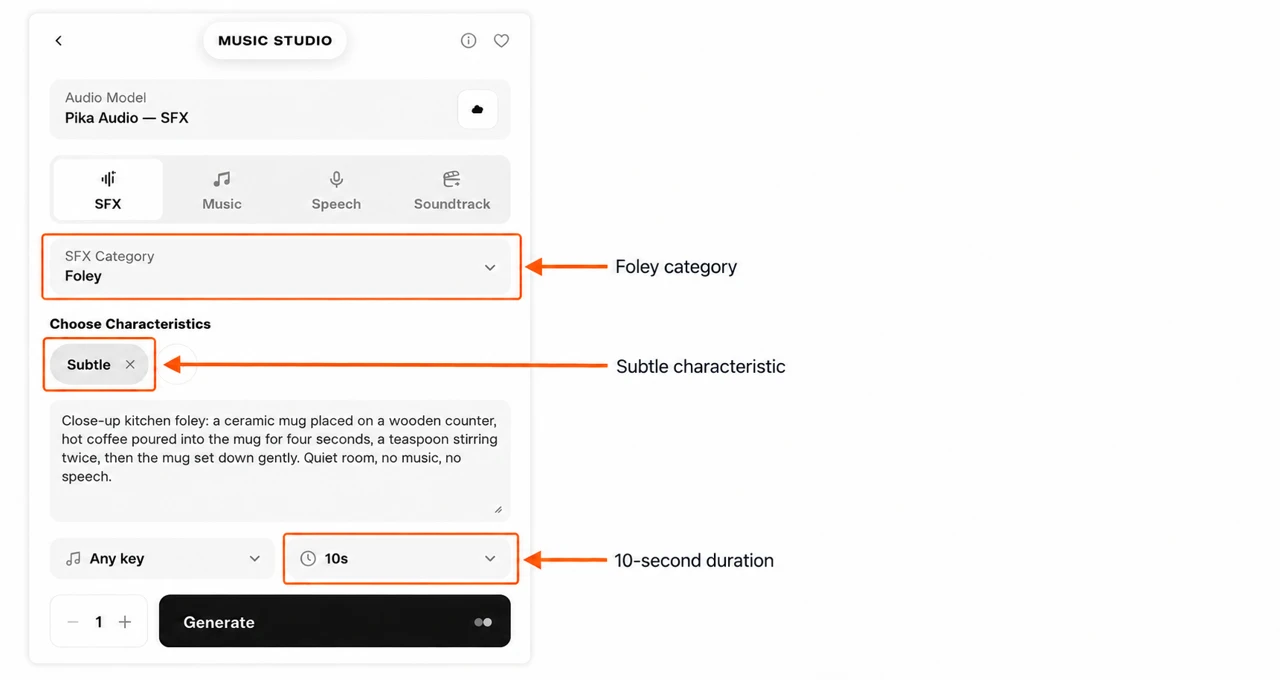
We left pitch unrestricted for this everyday sound. A keyed impact might need a different choice; we did not test that setting here.
Step 4: play, download and check the result
After submission, Pika opened a project with the generated audio. Open the result’s details, press the player to preview it and use the download arrow in the upper toolbar to save the file.
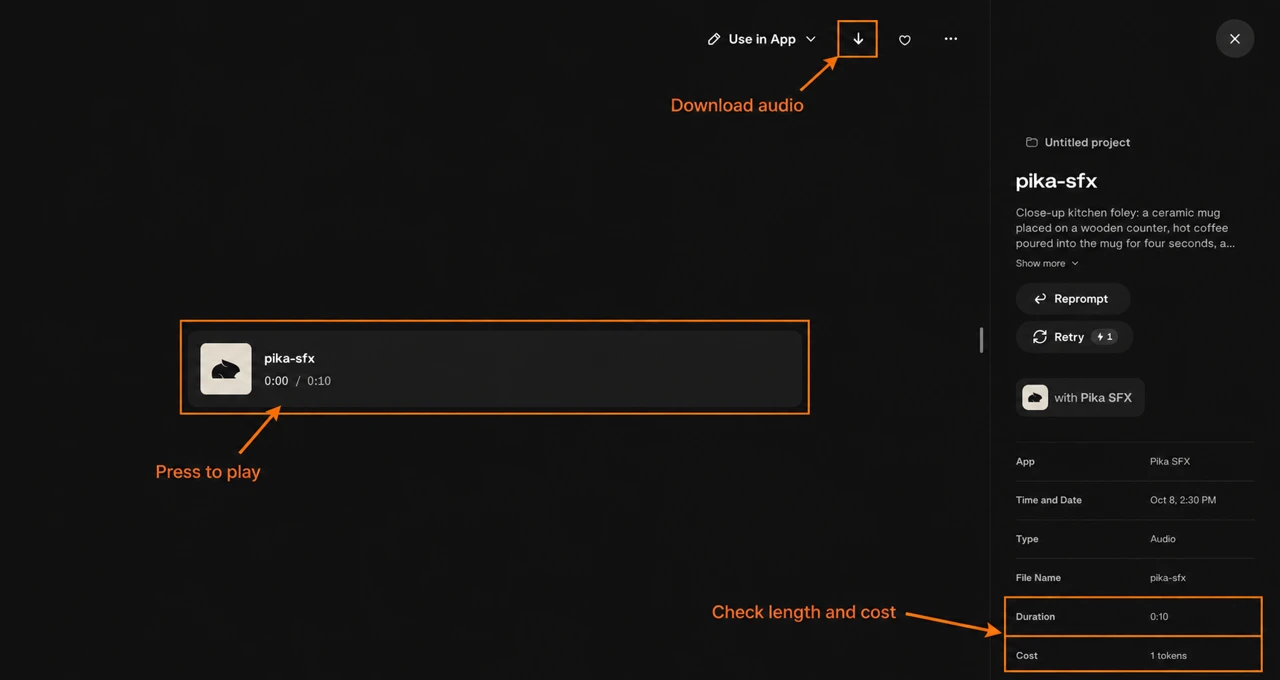
Use Reprompt to adjust the input for another attempt. Retry is another paid generation; it is not a download button. Check its displayed charge before clicking.
Our four ElevenLabs downloads were MP3 files; the Pika download was WAV. The players on this page serve MP3 copies for a smaller page transfer. Download formats can vary by workflow, so keep the file Pika gives you and check it before importing.
Step 5: fit the sound to your clip
- Import the video and audio into your editor as separate tracks.
- Find the action frame: cup contact, seal opening or title arrival.
- Move the matching audio cue to that point.
- Trim extra gaps and add short fades at cut edges.
- Play it with narration and music, then adjust the SFX level.
- Export a short preview and check it on the device your audience uses.
Judge timing before loudness. A quiet sound at the wrong moment can still distract. For a spoken product demo, I keep the voice easy to understand and lower effects beneath it.
A 10-second file does not need to occupy ten seconds of the final edit. You can use one clean cue from it. Repeating a background texture requires a loop check; we did not enable or test a loop control in these forms.
What did our tests cost?
| Attempt | Model and settings | Completed charge |
|---|---|---|
| Coffee A | ElevenLabs · 0.3 influence · 10s | 3 credits |
| Coffee B | ElevenLabs · 0.8 influence · 10s | 3 credits |
| Title transitions | ElevenLabs · 0.3 influence · 10s | 3 credits |
| Unboxing | ElevenLabs · 0.3 influence · 10s | 3 credits |
| Coffee with Foley + Subtle | Pika Audio — SFX · 10s | 1 credit |
| Total for five outputs | One generation per attempt | 13 credits |
The account balance fell by 13 credits across these jobs, and each completed asset showed its charge. These are Pika workspace charges from our test, not ElevenLabs subscription prices. Recheck the quote in your account because model, duration and number of generations can affect cost.
I would budget for one useful attempt first. Compare a second setting only when there is a specific problem to solve. A lower charge is useful, but the file still needs to fit the edit.
If the first output is hard to use
| Problem you hear | Change to try next |
|---|---|
| Too many sounds at once | Request one action instead of a sequence |
| Background music or voices | State “no music, no speech” and describe a quiet setting |
| Wrong object texture | Name ceramic, glass, cardboard, cloth or the actual material |
| Cue too long for a title | Ask for a short tail, then trim the result |
| Several requested actions are missing | Generate each action as a separate file |
| Sound does not match the shot | Describe distance and room, then align it in the editor |
Changing the prompt is another experiment, not a guaranteed fix. Keep the previous input beside the new one so you can identify what changed.
Questions before your first attempt
Do I need an image or video input?
Not for the two text-to-SFX forms we used. We entered a sound description. If you need audio made around an uploaded clip, read the Soundtrack section of our Music Studio guide.
Why does SFX Studio say Music Studio?
That was the heading at the supplied SFX Studio URL in our checked interface. The default model was ElevenLabs Sound Effects. Check the selected model and fields; the screenshots show that state rather than relabelling it.
Can I copy these prompts for a different product?
Yes. Replace the object, material and action with your own. Keep the space and exclusions appropriate to the clip. A glass bottle and a cardboard box need different sounds.
Is 0.8 always better than 0.3?
No. Prompt Influence controls adherence, not an overall quality score. Our two coffee attempts let you hear a setting change. Choose the file that serves the shot, then change one thing if another attempt is needed.
Can I publish the generated sound in a client project?
Check the applicable Pika plan and selected provider terms for your intended use. This guide records a generation workflow; it does not establish a licence for every model or account.
My first-attempt choice: pick one action, make one 10-second output, listen to it beside the shot and keep only what improves the edit. That is a more useful starting point than generating a folder of sounds before deciding what the video needs.