
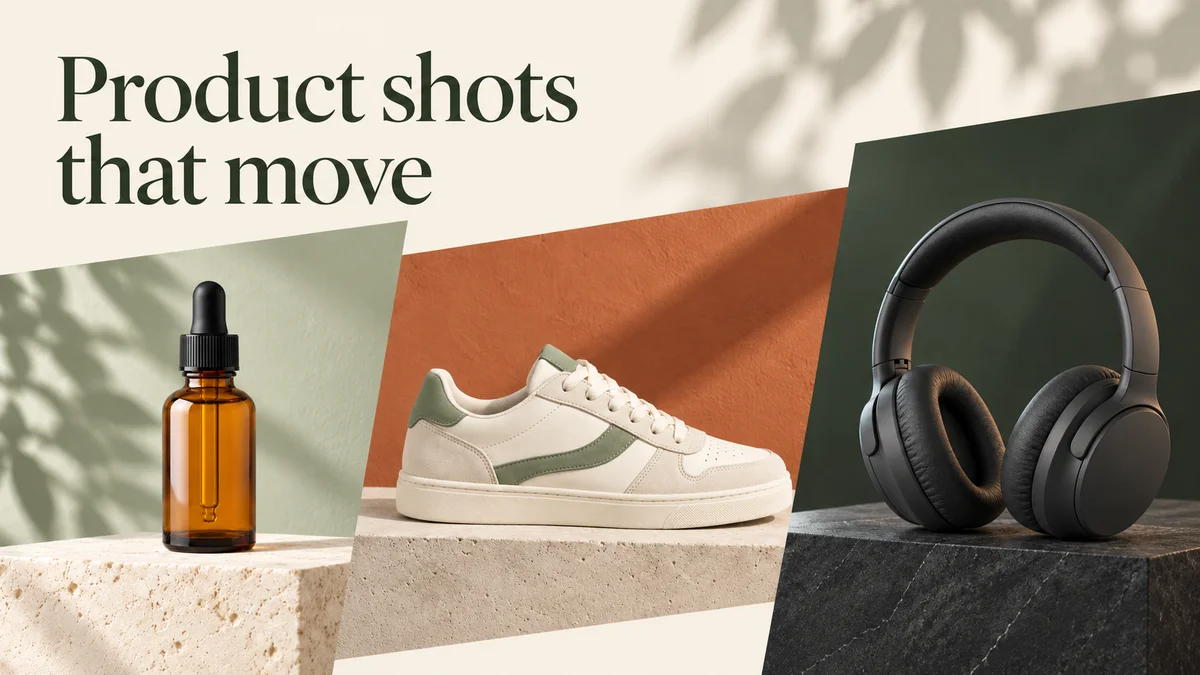
I start with the product photo, choose the setting, and judge the still before I pay for movement. Pika Product Shot creates styled images. We then used Animate → Pika 2.5 to make a separate video from each image. If you only need a campaign still, you can stop after the first step.
We tried three ideas: a skincare bottle on limestone, a sneaker against terracotta, and headphones in a dark studio. Below are the actual styled images and all three video attempts, including two that missed our movement brief. On 7 October 2026, each image reported 2 credits and each five-second, 720p video reported 20: 22 credits per idea, 66 total. Our starting products were AI-created, unbranded teaching samples; these costs cover the Pika steps, not a price for creating a source photo elsewhere.
See the three attempts first
1. Skincare bottle: calm setting, unwanted hand
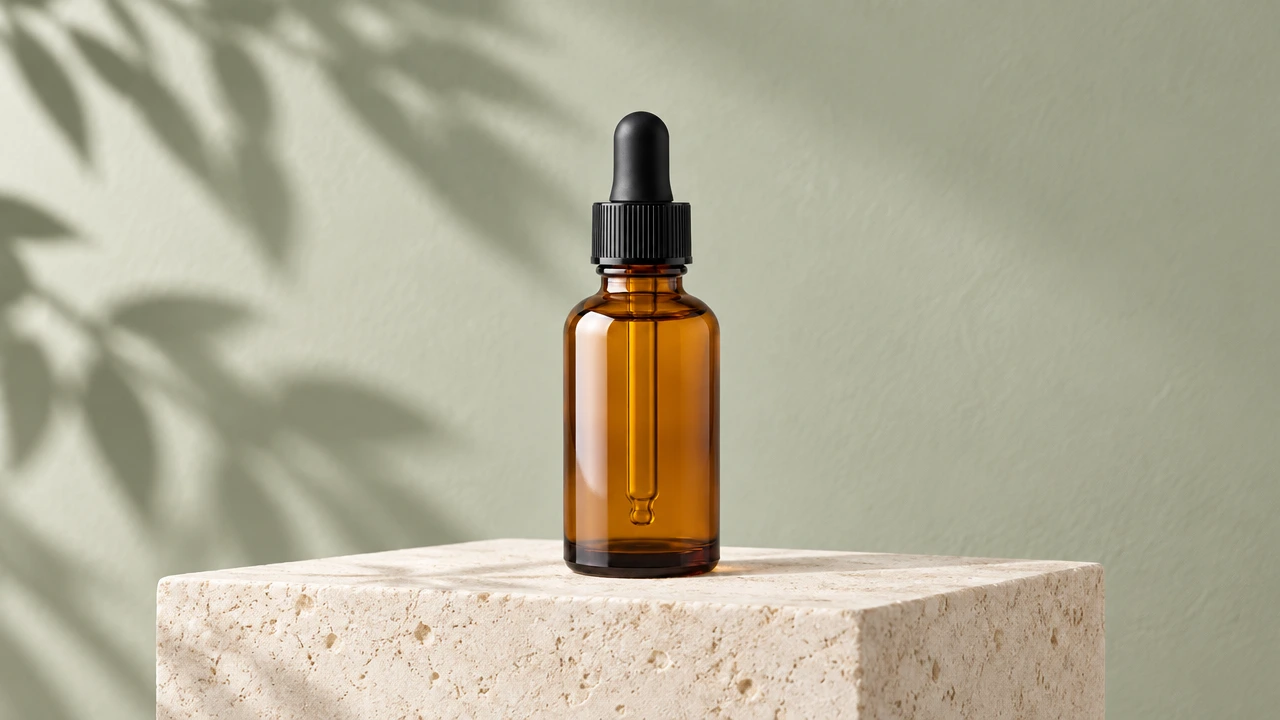
What I wanted: a slow push toward the bottle with a little movement in the leaf shadow. The cap was meant to stay closed, with no people or hands. What happened: the middle sample showed the bottle alone, but the ending added a hand reaching for the cap. I would keep the still as a concept and reject this video for the requested shot.
This setting gives a small bottle room to read clearly and a calm skincare mood. It is an idea for a campaign background, not evidence of a skincare benefit or better sales.
2. Sneaker: a restrained product reveal
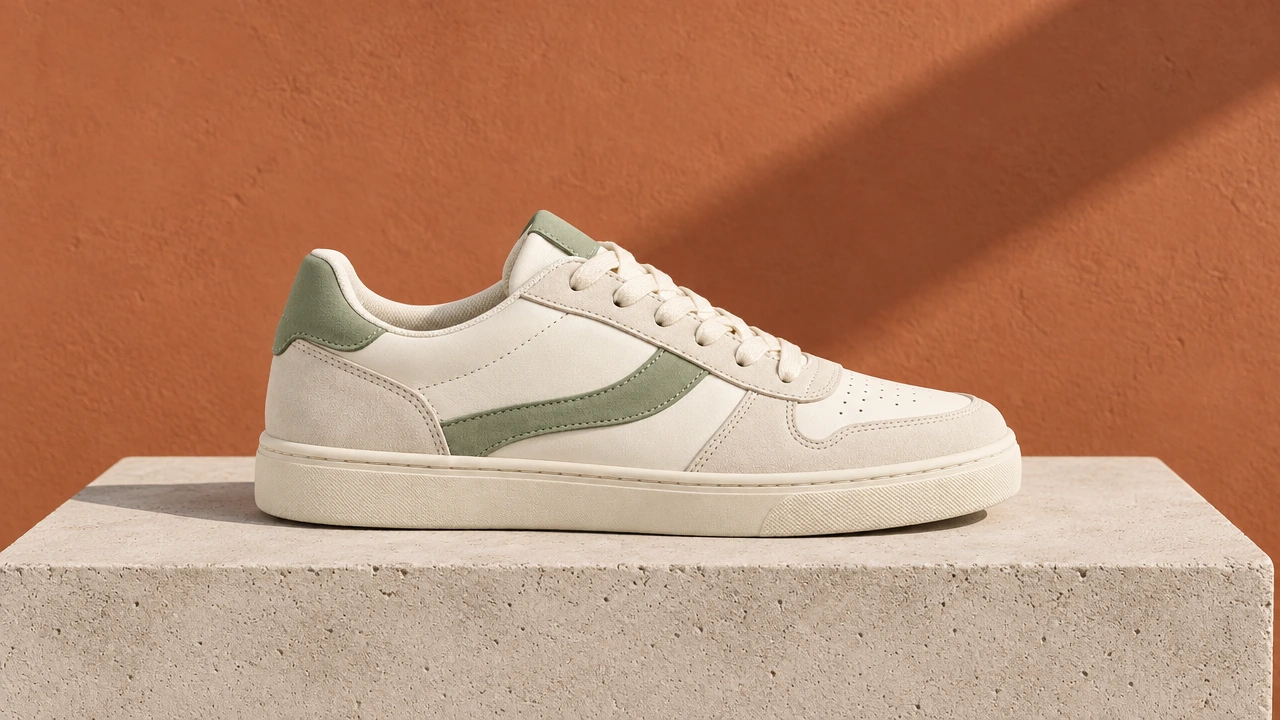
What I wanted: a small camera slide across the shoe while the shoe stayed on the block. What we saw: the sampled middle and ending kept the whole shoe visible, with no added second shoe or person. I would keep this attempt for a full review of the laces, stitching and sole. Those samples do not establish accuracy at every frame or for a real branded shoe.
The terracotta wall separates the light shoe from its background. A side profile makes the silhouette and sole easy to inspect. I would use this idea for a short launch teaser after checking the actual product details.
3. Headphones: stronger light, extra rotation
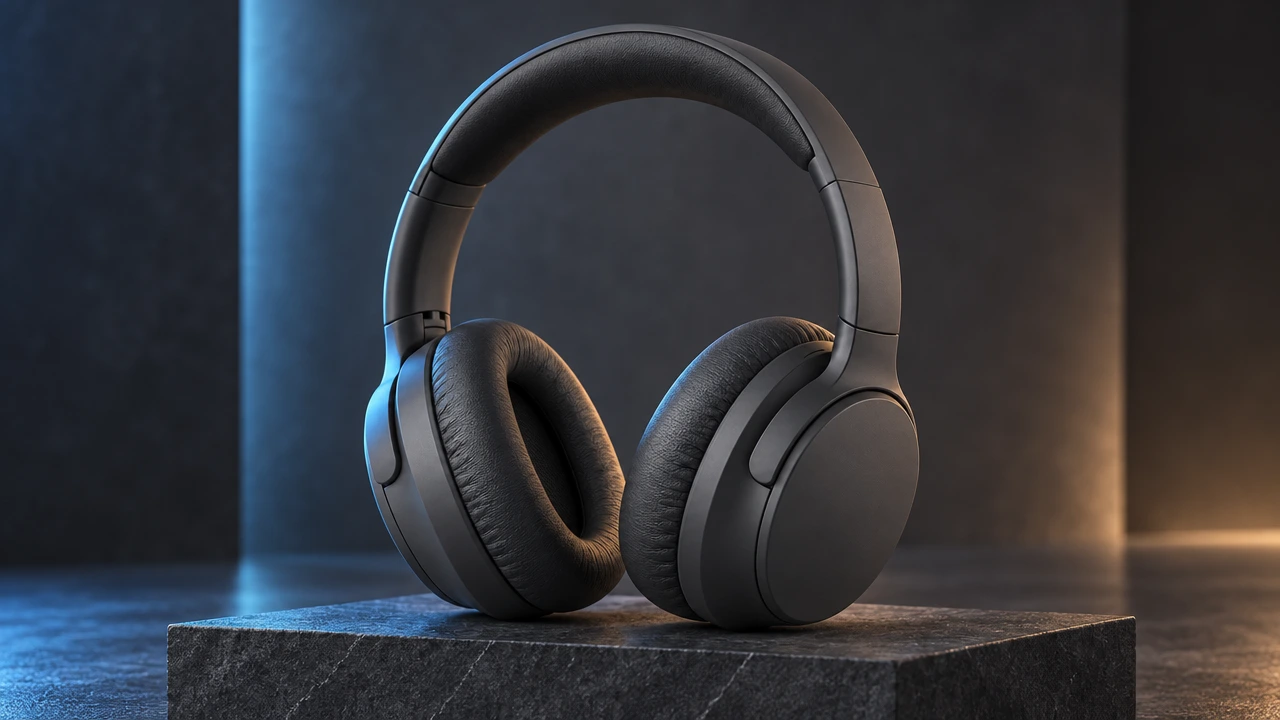
What I wanted: a small camera push, a slight light reflection on the block, and a stationary product. What happened: the headphones changed their orientation and the light grew more dramatic. I would reject it for the stationary brief. Someone seeking a turning product shot might like the motion, but would still need to inspect the headband, hinges and ear cups.
The blue rim light makes dark edges easier to see; the warm side light adds separation around the cushions. That is a presentation choice. We did not test engagement, conversion, sound quality or product performance.
Decide what to make before opening the app
| Your need | What I would do | Extra step worth paying for? |
|---|---|---|
| A styled product still | Product Shot, then inspect the output | Stop here if the still solves the job |
| A short campaign clip | Style a still, then animate one small movement | Only after the still is acceptable |
| An accurate store listing | Compare every product detail with the real photo | Do not replace verified photography with an unchecked output |
| A demonstration of a product being used | Plan the action and its pass conditions separately | Our simple motion tests do not verify use demonstrations |
| A specific finishing composition | Prepare an ending image and inspect a keyframe workflow | See our Pikaframes guide |
For a first project, I would choose one product and one setting. A full three-idea exercise costs more and makes it harder to know which change helped. We made three here so you can inspect different jobs before choosing your own.
Step 1: Prepare a useful source photo
Open Product Shot. Under Add Your Product, click + (the button is labelled Add). In the picker, choose Assets → Upload, or select a saved image and click Use Selection. Wait for its thumbnail before generating.
I want the entire product visible, sharp edges, an understandable angle, and no hand covering important parts. A simple background helps me separate the product from the styling I want to change. We uploaded one photo per idea rather than mixing the three products in one request.
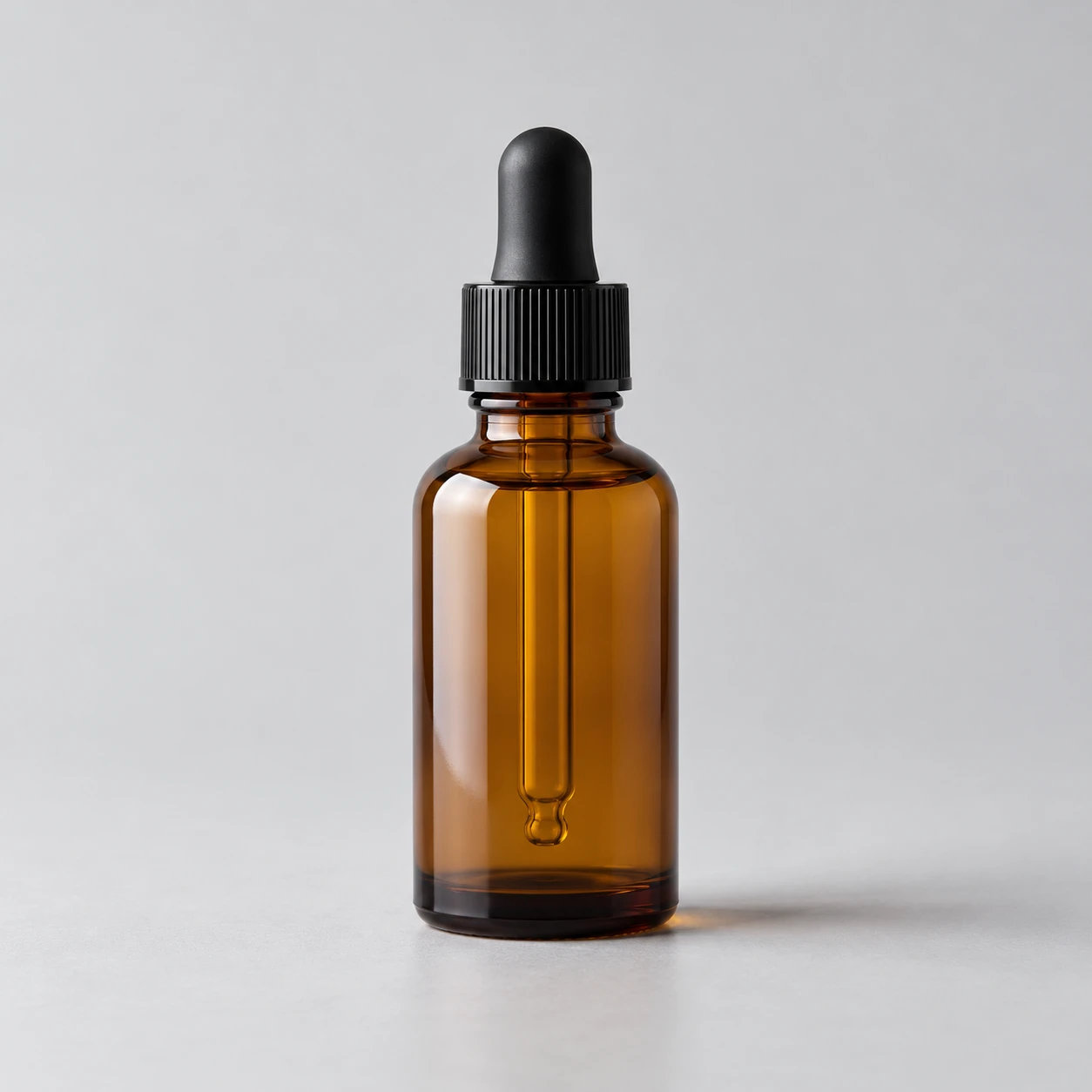
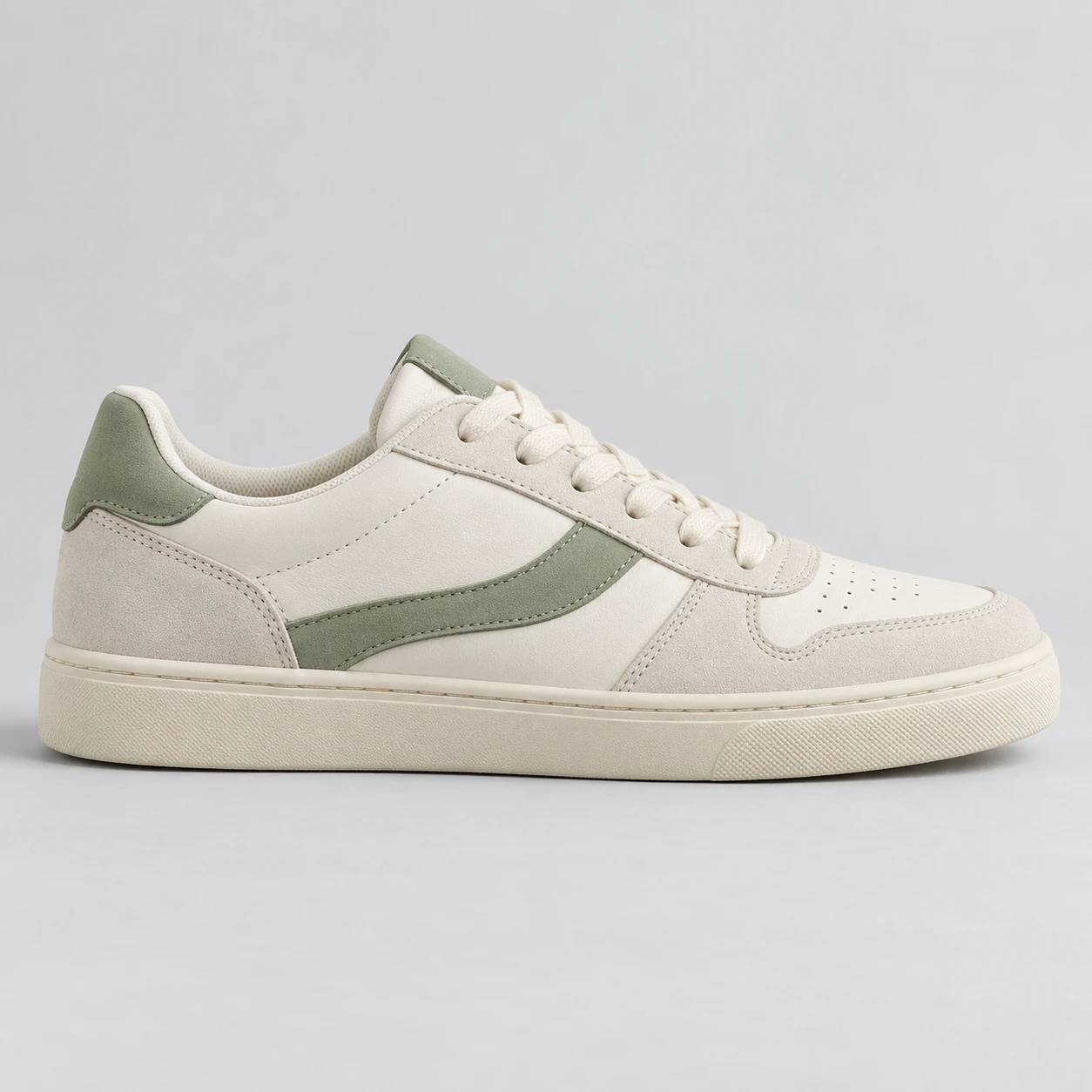
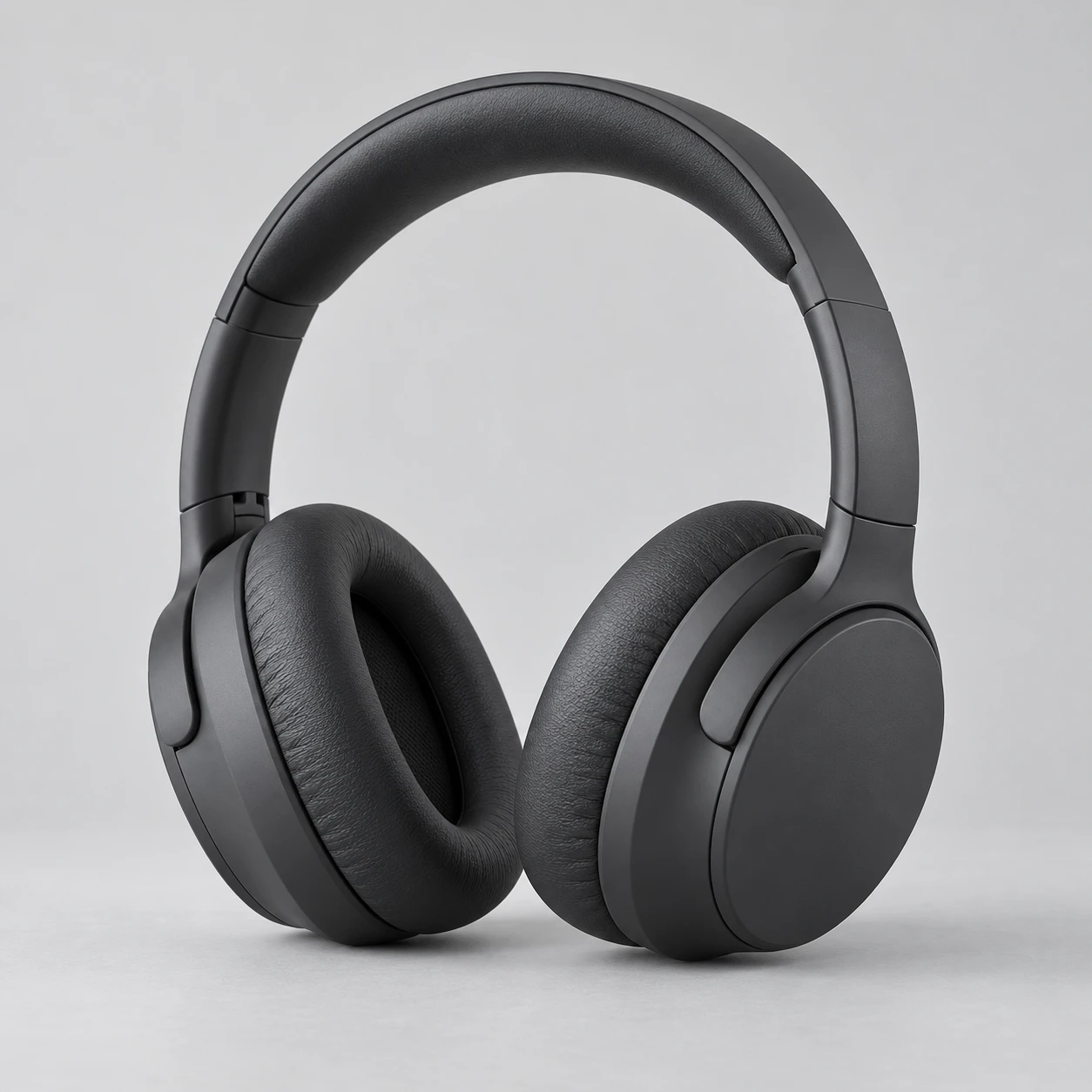
Our samples have no labels or brand marks. For your product, compare the real logo, package text, material, number of parts and proportions after generation. An attractive setting is not a reason to accept a changed product.
Step 2: Choose the setting and image shape
Add instructions describes the new scene. I include the surface, background, light and crop, then say which product details should stay. The preset strip offers choices such as Center Stage, Spotlit, On Edge and Spa Day. Preset thumbnails are examples of styles, not your output.
We used custom instructions with no preset selected. I would use a preset as a starting direction when I am unsure about the setting, then inspect how it changes the result. We did not test every preset or compare them against our custom prompts.
Choose the Aspect Ratio for the intended placement. Product Shot showed square, landscape and portrait choices, including 1:1, 16:9 and 9:16. We selected 16:9 for these examples. A portrait still option does not prove that the next video model supports the same ratio.
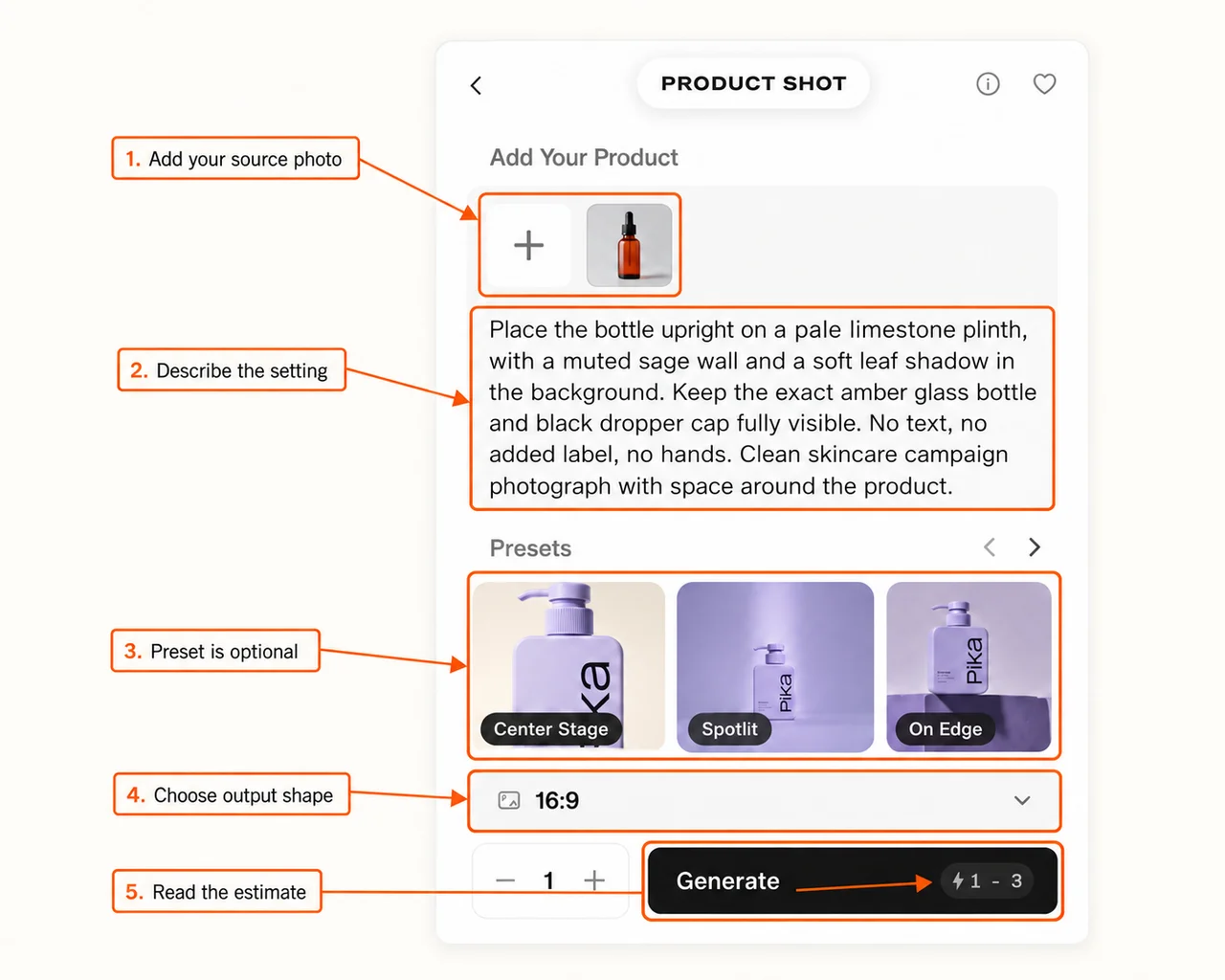
The Image Model menu currently includes GPT Image 2.5 and other choices. We left it at GPT Image 2.5; the completed assets record gpt-image-2. These are image-model choices. Our video tests use Pika 2.5 separately.
Exact image instructions we submitted
Bottle
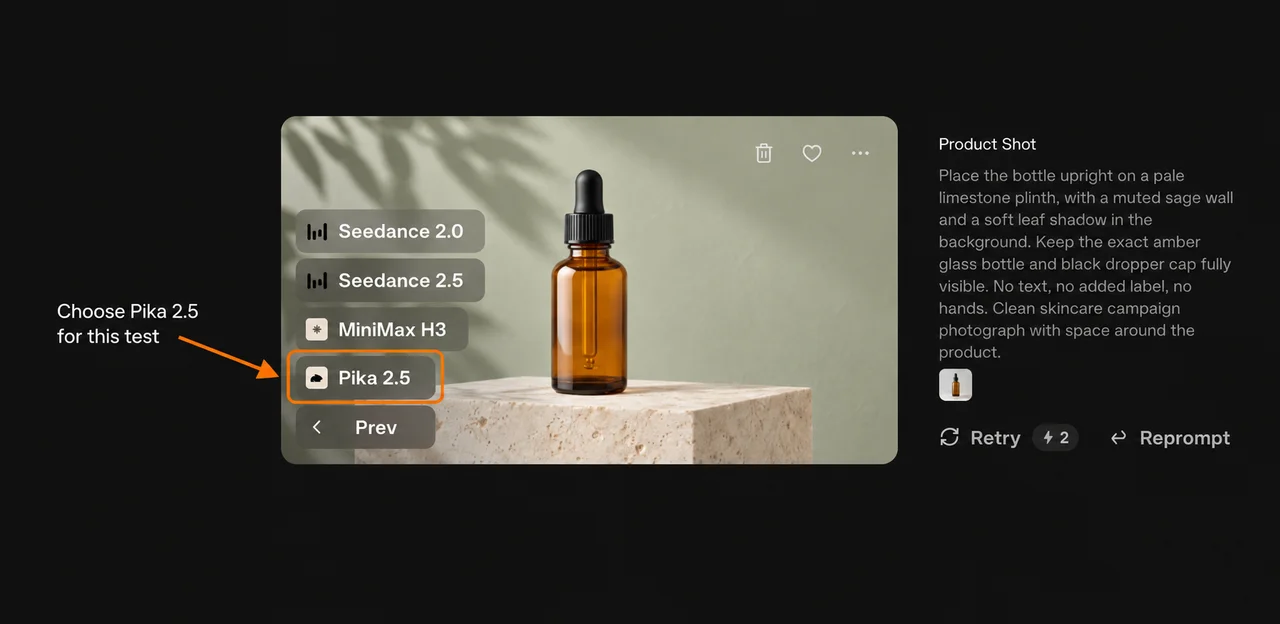
Place the bottle upright on a pale limestone plinth, with a muted sage wall and a soft leaf shadow in the background. Keep the exact amber glass bottle and black dropper cap fully visible. No text, no added label, no hands. Clean skincare campaign photograph with space around the product.
Sneaker
Place this exact off-white and sage sneaker on a low pale concrete block against a terracotta studio wall. Side profile, shoe resting naturally, crisp diagonal afternoon shadow. Keep the toe, heel, laces and sole fully visible and unchanged. No logos, no text, no people, no extra shoes. Leave room around the shoe.
Headphones
Place the exact charcoal headphones upright on a low dark stone block in a graphite studio. Soft blue rim light from one side, gentle warm light on the ear cushions, restrained premium technology campaign. Keep both ear cups and the full headband visible and unchanged. No text, no people, no extra headphones, no floating parts.
Step 3: Generate and judge the still
Set 1 generation, read the refreshed estimate, then click Generate. Our image quotes were 1–3 credits; each completed asset reported 2. The balance settled at six credits below the starting balance after all three images. I use the completed cost rather than treating a range as a fixed price.
Before animation, open the image details and compare the result with its source. Check the full product, reflections, attachment points, lettering and crop. Download the still if it is useful. If the styling changed the product, fix that first rather than making a video of the mistake.
These three images placed the samples in the requested settings. We kept them for the animation exercise. We did not measure exact geometry or establish real-product preservation.
Step 4: Animate the image with Pika 2.5
On the completed image, open Animate and select Pika 2.5. Our menu also listed Seedance and MiniMax options, but we generated only Pika 2.5 videos. The chosen image carried into the source-image input automatically.
Confirm Pika 2.5 Image to Video, the attached styled image, 720p, 5s, and 1 generation. Write a motion prompt, then wait for the estimate to settle before submitting. Each of our video attempts quoted and reported 20 credits. The exported files are 1304 × 706 pixels and about 5.03 seconds, with no audio track.
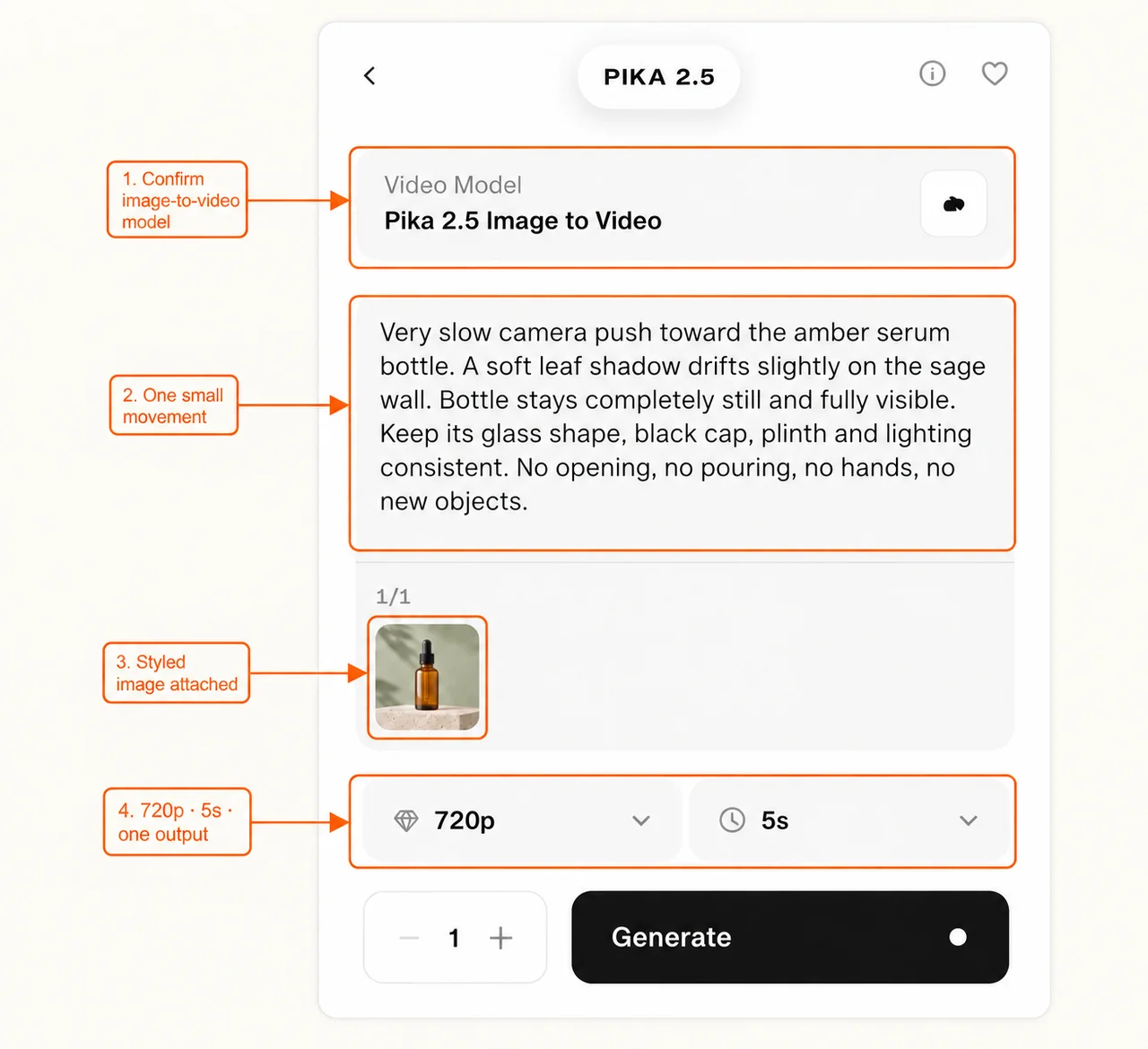
Exact motion prompts we submitted
Bottle
Very slow camera push toward the amber serum bottle. A soft leaf shadow drifts slightly on the sage wall. Bottle stays completely still and fully visible. Keep its glass shape, black cap, plinth and lighting consistent. No opening, no pouring, no hands, no new objects.
Sneaker
Slow camera slide a little to the right across the sneaker, keeping the full toe and heel in frame. The shoe stays still on the concrete block. Preserve laces, sole and sage panels. Keep terracotta lighting consistent. No walking, no people, no extra shoe, no new objects.
Headphones
Very slow camera push toward the charcoal headphones. A subtle blue light reflection shifts on the stone block, while the headphones stay completely still. Keep the entire headband and both ear cups visible and unchanged. No rotation, no people, no opening, no floating parts, no new objects.
Step 5: Accept the result against a written brief
I check the beginning, middle and ending before accepting the output, then watch the full clip. Our extracted middle frames are at 2.5 seconds and the later frames near 4.9 seconds. The browser ending check also reached the final frame. This is sample-based evidence, not a measurement of accuracy across every frame.
The bottle is the clearest reason to do this: it looks suitable in the middle sample, then adds a hand near the finish. The words “no hands” did not prevent that action.
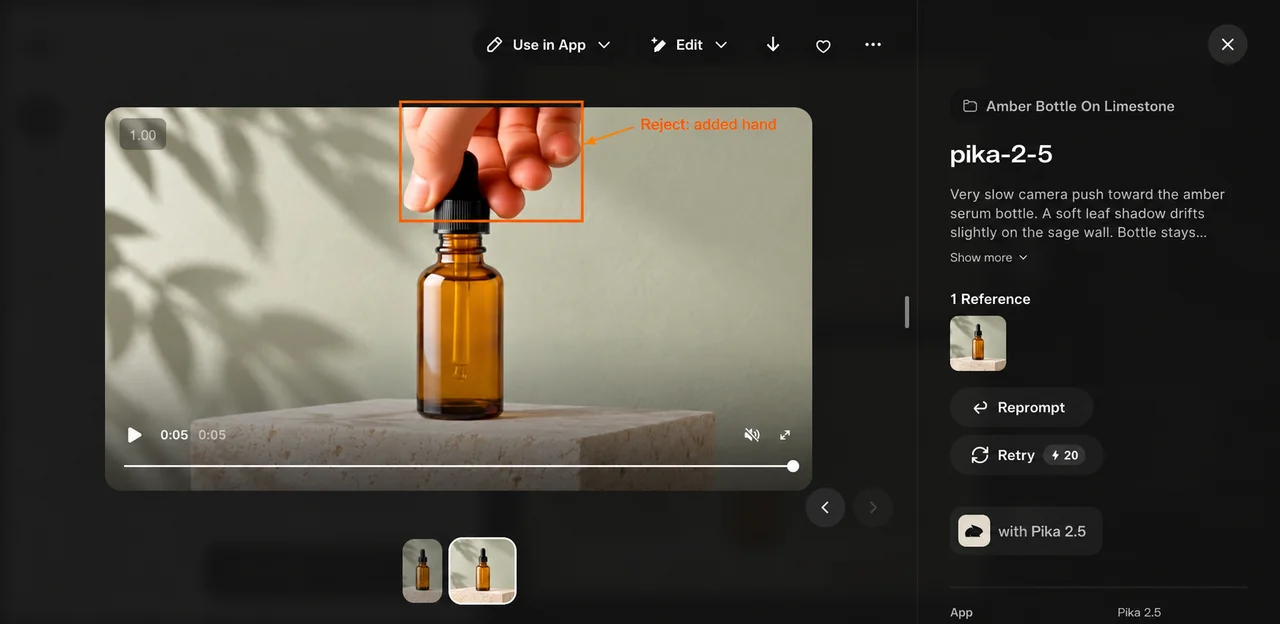
For the next bottle attempt, I would remove the extra shadow movement and test only a camera push, changing one instruction at a time. I have not tested that change, so I cannot promise it fixes the result. If the product must remain perfectly still, a simple camera-style movement applied to the approved still in an editor may be enough.
A completed generation is not automatically a usable campaign clip. The headphones made that distinction clear too: a more dramatic turning shot can still fail a stationary-product brief.
What it cost and when to stop
| Idea | Product Shot quote | Completed image cost | Pika 2.5 quote and completed cost | Total for this attempt |
|---|---|---|---|---|
| Amber bottle | 1–3 credits | 2 | 20 | 22 credits |
| Sage sneaker | 1–3 credits | 2 | 20 | 22 credits |
| Charcoal headphones | 1–3 credits | 2 | 20 | 22 credits |
| All three | Three separate stills | 6 | 60 | 66 credits |
These are our observed account credits on 7 October 2026, not a dollar price or a promise about your next quote. They exclude the source-image creation outside Pika, subscription cost, editing, upscaling and any repeat attempt. We submitted one image and one video per idea, with no reruns.
The cheapest useful result may be the still. In our attempts, adding motion cost ten times the completed image cost. Two clips then failed the motion brief. I would stop before animation when the approved photo already communicates the product well, and budget another video attempt only when movement serves a specific purpose.
Keep the project useful for the next attempt
Save the original photo, styled image, both prompts, model choices, image ratio, video settings, quote, completed cost and acceptance note. Keep rejected clips labelled so they do not become accidental examples of a successful result.
Add campaign text, verified claims and a call to action after you approve the image or clip. Our guide demonstrates a production workflow; it does not show that these scenes increased clicks or sales. For your first test, choose one of the ideas above, write one pass condition, and make the still before deciding if you need the video.