
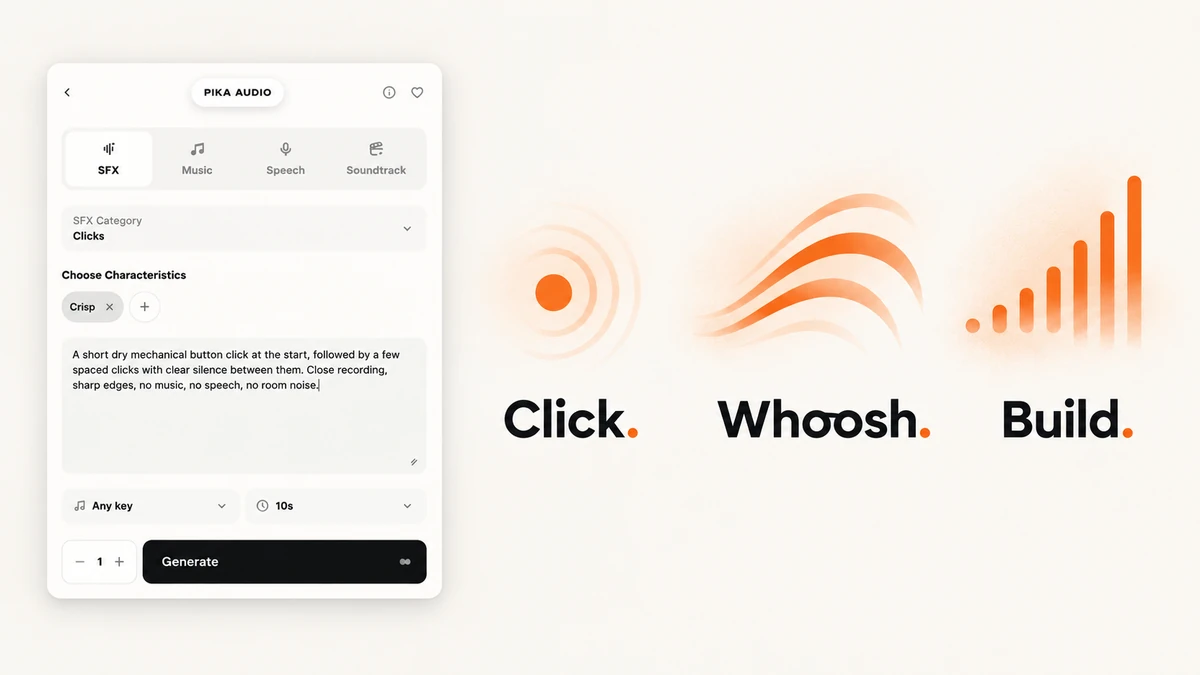
I opened the dedicated Pika SFX page and tried three different sound jobs: a button click, an airy transition and a rising effect. We kept each sample at 10 seconds and generated one take per example.
Each example uses a different Category and Characteristics selection. These are three practical examples, not a controlled comparison of one setting. Interface checked 9 October 2026.
Listen to the three examples
The three completed assets cost 1 credit each, matching their 1-credit quotes. All three downloaded WAVs are 10.00 seconds, 44.1 kHz, stereo. The players use smaller MP3 copies of the same takes; nothing plays automatically.
What is Pika SFX?
Pika SFX turns a sound description into an audio effect. Its dedicated page opens Pika Audio → SFX, with category, characteristics, prompt, key, duration and generation count.
I would use it for an editing cue, a product action, an interface click or a game sound. It returns a separate sound file. Place and trim it in your editor to match the action; the composer does not time it against an uploaded video.
| Your job | A useful first choice |
|---|---|
| Button or control feedback | Clicks + Crisp |
| A gentle transition between shots | Whooshes + Airy |
| Build anticipation before a reveal | Risers + Building and Tense |
| Everyday actions such as pouring | Foley; see our SFX Studio examples |
Step 1: choose a category and characteristics
- Open Pika SFX and confirm SFX.
- Open SFX Category and pick the sound family.
- Press + under Choose Characteristics to add a direction.
- Use the × on a selected tag to remove it.
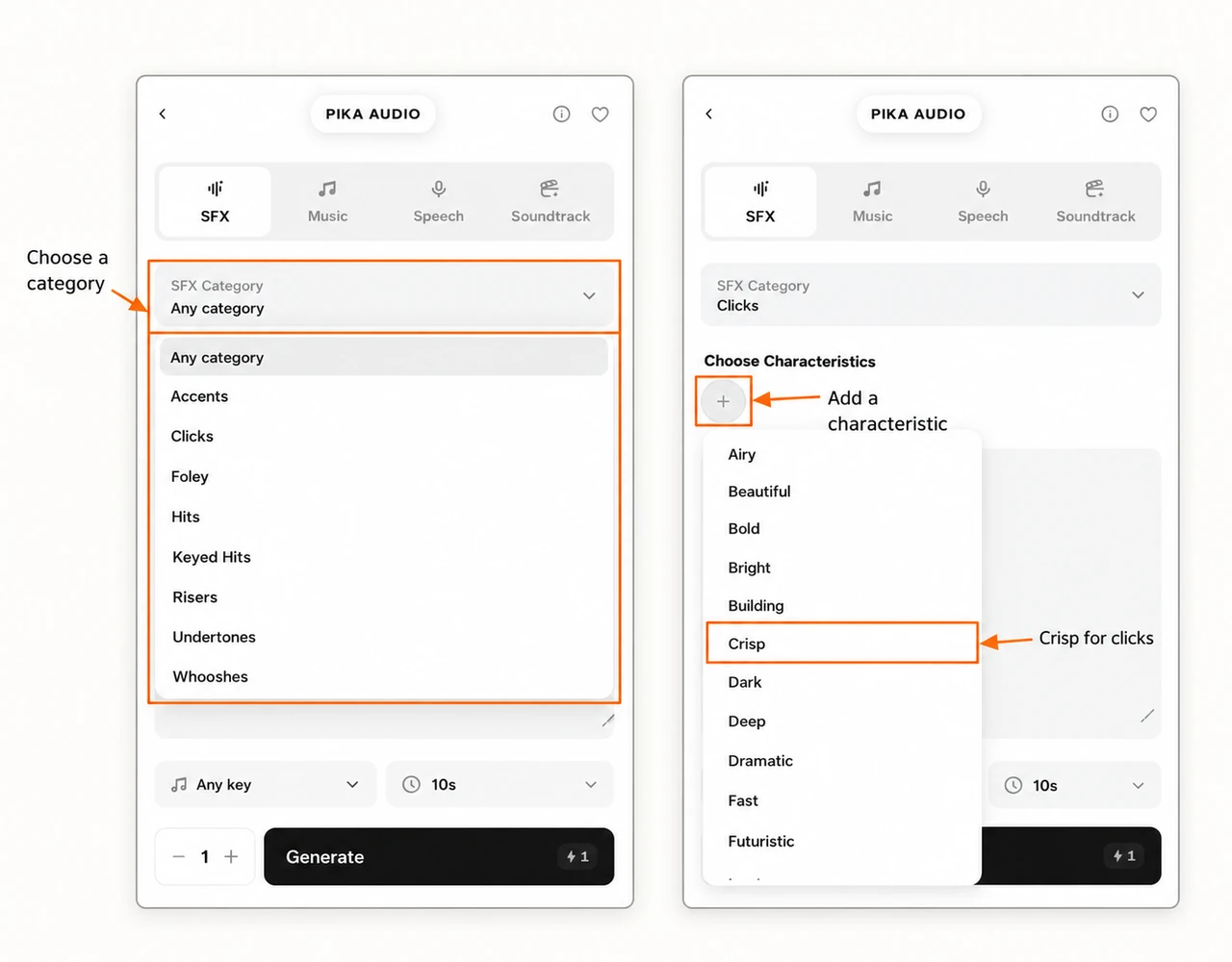
The checked category menu contains Any category, Accents, Clicks, Foley, Hits, Keyed Hits, Risers, Undertones and Whooshes. I would leave Any category when the description is clear but no listed family fits.
| Category | A starting use |
|---|---|
| Accents | A short emphasis cue |
| Clicks | Button, switch or interface feedback |
| Foley | Physical actions and materials |
| Hits | An impact or punctuation cue |
| Keyed Hits | A tonal impact to place with music |
| Risers | A sound that builds toward a moment |
| Undertones | A low supporting texture |
| Whooshes | Passing air or movement cues |
Characteristics add another direction. The menu listed Airy, Beautiful, Bold, Bright, Building, Crisp, Dark, Deep, Dramatic, Fast, Futuristic, Iconic, Modern, Subtle, Tense, Textural and Tonal.
I start with one characteristic, then add a second only when it describes a clear need. Our riser uses two. A long stack of opposing tags makes the brief harder to judge.
Step 2: write the sound, then set its length
Describe the source, action, pace and surroundings. Add exclusions such as no music or speech when they matter. The app page states a 4,000-character prompt limit; a focused paragraph is enough for these examples.
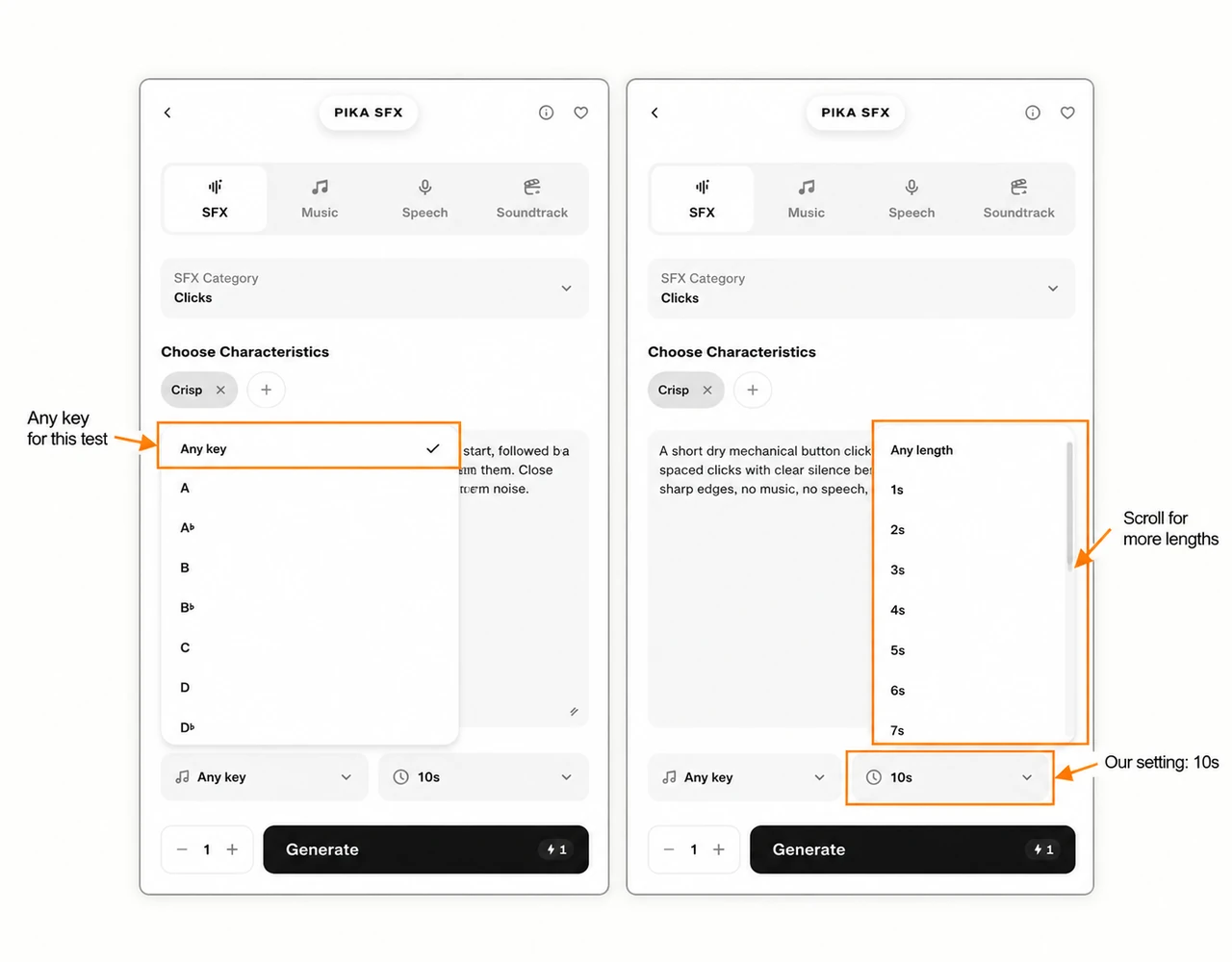
Key defaults to Any key. The menu also lists A, A♭, B, B♭, C, D, D♭, E, E♭, F, F♯, G and G♭. I left Any key for all three tests. A key is more useful for a tonal hit than a mechanical click.
Duration lists Any length and 1s through 20s. We selected 10s. A ten-second container can hold several events; it does not mean a click must keep sounding for the whole file.
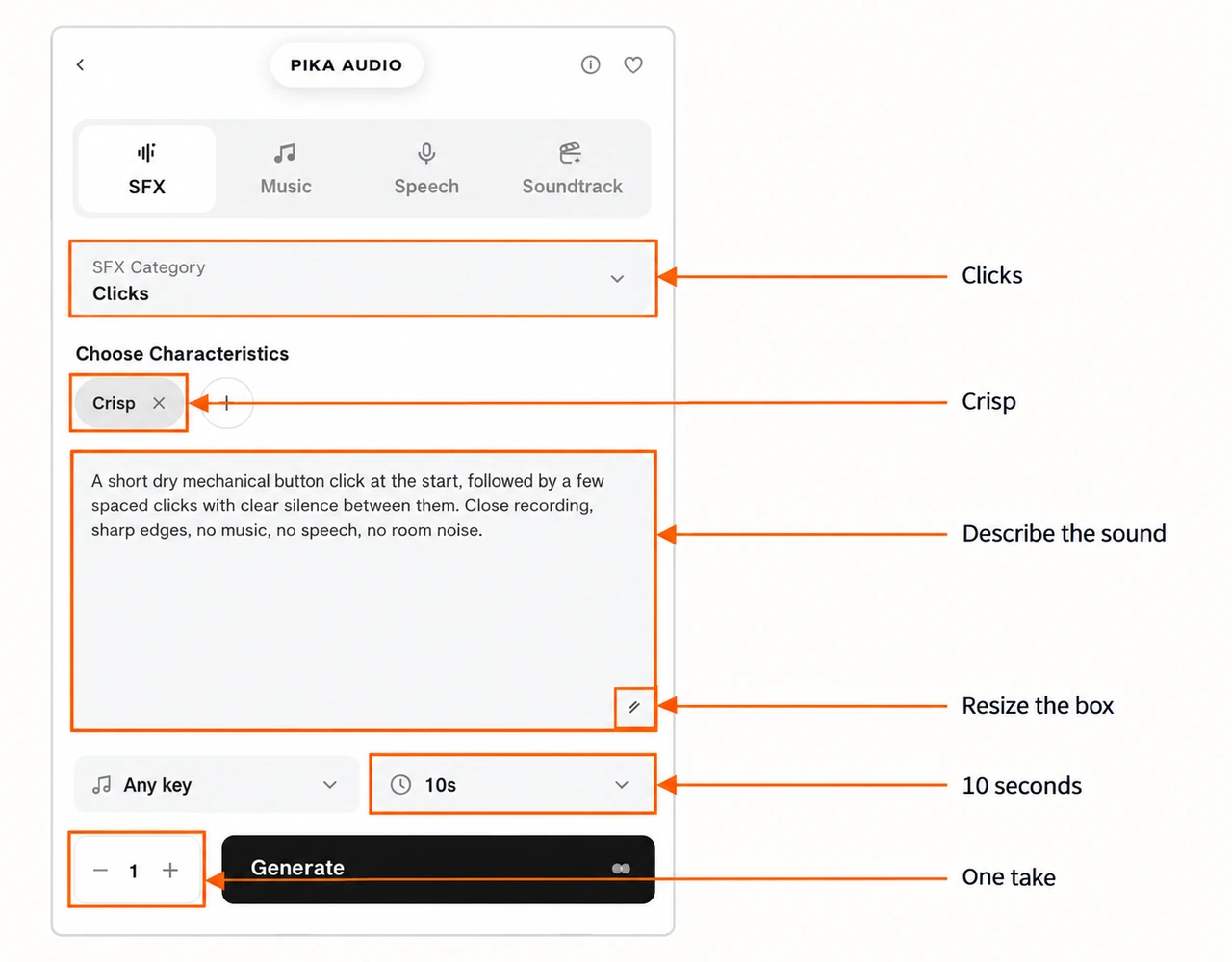
Keep Generations = 1 while checking the first example. The minus and plus controls change the count. Wait for the quote to settle after editing, then press Generate once. Drag the prompt’s lower-right resize handle if you need more room to review the text.
Example 1: Clicks + Crisp
Useful for: a button press or short product control cue. We asked for spaced clicks so there would be room to select an individual event in an editor.
- Category: Clicks
- Characteristic: Crisp
- Key: Any key
- Duration: 10s
- Generations: 1
A short dry mechanical button click at the start, followed by a few spaced clicks with clear silence between them. Close recording, sharp edges, no music, no speech, no room noise.
Listen for the attack and the gap after each click. If you need one button cue, cut out the event that fits your edit instead of keeping the full ten-second file. The brief requests silence between events; judge the returned audio in the player before using it.
Example 2: Whooshes + Airy
Useful for: moving between shots without a heavy impact. I kept this brief focused on air and separated passes.
- Category: Whooshes
- Characteristic: Airy
- Key: Any key
- Duration: 10s
- Generations: 1
A light airy whoosh sweeping left to right, with three separated passes over ten seconds. Soft air movement and a gentle fade after each pass. No impact, no music, no voices.
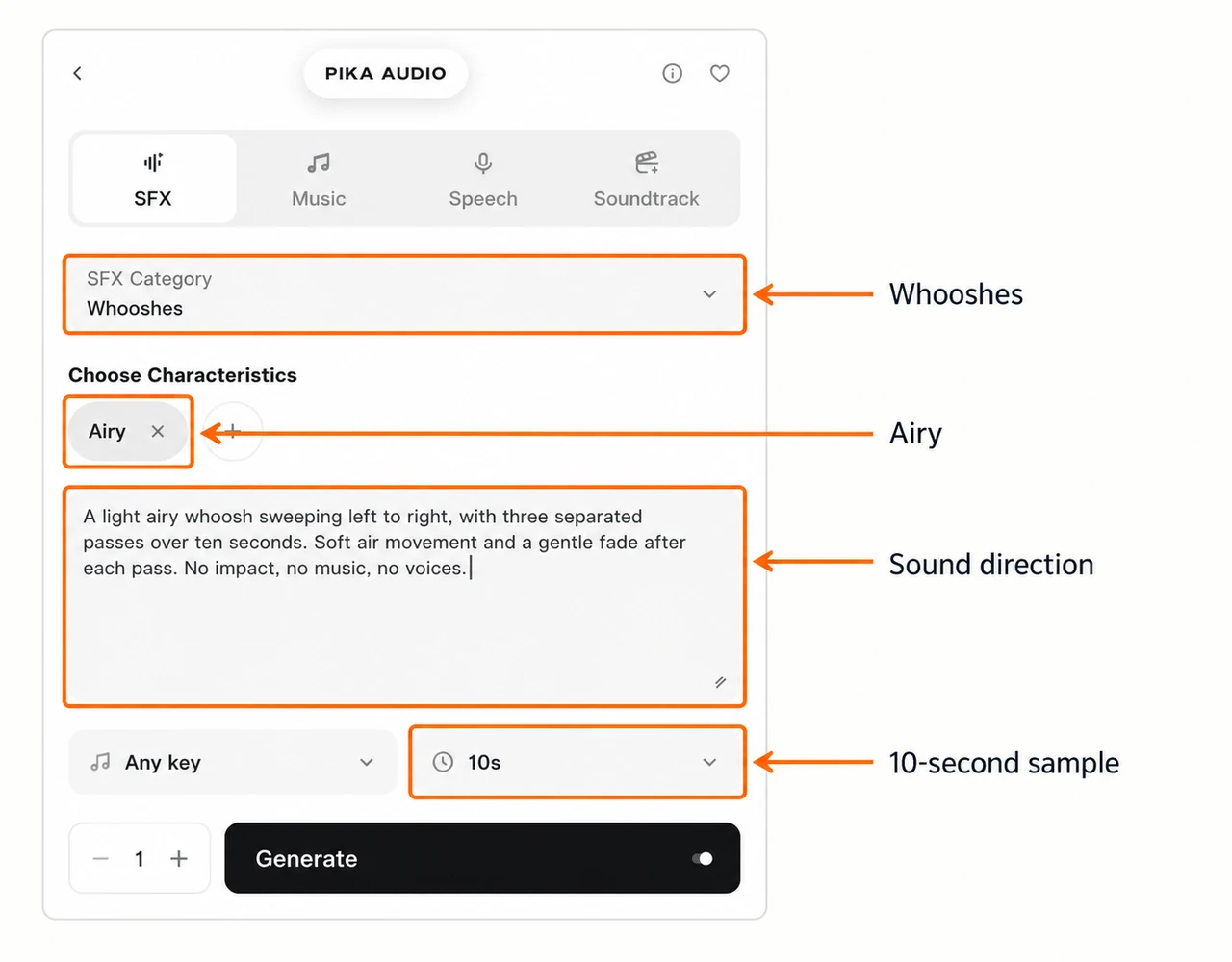
Try a chosen pass over a cut and compare it with the picture. Left-to-right movement is requested direction, not a stereo test we measured. Lower the effect if it competes with narration.
Example 3: Risers + Building and Tense
Useful for: leading into a product reveal, title or other moment needing a short build.
- Category: Risers
- Characteristics: Building, Tense
- Key: Any key
- Duration: 10s
- Generations: 1
A ten-second synthetic riser that starts quiet and steadily grows brighter and more tense, then ends with a short clean stop. A rising airy tone with a gentle noise layer. No drum hit, no melody, no speech.
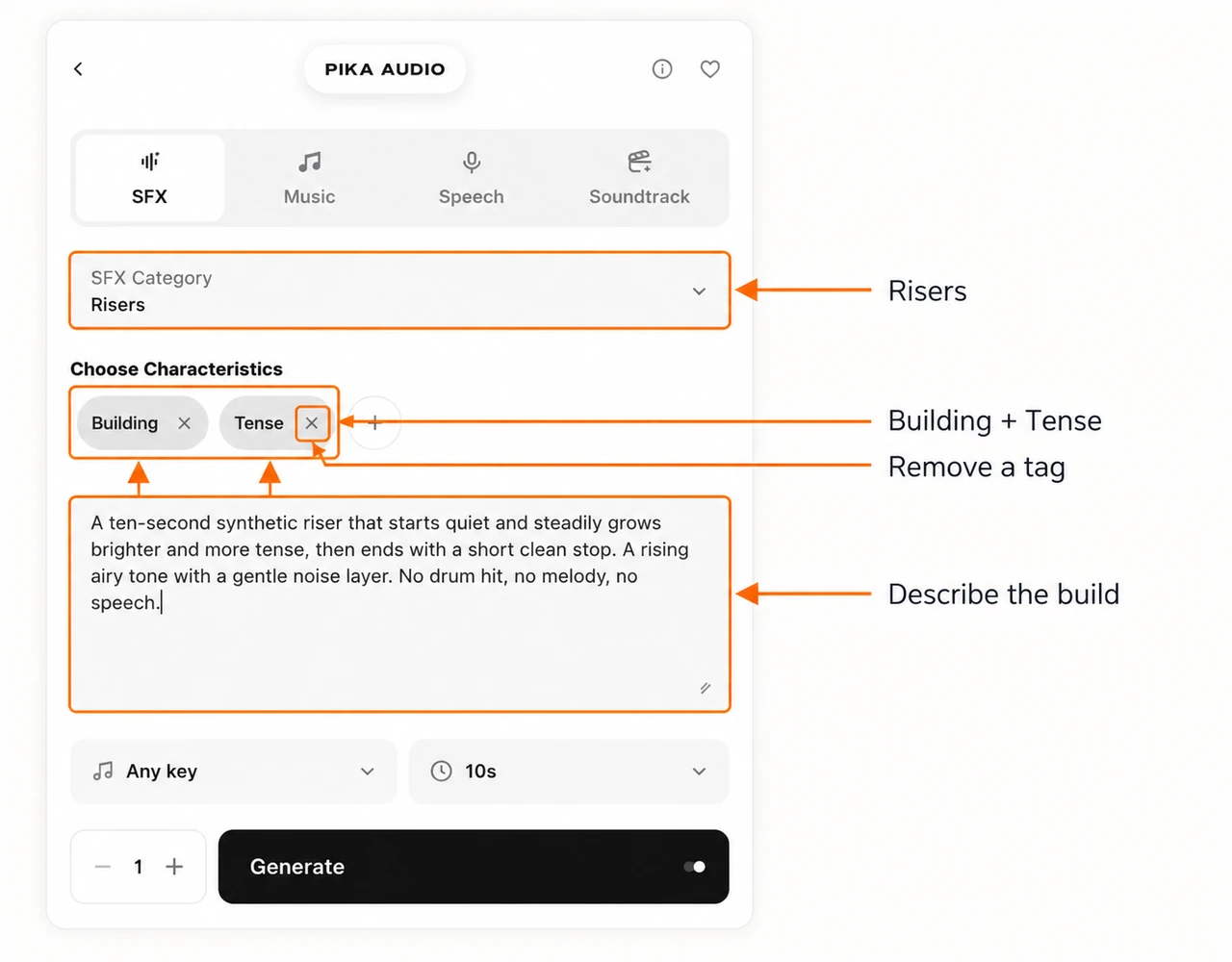
Listen to the beginning and ending as well as the loudest part. Place the finish at your reveal, and trim the build to match the edit. This example requests no final drum hit so you can decide separately how the reveal should land.
Step 3: play, inspect and download
A completed job appears in its project. Open the audio asset, play the take and inspect its final cost. The downward-arrow control downloads the file. Reprompt returns you to setup; Retry submits another generation.
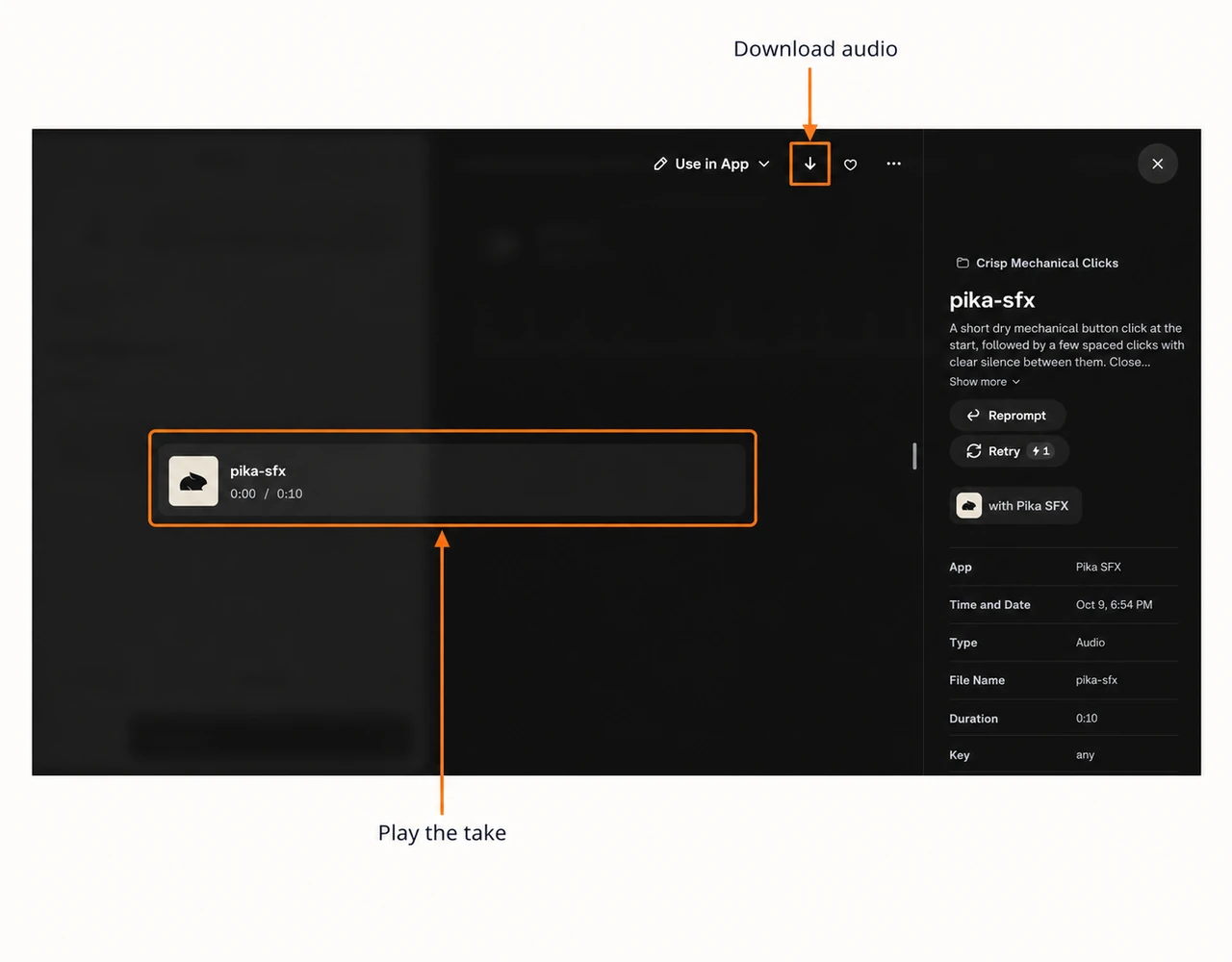
Keep the original audio before editing it. The MP3 links here are convenient listening copies, not extra generations. We did not trim, layer or replace these samples.
Which example should you try first?
Choose the sound’s job before choosing a dramatic tag. Start with Clicks for a control, Whooshes for movement or Risers for a build. If the first take is too strong, revise the description or try Subtle rather than changing every field at once.
Our total test cost was 3 credits. Other durations, counts or later pricing changes may alter the quote. The dedicated page checked here had no separate model selector or reference-upload field. For other providers and settings, use the SFX Studio guide.