
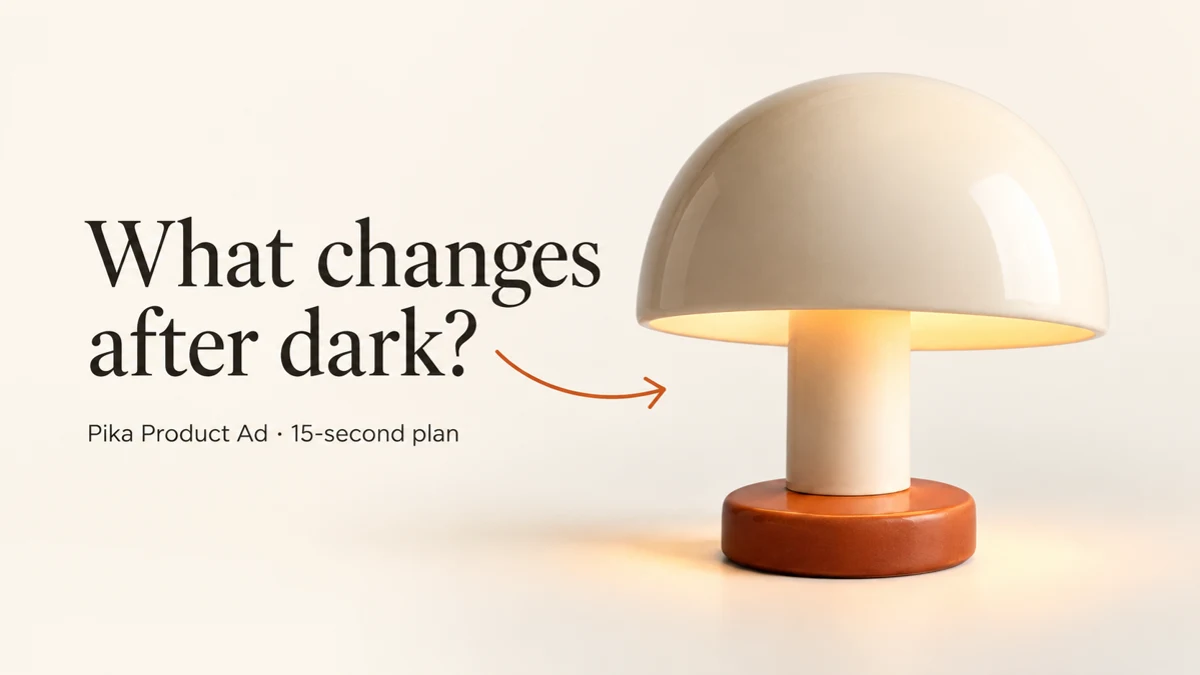
I prepared a 15-second product ad around a fictional ceramic lamp: begin with its warm glow, reveal the whole lamp, then leave the viewer with one short message. We use curiosity and a clear product shape instead of a list of claims.
Below is the source photo and the five-second opening-shot sample we saved. A second five-second reveal appears beside the download steps. The complete 15-second ad is an example in this guide; our available credits did not cover the third video shot. Interface checked 10 October 2026.
See the product and opening shot first
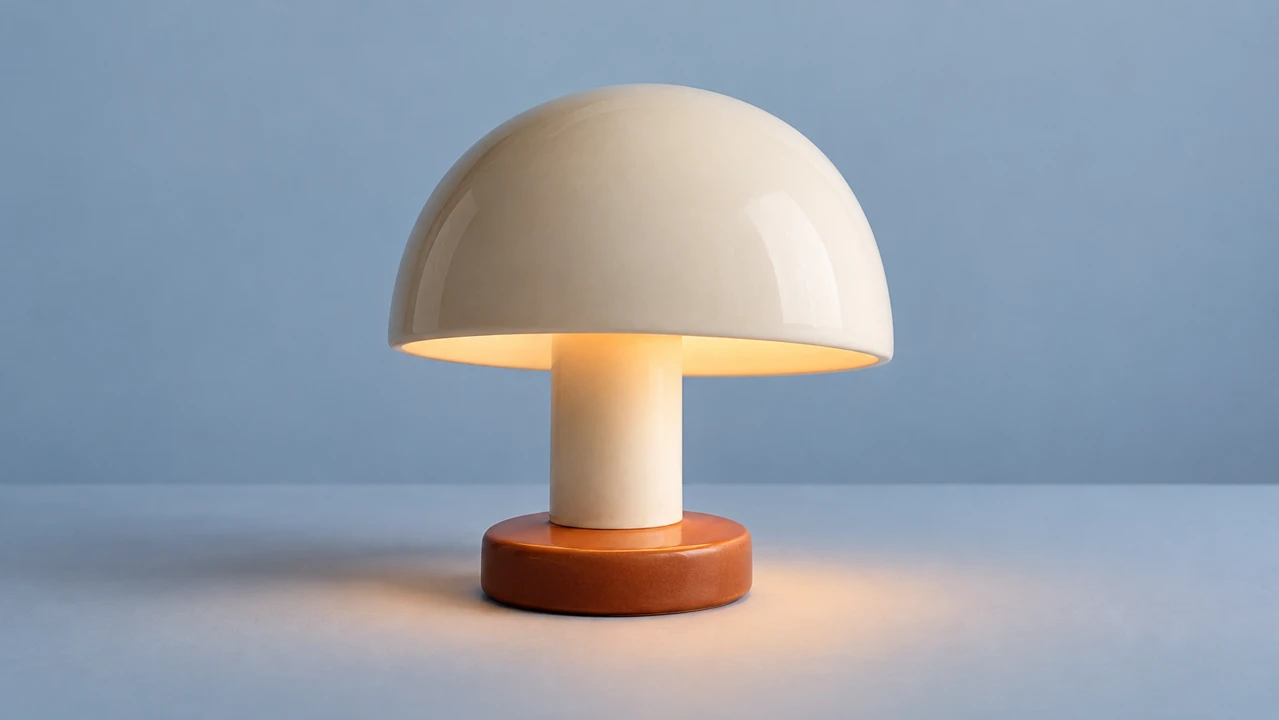
Download the lamp photo to follow this example. The lamp and its proposed message are fictional; we are testing an ad idea, not selling a real product.
What is Pika Product Ad?
Product Ad turns product photos and an advertising brief into a concept, a look and a video rendering workflow. The four steps are Product → Brief → Creative → Review.
I would use it when I need a small story around a product: an opening question, a reveal and a closing message. For one simple movement around a product photo, Product Shot may be a better starting point.
| You need | Where I would start |
|---|---|
| A hook, several shots and narration | Product Ad |
| A short product beauty shot | Product Shot |
| Motion from one photo with your own prompt | Image-to-video |
| A finished ad ready for a campaign | Check every shot, product detail, spoken line and final duration before publishing |
Step 1: add a clear product photo
Open the app, select Upload product image or Choose product photos, then choose your file or a saved asset. The picker includes your saved collections and an Upload option. Confirm the selection and check the product preview.
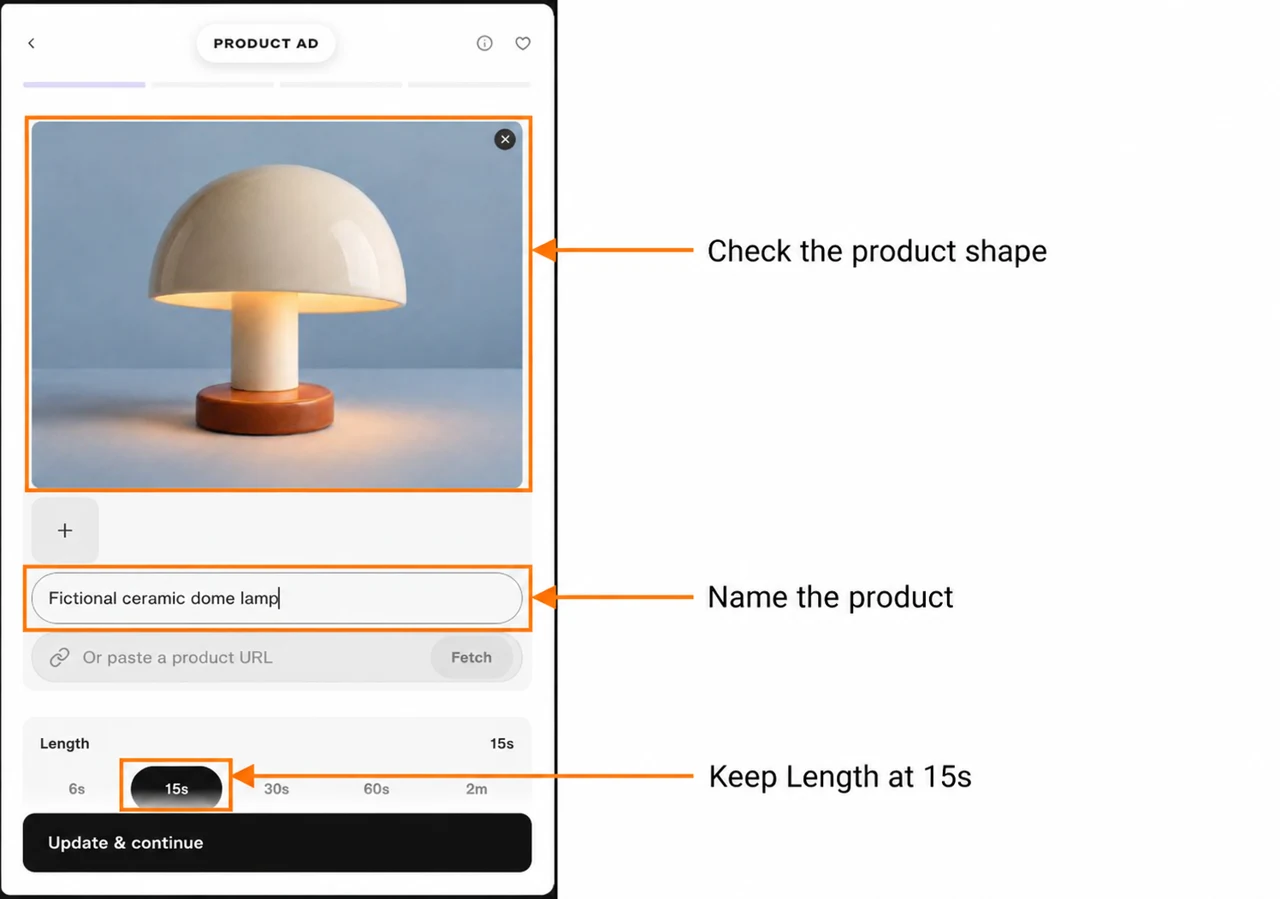
Use Add another product photo for another angle. Remove a photo with its remove control if it shows a different design. Keep the product name specific; I used Fictional ceramic dome lamp.
The Product URL field has a Fetch button. We left it blank because this product has no store page. That workflow is available in the form, but this test uses a photo upload.
Choose the length and shape
Length offers 6s, 15s, 30s, 60s and 2m. We selected 15s. Aspect ratio offers 16:9, 9:16, 1:1 and 4:5; our ad plan uses 9:16 for a vertical placement.
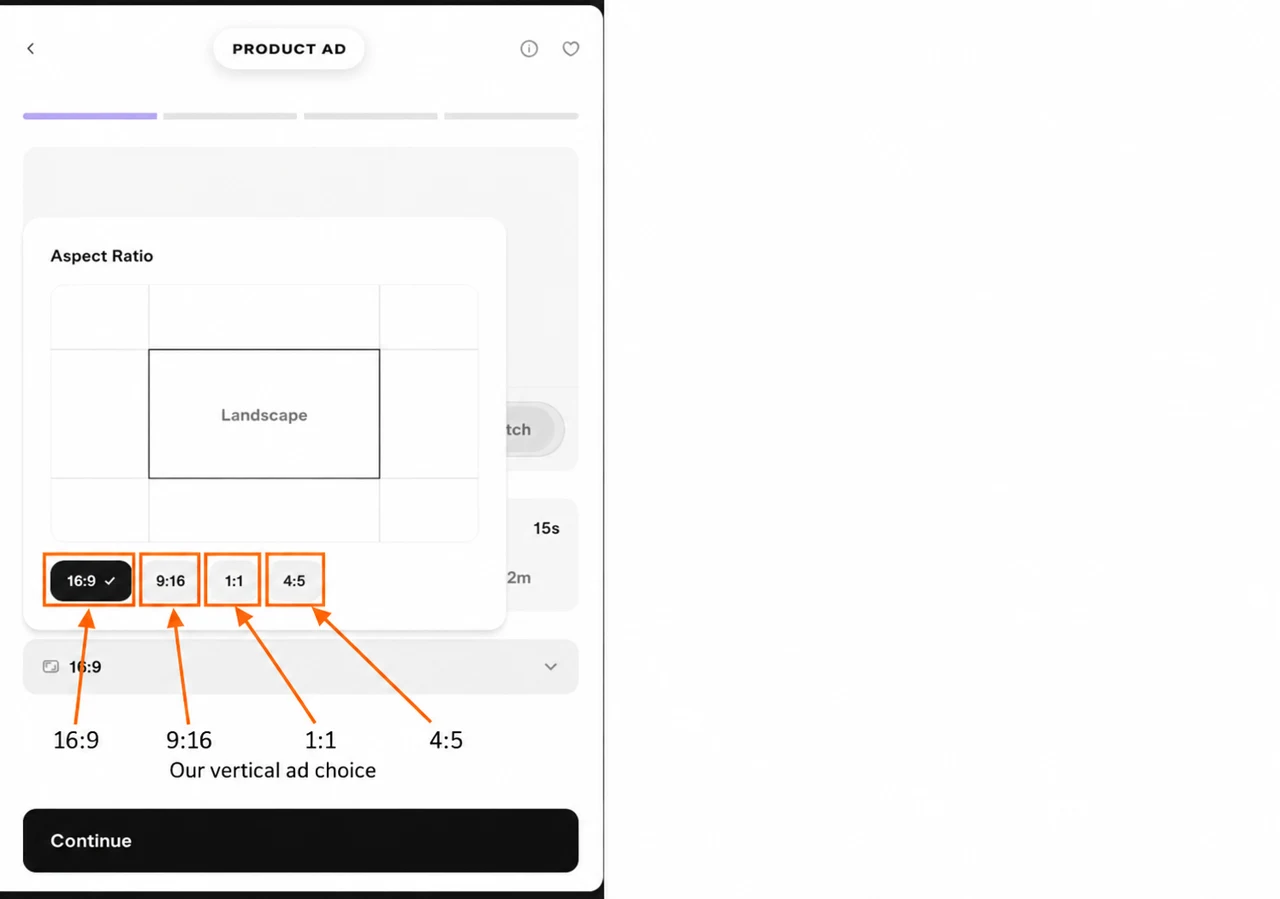
Check the preview crop. A landscape source can lose its outer edges in a vertical ad, so leave breathing room around the product. Select Continue after the photo, name and format are ready.
Step 2: write the brief and choose the audio
The brief should say what the viewer sees first, what changes next and what message remains. I also describe the product details that must stay the same.
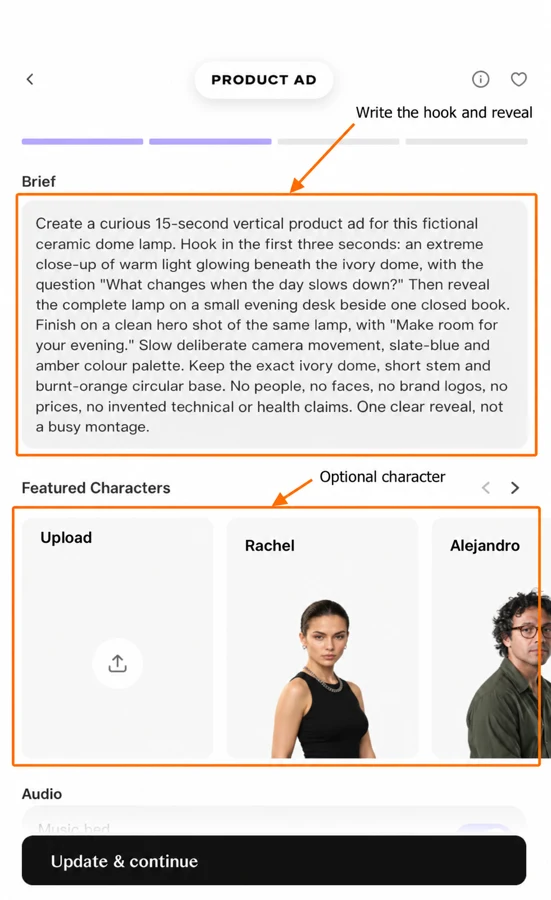
Our exact brief
Create a curious 15-second vertical product ad for this fictional ceramic dome lamp. Hook in the first three seconds: an extreme close-up of warm light glowing beneath the ivory dome, with the question “What changes when the day slows down?” Then reveal the complete lamp on a small evening desk beside one closed book. Finish on a clean hero shot of the same lamp, with “Make room for your evening.” Slow deliberate camera movement, slate-blue and amber colour palette. Keep the exact ivory dome, short stem and burnt-orange circular base. No people, no faces, no brand logos, no prices, no invented technical or health claims. One clear reveal, not a busy montage.
Featured characters
The character carousel offers preset people, navigation arrows and Upload for a custom character. We kept None for a product-only ad. Add a character when the person helps explain the use of the product, then check their role in each shot.
Music, voiceover and talking characters
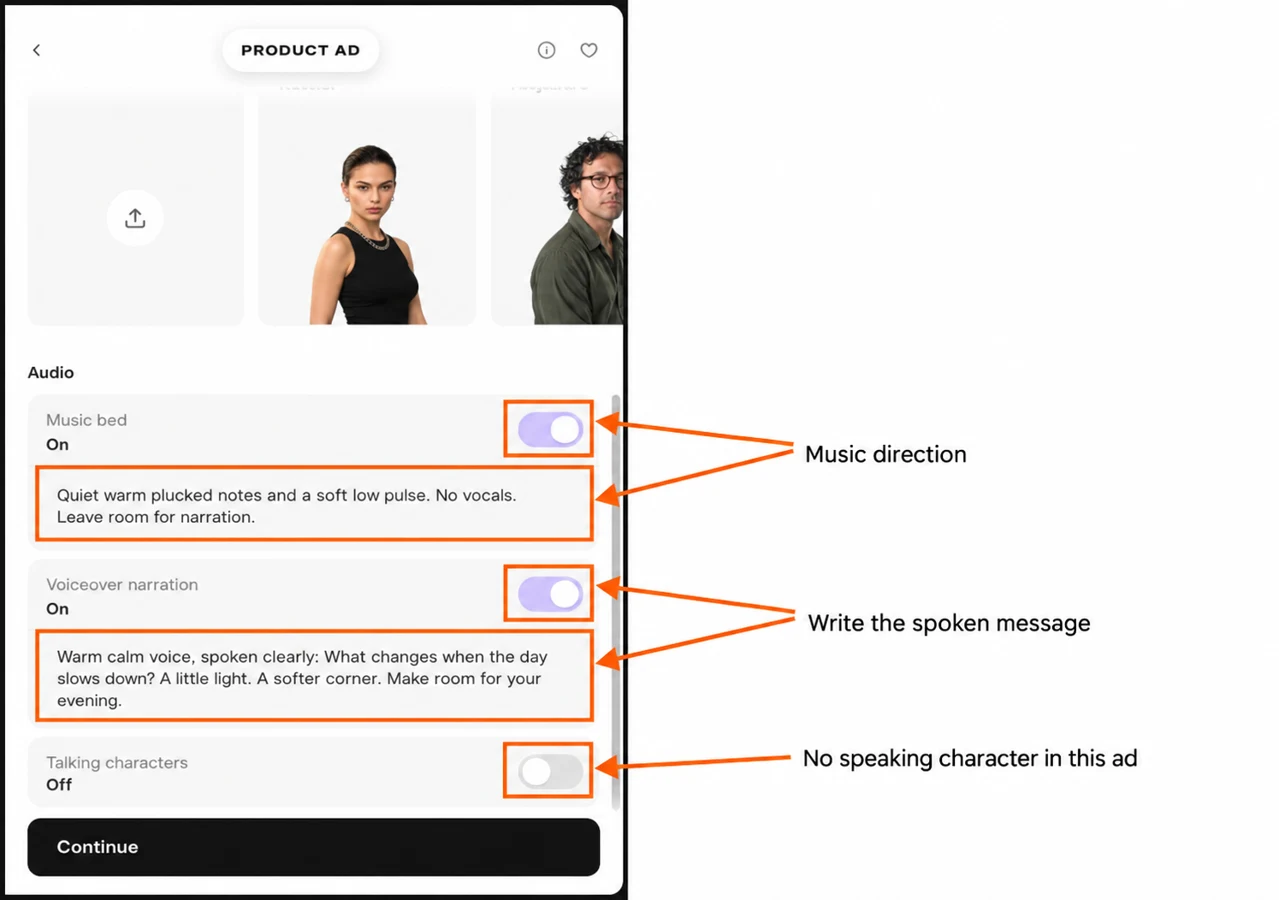
| Control | Our setting | What I wrote |
|---|---|---|
| Music bed | On | Quiet warm plucked notes and a soft low pulse. No vocals. Leave room for narration. |
| Voiceover narration | On | Warm calm voice, spoken clearly: What changes when the day slows down? A little light. A softer corner. Make room for your evening. |
| Talking characters | Off | No on-screen speaker for this product-only plan |
Each enabled audio control opens a notes field. Voiceover is an off-screen narration plan; Talking characters describes on-screen speech. Keep the directions short so the message fits the length.
Continue from Brief prepares the concept. In our test, the balance dropped by one credit at this stage. Treat concept preparation as a paid step rather than a free page transition.
Step 3: edit the concept before rendering
Creative contains an editable Logline, shot start times and descriptions, plus a Call to action. Regenerate asks for another concept; read the current one before requesting another paid preparation.
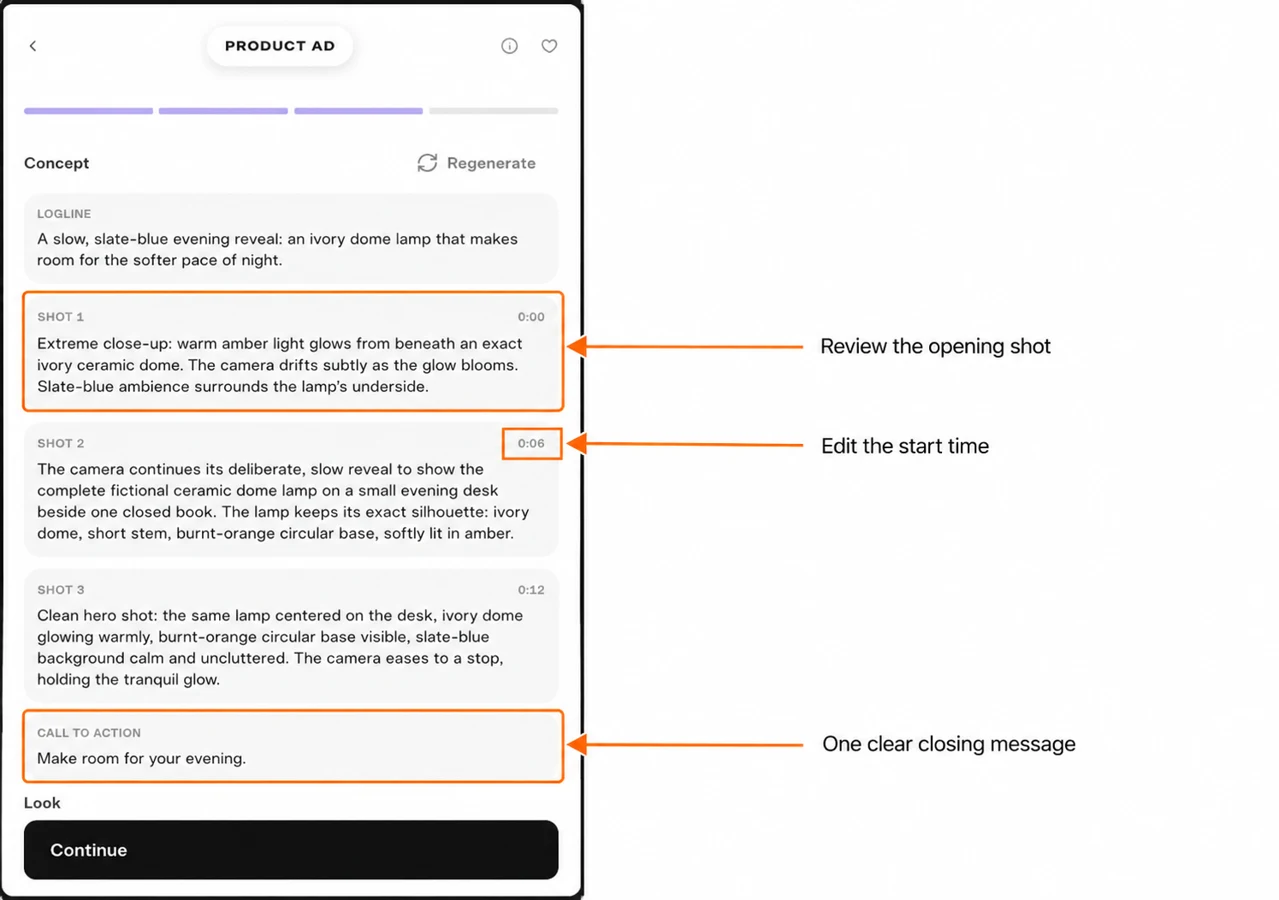
The generated plan placed the shots at these start times:
| Start | Planned shot | Job of the shot |
|---|---|---|
| 0:00 | Close view of amber light beneath the dome | Create curiosity |
| 0:06 | Reveal the whole lamp beside a closed book | Make the product clear |
| 0:12 | Centered hero shot with a calm background | Finish with one message |
The concept gave the opening six seconds even though our brief asked for a hook in the first three. I would shorten that opening before a final campaign render. The times above are the actual generated plan, not timings verified in a complete video.
We kept the closing message: Make room for your evening. If your ad needs a shop link or offer, use a factual message and add accurate text during your final edit.
Write your own look or request previews
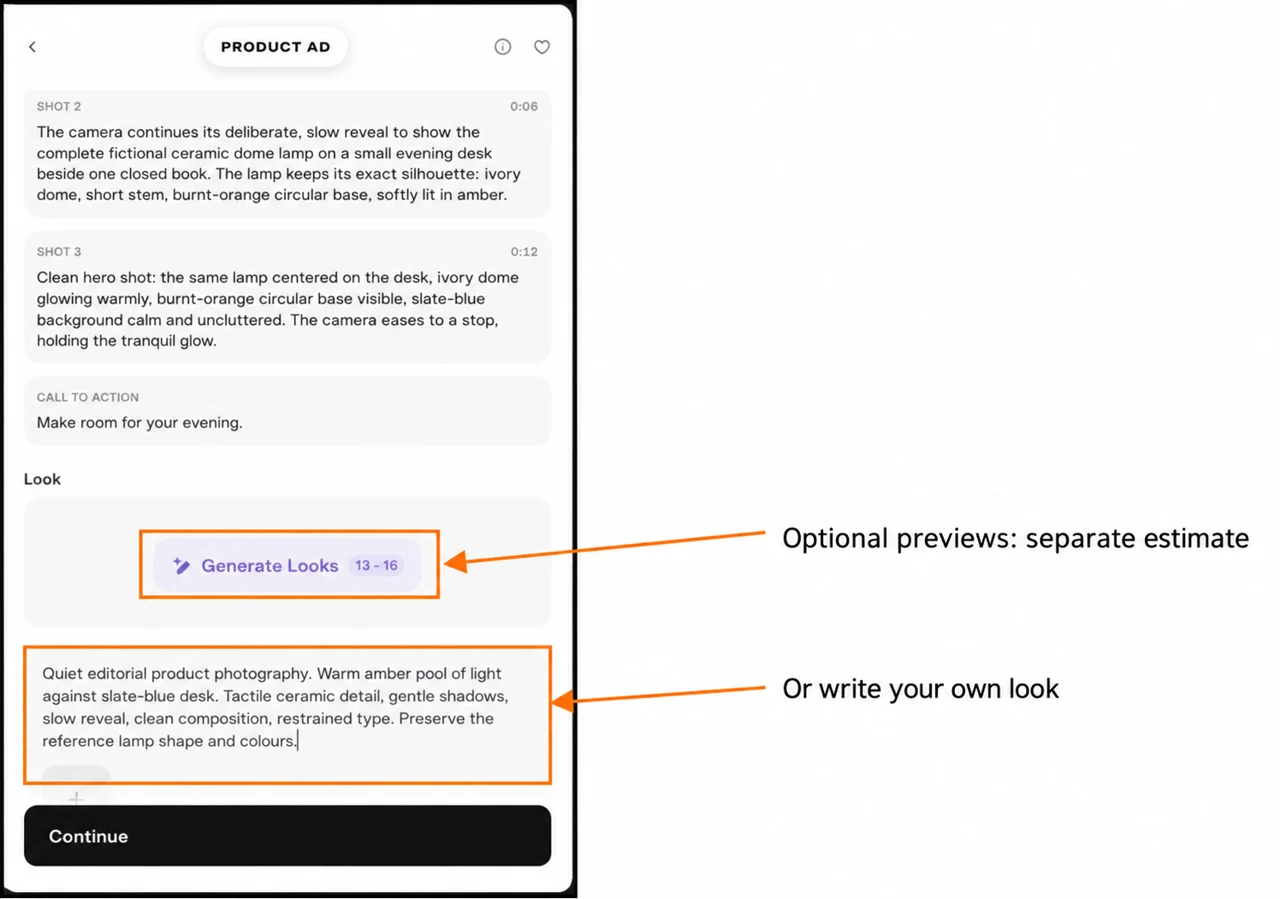
Our custom look:
Quiet editorial product photography. Warm amber pool of light against slate-blue dusk. Tactile ceramic detail, gentle shadows, slow reveal, clean composition, restrained type. Preserve the reference lamp shape and colours.
Generate Looks offered three previews with an estimate of 13–16 credits. We did not request those previews. You can also attach a style reference through the plus button or add a previous result to the reference area.
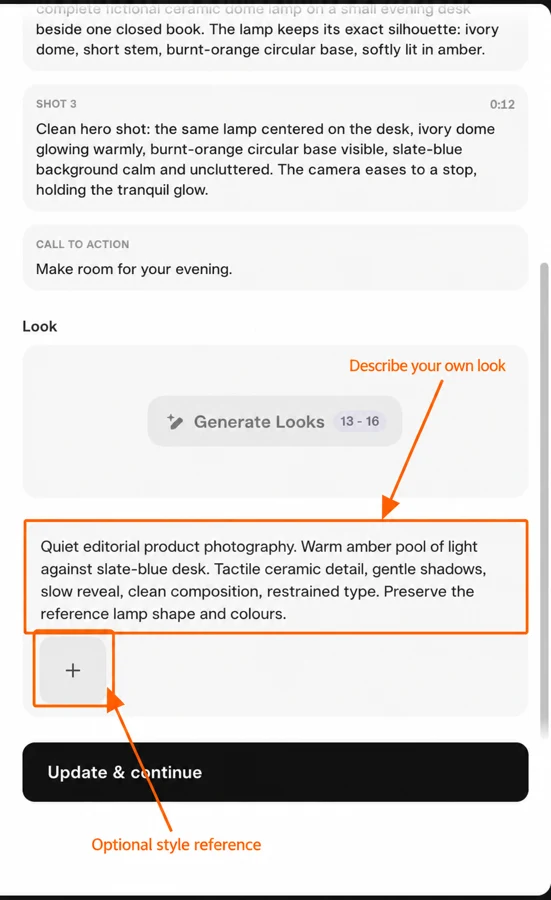
The product photo tells the app what the item is. A look reference helps describe the treatment. We left look references empty so another design would not compete with the lamp.
Step 4: review the format, model and full cost
Review shows a product preview and links to edit format, character, audio and look. The preview is a still image, not proof that a video has finished. Read whole description opens the longer concept text.
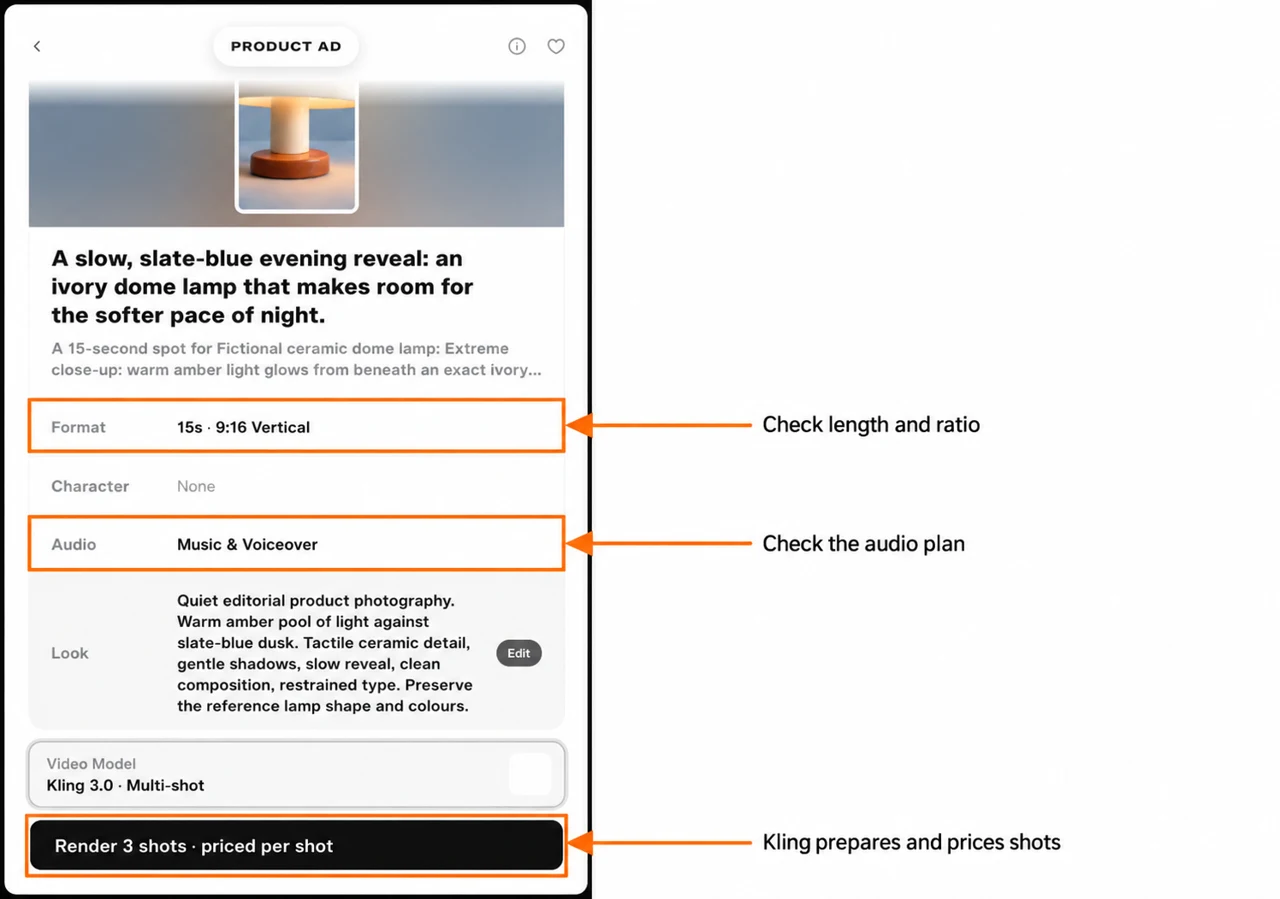
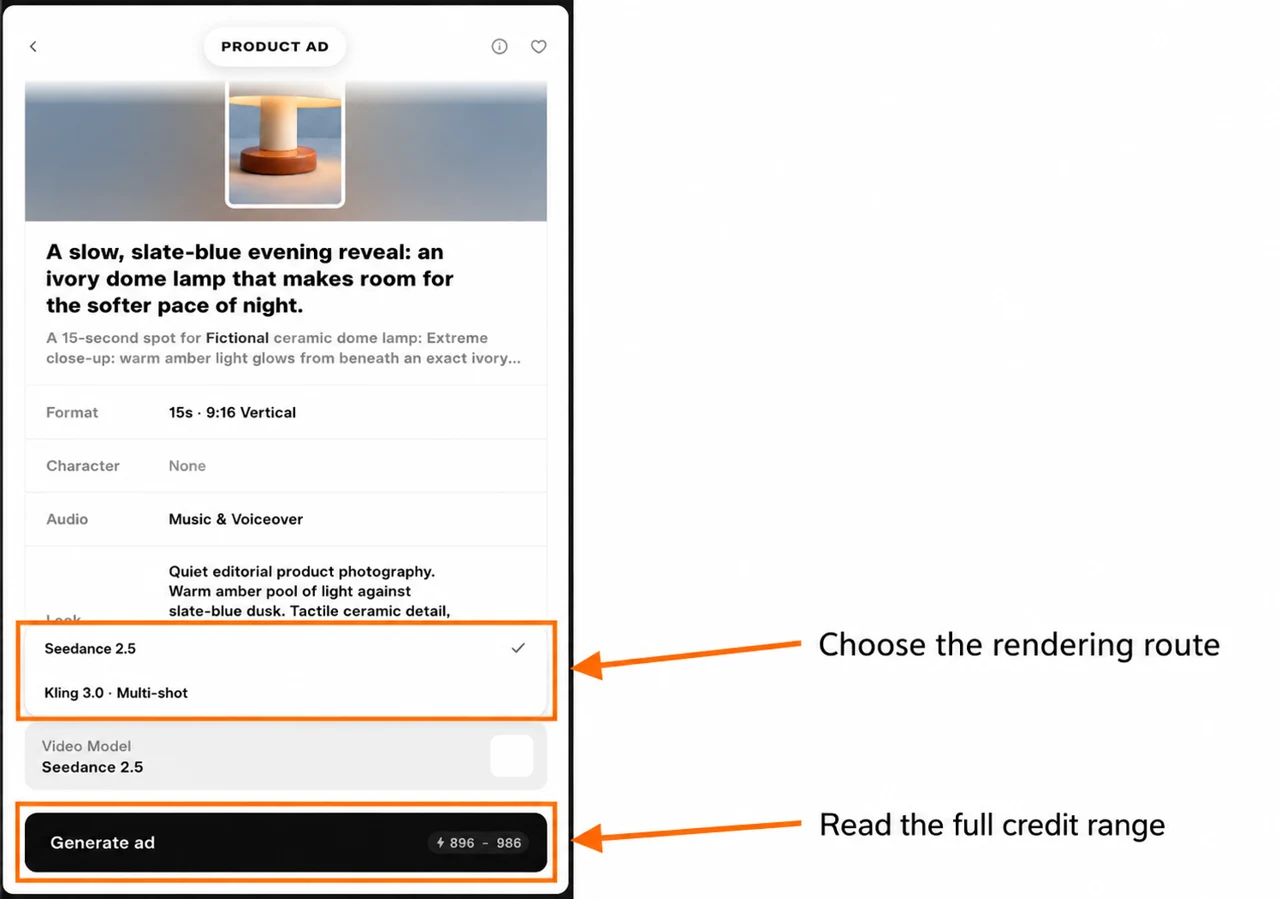
The model menu in this app offered Seedance 2.5 and Kling 3.0 Multi-shot. We did not find Pika 2.5 in this particular menu, or a separate resolution selector.
| Stage or workflow | What we observed |
|---|---|
| Concept preparation | One-credit balance change |
| Optional look previews | Estimate 13–16; not requested |
| Seedance 2.5, this 15s plan | Estimate 896–986; not submitted |
| Kling 3.0 Multi-shot | “Render 3 shots · priced per shot”; prepares frames and renders separate shots |
| First saved Kling shot | Asset cost 68 credits; 5.04s, 1080 × 1920 |
| Second saved Kling shot | Asset cost 68 credits; 5.04s, 1080 × 1920 |
| Prepared keyframes | Three image assets, each listed at 4 credits |
Kling’s rendering button started paid stages without an overall ad quote. We saved two five-second shots. Cancellation did not stop the second shot from finishing, and the workflow prepared a third still frame. The final balance was 11 credits, down from 160 at the start: 149 credits for the concept, three prepared frames and two video shots. The final video shot and complete 15-second ad were not rendered.
Before starting, budget for the complete sequence, its prepared images and any revisions. Do not use the cost of one shot as the cost of a 15-second ad.
Step 5: inspect and download each finished shot
Open the saved result in its project. Check the actual file duration and dimensions in the result details, then use Download. Retry starts another paid generation; Reprompt returns you to a setup you can change.
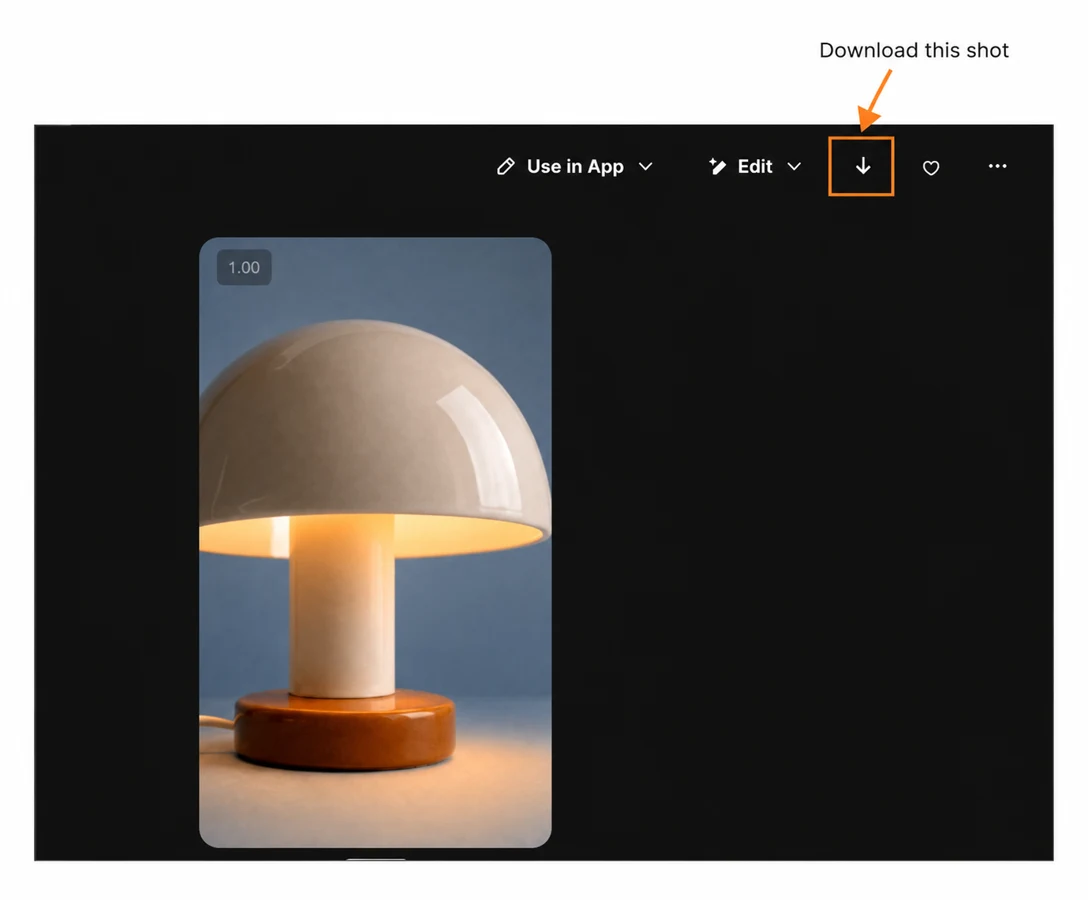
What this sample proves: the lamp reference produced a portrait opening shot with an audio track.
What still needs checking: the complete reveal, closing shot, spoken wording and final 15-second timing. The sample does not demonstrate a finished three-shot ad.
Listen with sound on. Check that narration is clear and that the ivory dome, short stem and orange base remain consistent. Add exact brand text in your final editor if generated lettering is unreliable.
My checklist before publishing a product ad
- The opening gives the viewer a reason to keep watching.
- The whole product appears early enough to understand the ad.
- Each shot keeps the same shape, colour and materials.
- Spoken words fit the time and are easy to hear over music.
- The closing message makes one clear request.
- The downloaded, assembled file is actually 15 seconds.
- Product claims, prices and links match the real item.
We can reuse this example for a mug, a perfume bottle or a small desk accessory. Change the opening detail and the reveal, then keep one product, one message and one consistent look.