
Pika suits compact photo animation, low per-clip credit costs and app-based follow-up edits. Kling suits creators who want tighter camera direction, sound in the base clip and a wide set of motion, image and audio tools in one studio. We gave both the same mug photo, the same prompt, 720p and five seconds, then generated one image on each from the same brief. Every result below comes from those runs.
Choose Pika if you want
- Fewer credits per short clip in its own credit units
- No platform mark on exports, including the Free plan
- Many model families in one account, Kling 4.0 included
- One-click follow-up apps: swap, add, relight, extend
Choose Kling if you want
- Closer adherence to camera directions in our test
- An audio track in the generated clip
- First, middle and last keyframe slots
- Motion control, lip sync and avatar tools in one panel
Quick verdict
- Same-photo video: Kling moved the camera toward the mug as asked; Pika pulled back. Both kept the mug intact.
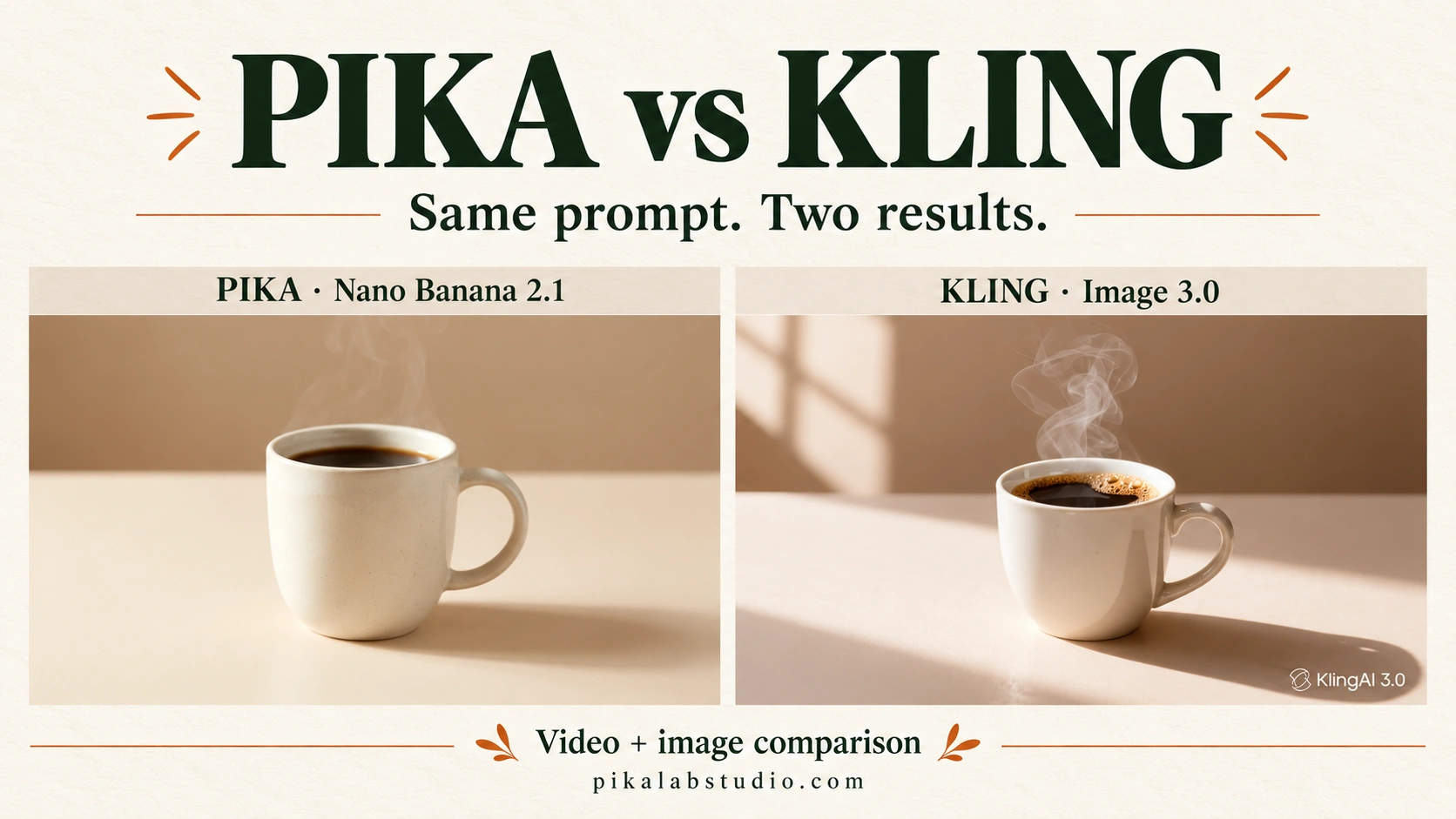
- Same-brief image: Pika framed the product tighter; Kling left more open space and added stronger shadows.
- Cost per tested clip: 20 Pika credits versus 50 Kling credits. These are different currencies, so compare plan prices too.
- Best first step: run one small clip from your own footage on each platform before buying a larger plan.
Pika and Kling at a glance
Both platforms turn text and images into short videos and stills. The difference is in how each one is organized. Pika works as a hub of focused apps that run its own models plus models from other labs. Kling is a studio built around its own model family, with a broad tools panel next to the generator.
Pika overview
Pika is a browser-based studio of single-purpose apps. Each app opens a form with its inputs, settings and a credit quote before you submit. Pika 2.5 is its own video model; the account also runs third-party models such as Nano Banana, Seedance, Wan and Kling 4.0.
Pika pricing
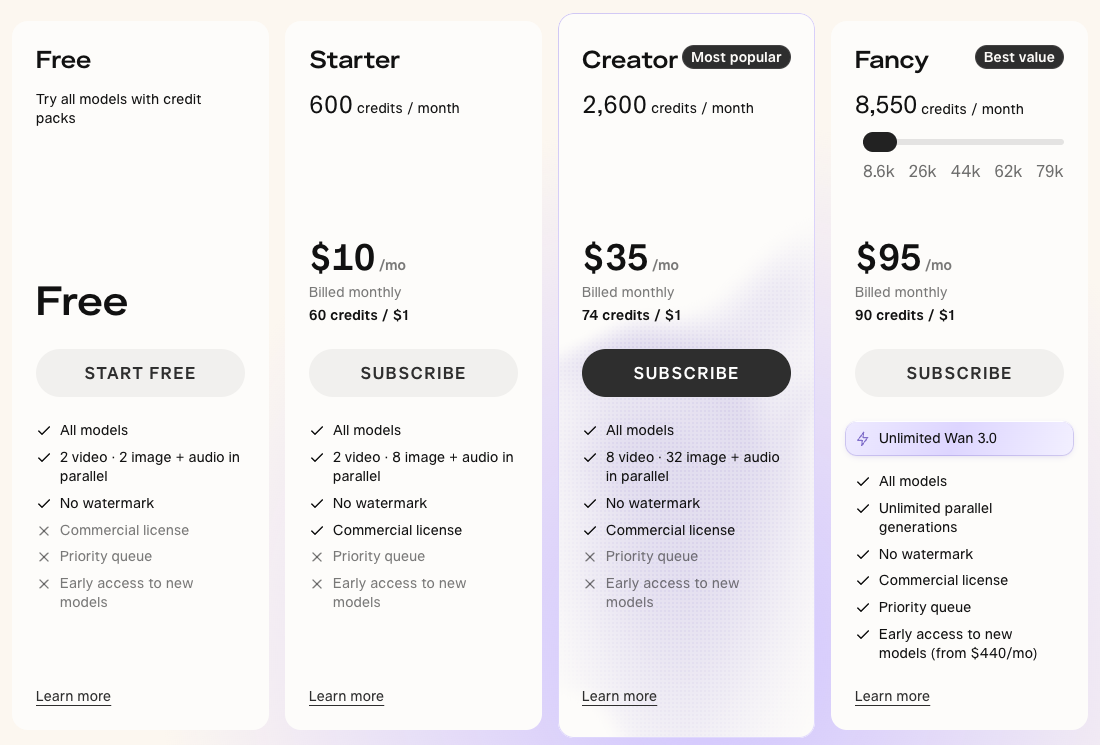
| Plan | Monthly price | Credits per month | Commercial license |
|---|---|---|---|
| Free | $0 | None; buy credit packs | No |
| Starter | $10 | 600 | Yes |
| Creator | $35 | 2,600 | Yes |
| Fancy | From $95 | 8,550 and up | Yes |
Annual billing lowers each paid plan by 20%. Every plan lists all models and no watermark. Plan credits reset monthly; top-up packs cost 60 credits per $1 and work only in Pika Create and Pika MCP.
Pika strengths
- Quote before you generate. Each app shows the credit cost for the current settings.
- Low cost for short clips. A 720p, five-second Pika 2.5 clip charged 20 credits.
- Clean exports. Our Pika 2.5 file had no visible platform mark.
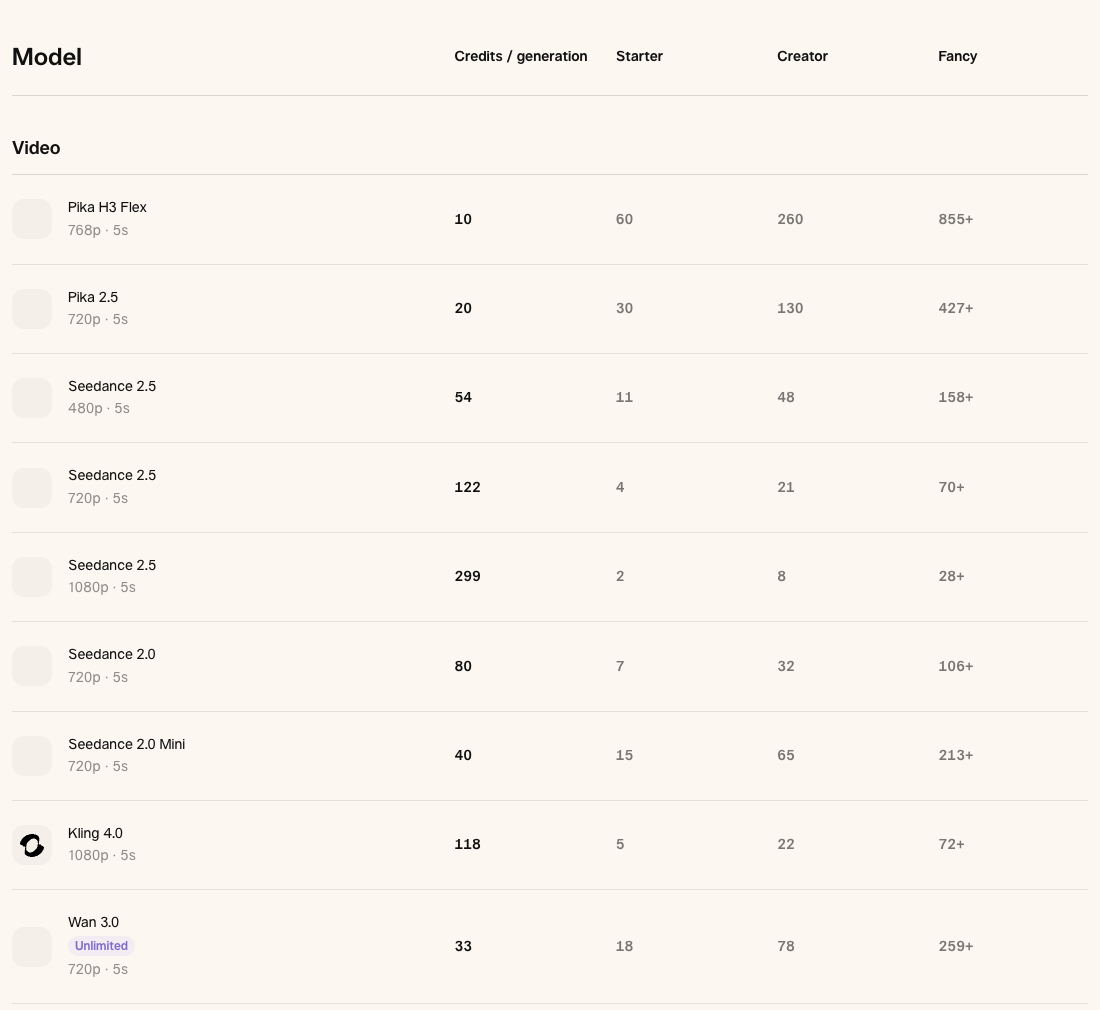
- Many models, one balance. Pika’s pricing table lists Pika, Seedance, Wan and Kling 4.0 video models plus several image and audio models. Our same-prompt test shows how seven of them, Kling 4.0 included, handled one brief inside Pika.
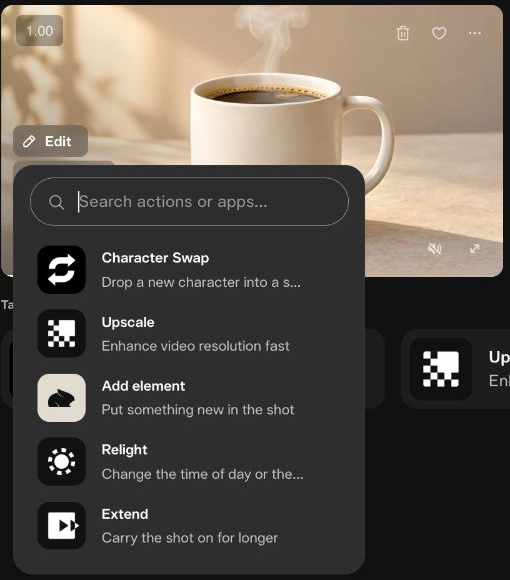
- Clear next steps. A finished clip offers Character Swap, Add element, Relight, Extend, Upscale and more.
What we noticed in testing
Pika’s form was quick to fill: attach one image, paste the prompt, choose 720p and five seconds. The clip kept the mug, handle and steam steady, but the camera drifted back instead of moving closer. The file came out at 1304×706 with no audio track.
Pika pros and cons
Pros
- 20 credits for a 720p, five-second Pika 2.5 clip
- No watermark on any plan
- Third-party models available without a second account
- Pikaframes accepts two to five ordered stills
- Edit apps launch straight from the finished clip
Cons
- Camera moved opposite to the prompt in our test
- No audio track in the Pika 2.5 export
- Free plan has no monthly credits
- Commercial use needs Starter or higher
- Motion Transfer shows a credit range, not a fixed price
Kling overview
Kling is a creative studio built around Kling’s own models: Kling 4.0 for video, Kling 3.0 for Motion Control and Kling Image 3.0 for stills. Generation modes sit in one form, and a separate Tools panel covers motion, avatars, lip sync, effects and audio.
Kling pricing
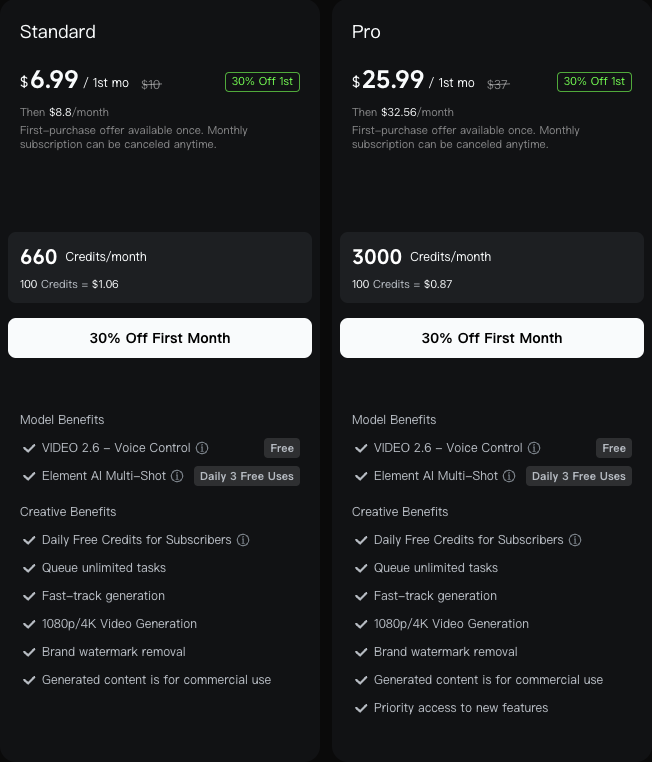
| Plan | First month | Then per month | Credits per month |
|---|---|---|---|
| Basic | $0 | $0 | Not listed |
| Standard | $6.99 | $8.80 | 660 |
| Pro | $25.99 | $32.56 | 3,000 |
| Premier | $144.99 | $181.99 | 18,000 |
| Ultra+ | $432.99 | $544.99 | 57,000 |
The first-month prices are a one-time offer. Paid plans list watermark removal, 1080p/4K video and commercial use; the free Basic tier does not. Yearly billing is also offered at a larger discount.
Kling strengths
- Camera direction. In our mug test, the camera moved closer as the prompt asked.
- Sound included. The Kling 4.0 export contained an audio track.
- Three keyframe slots. First, middle and last frame inputs sit in one form.
- Broad tools panel. Motion Control, Avatar, Lip Sync, Effects, Restyle and audio routes.
- Cheap stills. One 1K Kling Image 3.0 image deducted 1 credit.
What we noticed in testing
Kling’s uploader rejected the WebP source, so we converted it to PNG. With only the first frame attached, the clip pushed in on the mug and kept the steam moving. The free-account export carried a Kling mark at the lower right and came out at 1284×724.
Kling pros and cons
Pros
- Followed the requested camera approach
- Audio track in the generated clip
- First, middle and last keyframe inputs
- 1 credit for a 1K still in our test
- Motion, avatar, lip sync and audio tools in one place
Cons
- 50 credits for the same five-second clip
- Free exports carry a Kling mark
- WebP uploads were not accepted
- Renewal price is higher than the first month
- Free account showed limited 1080p trials
Feature comparison
| Feature | Pika | Kling |
|---|---|---|
| Image to video | ✓ Pika 2.5 and other models | ✓ Kling 4.0 |
| Text to image | ✓ Image Studio with named models | ✓ Kling Image 3.0 |
| Ordered keyframes | ✓ Two to five stills | ✓ First, middle and last frames |
| Motion transfer | ✓ Motion Transfer | ✓ Motion Control |
| Audio in base clip | — None in our Pika 2.5 file | ✓ Present in our Kling 4.0 file |
| Speech and sound | ✓ Speech, SFX, Music, Soundtrack apps | ✓ Lip Sync, Avatar, Text and Video to Audio |
| Third-party models | ✓ Includes Kling 4.0, Seedance, Wan | — Kling models |
| No mark on free exports | ✓ | — Removal on paid plans |
| Commercial use | ✓ Starter and above | ✓ Paid plans |
1. Output quality from the same photo
The source photo sets the mug, handle, tabletop and warm light. Both platforms received it with this prompt:
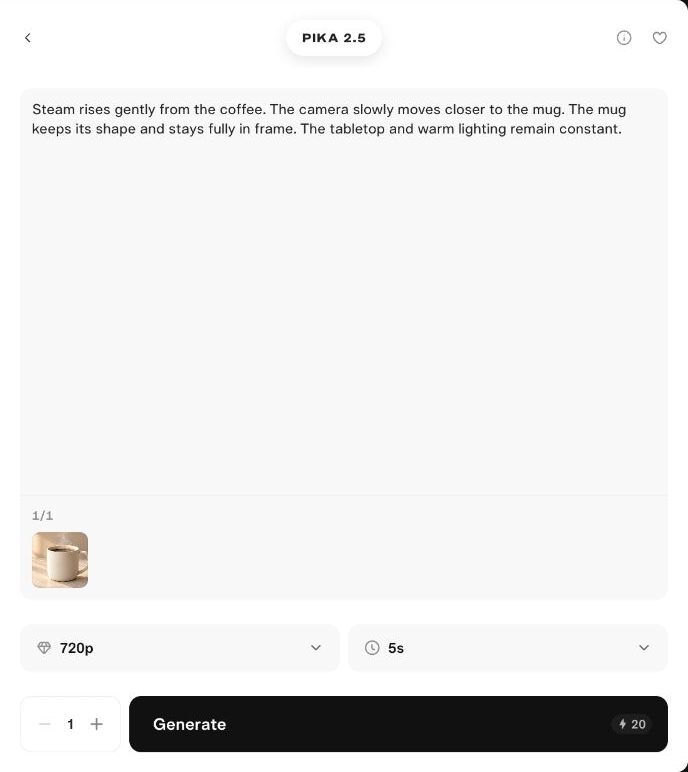
Steam rises gently from the coffee. The camera slowly moves closer to the mug. The mug keeps its shape and stays fully in frame. The tabletop and warm lighting remain constant.

Pika 2.5. The mug, handle and steam stay steady, but the mug ends smaller in frame, so the camera pulls back.
Kling 4.0. The mug grows larger in frame, matching the requested approach, while the steam keeps changing.
| Check | Pika result | Kling result |
|---|---|---|
| Mug and handle | Recognizable throughout the sampled frames | Recognizable throughout the sampled frames |
| Steam | Changes above the mug | Changes above the mug |
| Requested camera approach | Mug ends smaller; direction does not match | Mug ends larger; matches the brief |
| Composition | Whole mug remains in frame | Whole mug remains in frame |
| Downloaded dimensions | 1304×706 | 1284×724 |
| Audio track in file | None | Present; quality not scored |
| Mark on this export | None visible | Kling mark at lower right |
Edge for this prompt: Kling. Pika’s pullback still works if a gentle reveal suits your edit. One attempt per platform cannot establish a general winner, so play both clips and judge them against your own shot.
2. Image-to-video setup
Pika. Open Pika 2.5, attach the image, paste the prompt and choose 720p, 5s and 1 generation. The quote updates as you change settings.
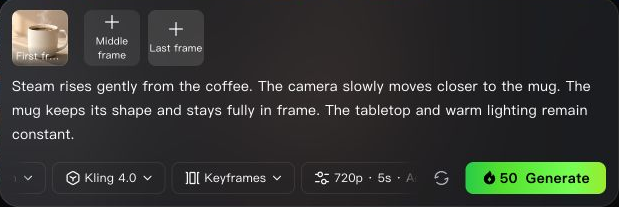
Kling. Choose Video Generation → Kling 4.0 → Keyframes and attach the photo as First frame. Leave the middle and last slots empty, then set 720p, 5s, one output and adaptive framing. Convert WebP sources to PNG or JPG first.
Both selected 720p, yet neither file was exactly 1280×720. Check downloaded dimensions before placing a clip in a fixed-size timeline. Our image-to-video walkthrough covers photo preparation, and the generation troubleshooting guide helps when a job fails.
3. Image generation from one brief
Both tools received the same text brief at 16:9, 1K, one image. Pika used Nano Banana 2.1; Kling used Kling Image 3.0.
A studio product photograph of one ivory ceramic coffee mug with a rounded handle on the right, filled with dark coffee, on a pale beige tabletop. Gentle steam rises above the rim. Warm window light comes from the left, with a soft shadow to the right. Three-quarter view at tabletop height, the whole mug centered with generous empty space around it. Plain warm beige background, realistic ceramic texture, clean unbranded surface.
Pika. A closer product view with fine ceramic texture, soft light and subtle steam.

Kling. More open space, pronounced steam, and a window pattern with a long shadow that the plain-background brief did not request.

Edge: depends on the layout. Choose Pika’s result for a tight product crop and Kling’s for room to add text. To steer either model, state how much of the frame the product should fill. See the Image Studio guide and Product Shot workflow.
4. Keyframes and transitions
Pika. Pikaframes takes two to five ordered stills, and each adjacent pair becomes a transition. A two-frame, five-second setup quoted 20 credits at 720p and 30 at 1080p.
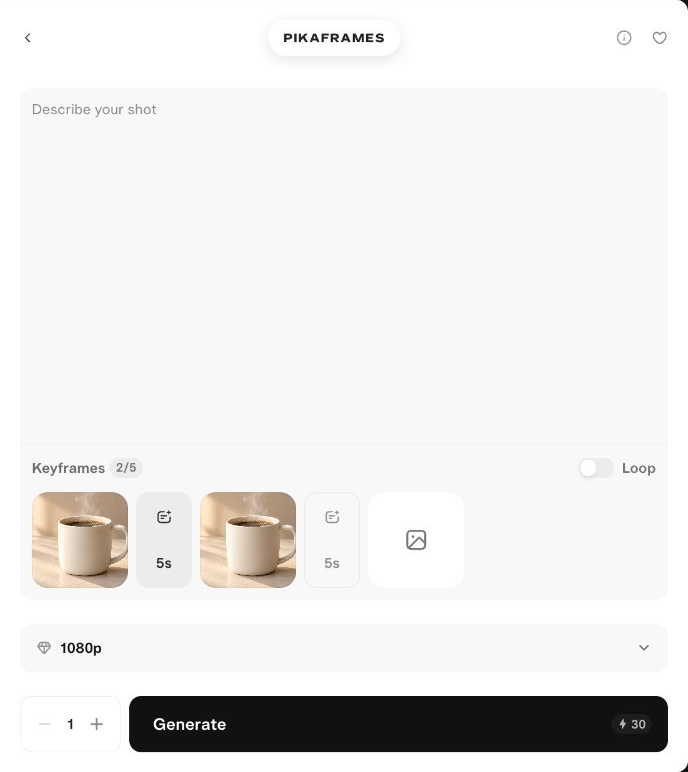
Kling. Keyframes mode shows first, middle and last frame inputs. A two-frame, 720p, five-second setup quoted 50 credits. Supported frame counts change with duration, so read the active form.
Edge: Pika for longer sequences of up to five stills; Kling for a single clip with a fixed midpoint. Compare both routes in Pikaframes versus image-to-video.
5. Motion transfer and motion control
Both platforms pair a character image with a motion reference clip. Use a full-body image for full-body movement and a continuous reference shot.
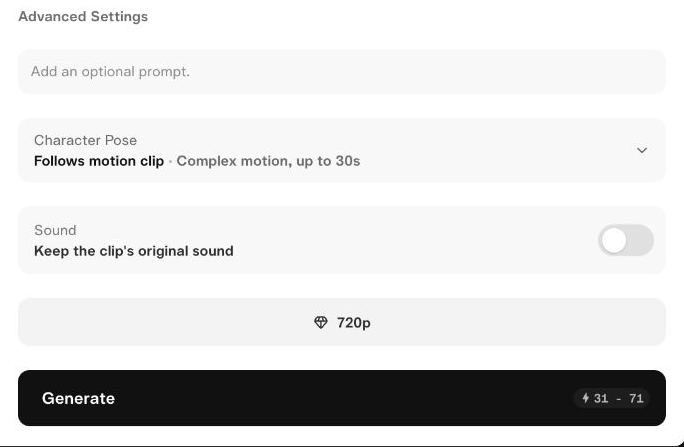
Pika. Motion Transfer separates character orientation, source sound and resolution. With a 5.33-second reference, it quoted 31–71 credits at 720p and 41–95 at 1080p, sound off.
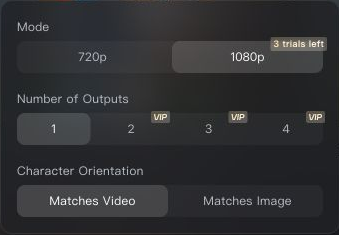
Kling. Motion Control on Kling 3.0 offers Matches Video and Matches Image orientation. The same reference quoted 45 credits at 720p and 60 at 1080p.
Edge: Kling for a fixed quote. Pika’s Motion Transfer has used Kling technology in our earlier test record, so this compares platform workflows rather than two separate model families. Our Motion Transfer guide explains source preparation.
6. Editing and creative tools
Pika. The finished clip’s menu lists the next action: Character Swap, Add element, Relight, Extend, Upscale, camera changes, trimming and soundtrack.
Kling. The Tools panel groups Motion Control, Avatar, Effects, Lip Sync, Restyle, Image Enhancing, AI Portraits and audio routes. Finished stills offer Inpaint, Remove and Expand; finished videos offer Edit Video.
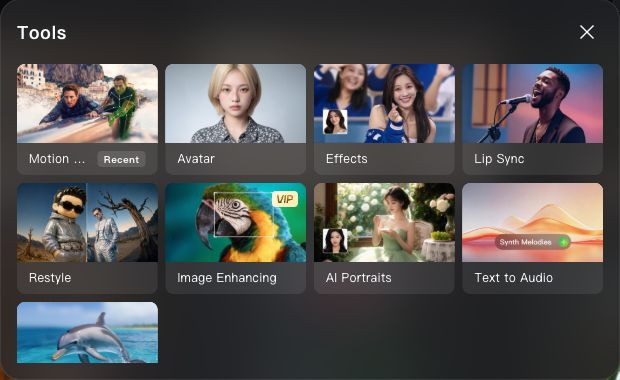
Edge: Pika for edits on a finished clip; Kling for a wider toolbox. A menu entry shows a route exists, not free access or tested quality. Try Pikadditions to add an element or Edit Image for stills.
7. Sound, speech and audio
Pika. The Pika 2.5 file had no audio track. Add sound afterward with the Speech, SFX, Music or Soundtrack apps.
Kling. The Kling 4.0 file included an audio track. The Tools panel adds Lip Sync, Avatar, Text to Audio and Video to Audio.
Edge: Kling for sound in one pass. We did not score audio quality on either side.
8. Clip length and resolution
Pika. Pika 2.5 offered five- and ten-second clips at 720p and 1080p in our checks.
Kling. Kling 4.0 also quoted five- and ten-second clips at both resolutions. Kling’s plan page describes Kling 4.0 as supporting native 30-second generation and lists 1080p/4K among paid benefits. The free account showed a limited number of 1080p trials.
Edge: Kling on paper for longer clips. We quoted only five- and ten-second jobs on both platforms.
9. Model choice
Pika. One Pika balance runs Pika’s own models and models from other labs. Its pricing page lists Kling 4.0 at 1080p for 118 Pika credits per five-second clip, so you can try Kling’s model without a Kling account.
Kling. Kling’s studio centers on its own models: Kling 4.0, Kling 3.0 and 3.0 Omni, and Kling Image 3.0.
Edge: Pika for range. Kling 4.0 inside Pika uses Pika credits and Pika’s form; we did not generate with that route here.
10. Pricing and credit cost
| Operation | Pika credits | Kling credits | Evidence |
|---|---|---|---|
| 720p, five-second image to video | 20 | 50 | Completed outputs above |
| 1K text to image | 4 | 1 | Completed outputs; different named models |
| 720p, ten-second image to video | 40 | 100 | Setup quotes |
| 1080p, five-second image to video | 45 | 75 | Setup quotes |
| 1080p, ten-second image to video | 60 | 150 | Setup quotes |
| Two-frame transition, 720p, five seconds | 20 | 50 | Setup quotes |
| Motion transfer, 720p, 5.33-second source | 31–71 | 45 | Setup quotes |
| Entry plan | Pika Starter | Kling Standard |
|---|---|---|
| Monthly price | $10 | $6.99 first month, then $8.80 |
| Credits per month | 600 | 660 |
| Listed cost per 100 credits | About $1.67 | $1.06 |
| 720p, five-second clips per month at our charges | About 30 | About 13 |
Edge: Pika for short-clip volume on an entry plan. The last row divides monthly credits by the charges we saw; images, edits, audio and retries change the total. Plan prices and promotions can change, so check Pika pricing and Kling membership before you buy. The Pika credit calculator helps plan Pika spending; it does not convert Kling credits.
Which tool fits your project
| You need | Choose | Why |
|---|---|---|
| Many short product clips on a small budget | Pika | 20 credits per 720p, five-second Pika 2.5 clip |
| A precise push-in or camera move | Kling | Followed the camera direction in our test |
| Sound in the generated clip | Kling | Audio track present in the Kling 4.0 file |
| Clean exports on a free account | Pika | No watermark listed on any plan |
| A transition across three or more stills | Pika | Pikaframes accepts up to five stills |
| Lip sync or avatar video | Kling | Both sit in the Tools panel |
| Testing several model families | Pika | Pika, Seedance, Wan and Kling 4.0 share one balance |
| Lots of cheap still images | Kling | 1 credit for a 1K Kling Image 3.0 still |
- Tight budget: start with Pika Starter if most of your work is short clips; start with Kling Standard if you need many stills.
- Product content: test one representative photo on both before choosing a plan.
- Client work: confirm the commercial license on the plan you buy.
- New to AI video: Pika’s single-purpose forms keep each job’s inputs in one view.
Switching between Pika and Kling
Moving from Pika to Kling
You gain an audio track in base clips, a middle keyframe slot, lip sync and avatar tools, and cheaper stills. You give up clean free exports, Pikaframes’ five-still sequences and access to third-party models.
- Export finished clips and source images from Pika.
- Convert WebP sources to PNG or JPG for Kling’s uploader.
- Rebuild one test clip with the same prompt, resolution and duration.
- Compare the Kling quote with your Pika charge before moving a batch.
Moving from Kling to Pika
You gain lower credit costs per short clip, unmarked exports, one-click edit apps and several model families. You give up sound in base clips and Kling’s broad tools panel.
- Download your Kling clips and reference images.
- Open Pika 2.5, or Kling 4.0 inside Pika if you want to keep the same model.
- Run one five-second test with your usual prompt.
- Add sound afterward with Soundtrack, SFX or Speech if the clip needs it.
What this comparison did not cover
Each platform produced one video and one image from matched inputs. We did not measure generation speed, success rates over many attempts, audio quality, 4K output, long clips, lip sync or avatar results. Motion, keyframe and editing sections compare controls and credit quotes, not finished outputs. Use your own footage and a small first test before trusting any single result.
Final verdict
| Category | Edge | Reason |
|---|---|---|
| Camera direction from one photo | Kling | Followed the push-in prompt |
| Product shape and steam | Tie | Both kept the mug intact |
| Image composition | Depends | Pika framed tighter; Kling left more space |
| Audio in base clip | Kling | Track present in the export |
| Credits per short clip | Pika | 20 versus 50 in each platform’s units |
| Free-tier exports | Pika | No watermark listed |
| Keyframe sequences | Pika | Up to five ordered stills |
| Tool range | Kling | Motion, lip sync, avatar and audio tools |
| Model choice | Pika | Several labs in one account |
Our pick for most small product creators: Pika
Pika gives more short clips per dollar on an entry plan, unmarked exports and simple edit apps after each clip. Choose Kling when precise camera moves, sound in the generated clip or lip sync matter more than cost.
Treat this as a starting point, not a ranking across every subject or style. A legible label, a stable product shape or one specific camera move is a better test than an overall score.
More Pika comparisons
- Pika vs Runway compares features and workflows across the two studios.
- Pikaframes vs image to video helps you pick a route for controlled transitions.
- Text to video vs image to video explains when a reference photo helps.
Frequently asked questions
Is Pika better than Kling for image-to-video?
It depends on the shot. In this one matched mug test, Kling followed the camera approach more closely; Pika retained the product but ended with a wider composition. One attempt per model cannot establish a general winner.
Can Pika and Kling generate images too?
Yes. Our Pika Image Studio example used Nano Banana 2.1, while the Kling example used Kling Image 3.0. Both received the same text brief, 16:9 ratio and 1K setting.
Are 20 Pika credits cheaper than 50 Kling credits?
The numbers alone do not establish that. Each service defines its own credits and plan prices. On the entry plans, Pika Starter lists 600 credits for $10 and Kling Standard lists 660 credits for $8.80 after the first month, so compare money paid per usable clip.
Can I use Kling inside Pika?
Yes. Pika’s pricing page lists Kling 4.0 at 1080p for 118 Pika credits per five-second clip. That route uses Pika credits and Pika’s form, so its quote and settings can differ from Kling’s own studio.
Do Pika and Kling add a watermark?
Pika lists no watermark on every plan, including Free, and our Pika 2.5 export had none. Our free-account Kling export carried a Kling mark; Kling lists watermark removal as a paid-plan benefit.
Does Pika Motion Transfer use a different model from Kling?
Our earlier Pika Motion Transfer record identified Kling technology. Treat that workflow as a platform-access and setup comparison, and verify the model used for the specific job.