
Pika suits low-cost short clips, ordered keyframes and single-purpose creative apps. Runway suits creators who want a production workspace with its Gen-4.5 and Aleph 2.0 models, projects, workflows and studio export formats. This is a feature, pricing and workflow comparison built from both interfaces and each provider’s published plans. It does not rank generated video quality or speed.
Choose Pika if you want
- More short clips per dollar on an entry plan
- Unmarked exports on every plan, Free included
- Pikaframes for two to five ordered stills
- Focused apps for swaps, additions, sound and upscaling
Choose Runway if you want
- Gen-4.5 with six aspect ratios
- Aleph 2.0 for editing existing footage
- Projects, Sessions, Workflows and an agent
- HDR, ProRes and image sequences on the Max plan
Quick verdict
- Short photo clips: Pika 2.5 quotes 20 Pika credits for 720p, five seconds; Runway publishes 60 credits for five seconds of Gen-4.5.
- Free plans: Pika gives no monthly credits but no watermark; Runway gives 125 one-time credits and a selection of models.
- Editing footage: both offer dedicated routes; Runway centers on Aleph 2.0, Pika on separate task apps.
- Best first step: build the same shot setup on both, read each quote, then decide which plan to buy.
Pika and Runway at a glance
Both platforms create video, images and audio from text or reference media, and both host models from other labs. Pika works as a set of single-purpose apps. Runway works as a production workspace where generation, editing and project organization share one interface.
Pika overview
Pika is a browser studio of focused apps. Each app opens a form with its inputs, settings and a credit quote before you submit. Pika 2.5 is its own video model; the same balance also runs Seedance, Wan, Kling 4.0, Nano Banana and other models.
Pika pricing
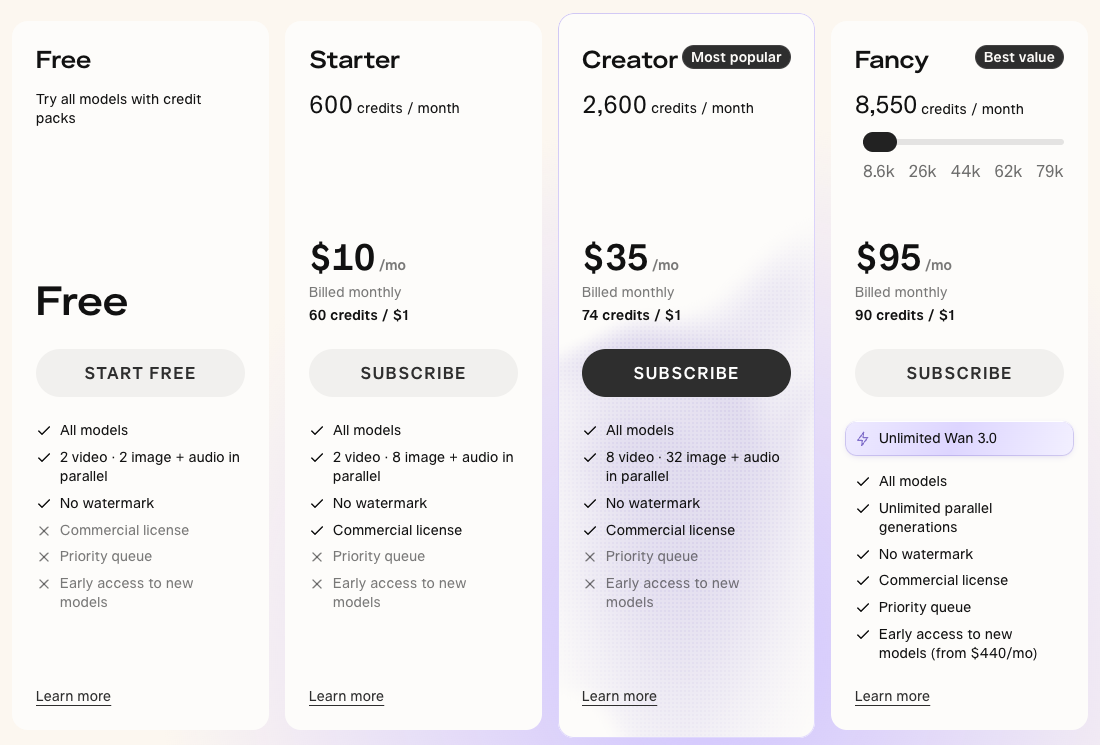
| Plan | Monthly price | Credits per month | Commercial license |
|---|---|---|---|
| Free | $0 | None; buy credit packs | No |
| Starter | $10 | 600 | Yes |
| Creator | $35 | 2,600 | Yes |
| Fancy | From $95 | 8,550 and up | Yes |
Annual billing lowers each paid plan by 20%. Every plan lists all models and no watermark. Plan credits reset monthly; top-up packs cost 60 credits per $1.
Pika strengths
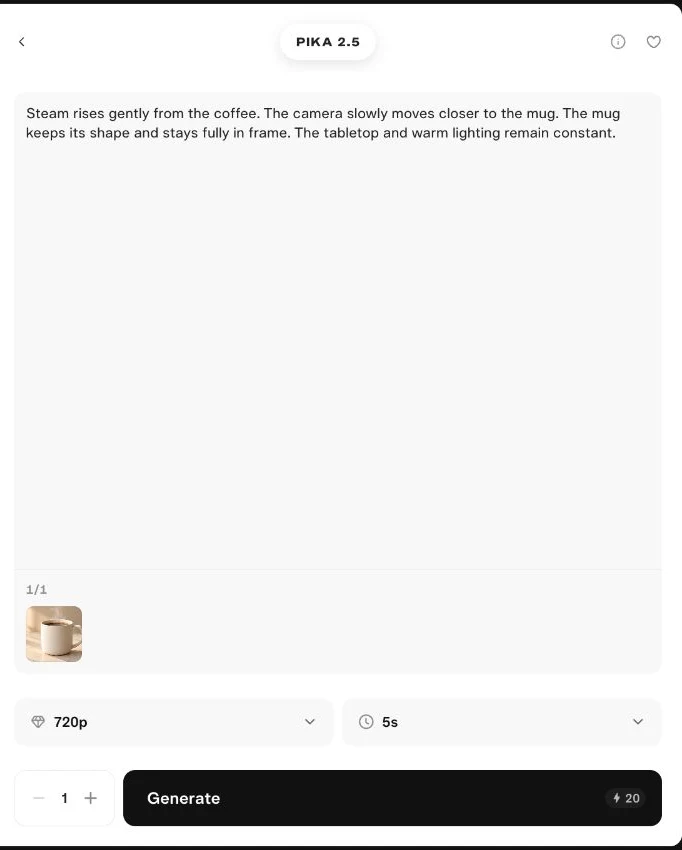
- Quote before you generate. The Pika 2.5 form shows about 20 credits for 720p, five seconds, one generation.
- Low entry cost. Starter lists 600 credits for $10 a month.
- Clean exports. No watermark is listed on any plan.
- Ordered keyframes. Pikaframes accepts two to five stills.
- Task apps. Swap Anything, Pikadditions, Relight, Extend, Upscale, Speech, SFX and Soundtrack each have their own form.
What we noticed in the interface
Pika’s image-to-video form asks for only a few choices: source image, prompt, resolution, duration and number of generations. The credit quote sits next to Generate and updates as you change settings. Finished clips open a menu of follow-up apps.
Pika pros and cons
Pros
- 20-credit quote for a 720p, five-second Pika 2.5 clip
- No watermark on any plan
- Third-party models on one balance
- Up to five ordered keyframes
- Edit apps launch from a finished clip
Cons
- Free plan has no monthly credits
- Commercial use needs Starter or higher
- No aspect-ratio menu once a photo is attached
- No HDR or ProRes export option listed
- Fewer project-management features
Runway overview
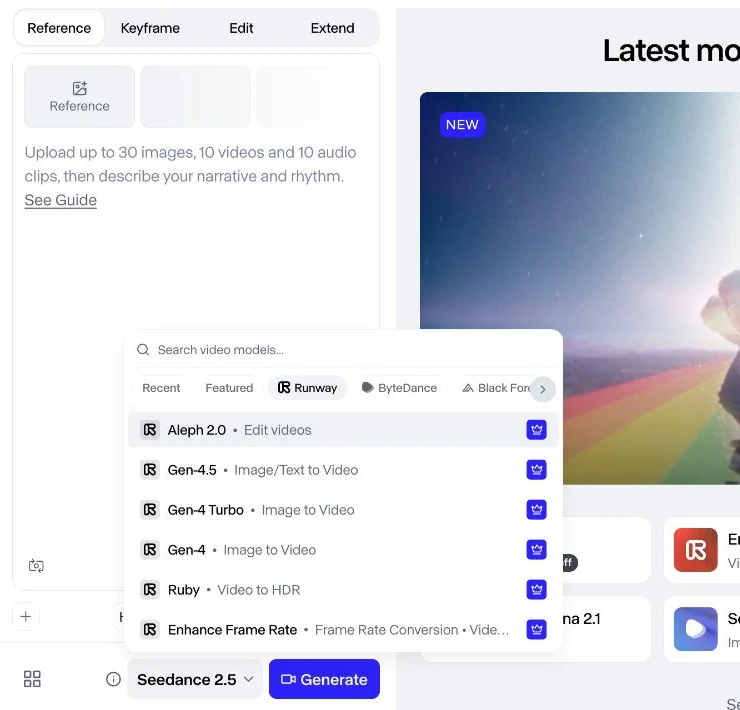
Runway is a creative workspace with Image, Video and Audio modes. Its own models include Gen-4.5, Gen-4, Gen-4 Turbo and the Aleph 2.0 editing model. A provider filter in the model menu also lists models from other labs, such as Kling 4.0, Seedance and Nano Banana Pro.
Runway pricing
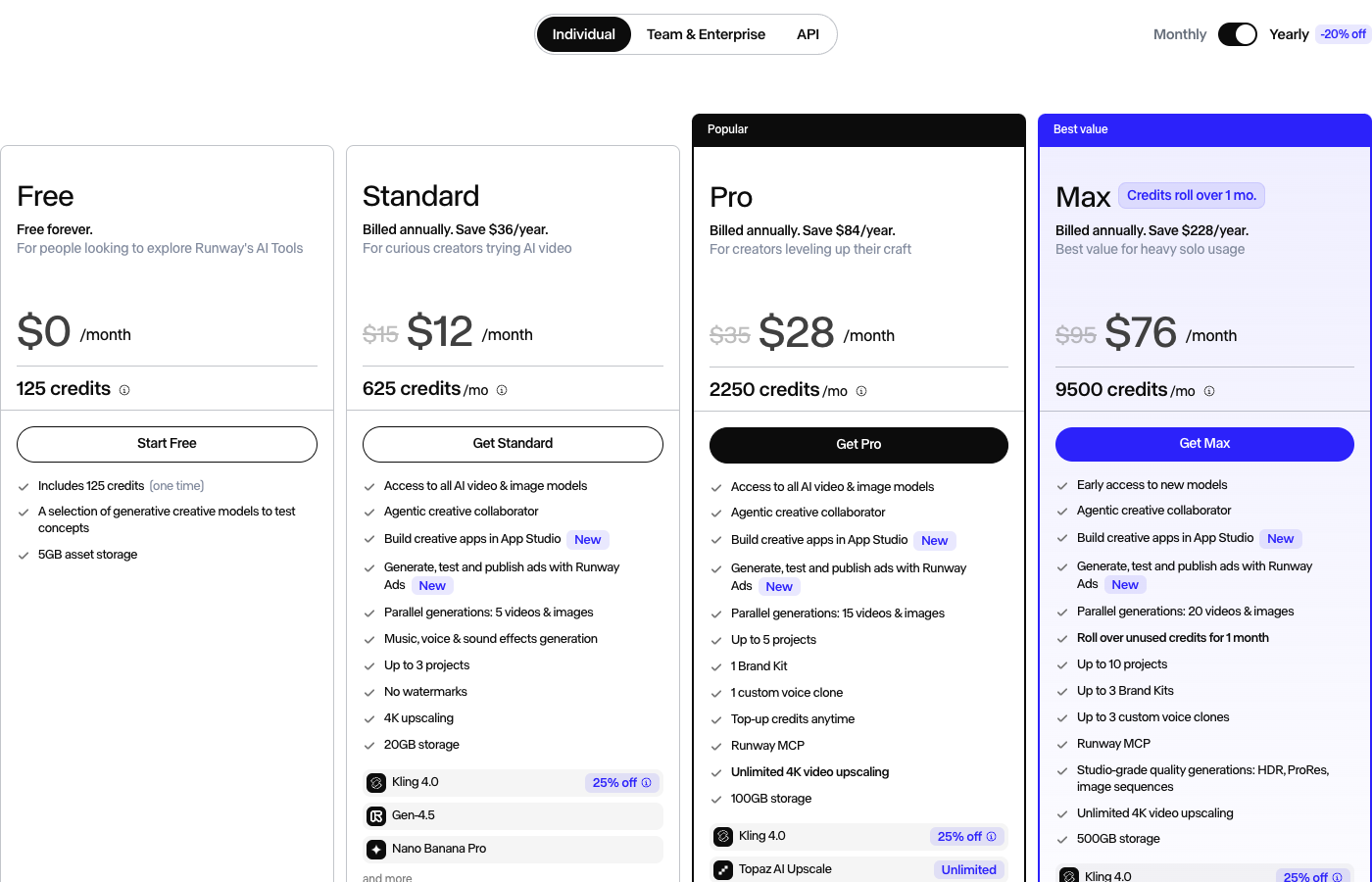
| Plan | Monthly billing | Annual billing, per month | Credits |
|---|---|---|---|
| Free | $0 | $0 | 125, one time |
| Standard | $15 | $12 | 625 per month |
| Pro | $35 | $28 | 2,250 per month |
| Max | $95 | $76 | 9,500 per month, one-month rollover |
Standard adds access to all video and image models, music, voice and sound effects, no watermarks and 4K upscaling. Pro adds a custom voice clone, Runway MCP and top-ups at any time. Max adds HDR, ProRes and image-sequence output. Purchased credits never expire; the minimum top-up is 1,000 credits.
Runway strengths
- Gen-4.5 controls. Text or a first-frame image, 2–10 seconds and six aspect ratios.
- One Video panel. Reference, Keyframe, Edit and Extend tabs sit side by side.
- Footage editing. Aleph 2.0 opens Edit Studio with presets such as Change Lighting and Remove Anything.
- Production workspace. Assets, Projects, Sessions, Workflows, Agent and App Studio.
- Delivery formats. 4K upscaling from Standard; HDR, ProRes and image sequences on Max.
- Starter credits. The Free plan includes 125 one-time credits.
What we noticed in the interface
Runway’s controls change with the selected model. With Seedance 2.5, the Video panel shows Reference, Keyframe, Edit and Extend tabs; switching to Gen-4.5 hides them and leaves a single First Video Frame slot above the prompt, ratio and duration. On the Free plan, Gen-4.5 and Gen-4 Turbo carry upgrade badges, and the settings panel shows watermark removal and output format as plan upgrades.
Runway pros and cons
Pros
- Six aspect ratios for Gen-4.5
- Edit Studio presets for footage changes
- Projects, Sessions and Workflows
- HDR, ProRes and image sequences on Max
- 125 free one-time credits
Cons
- 60 credits for five seconds of Gen-4.5
- Gen-4.5 needs Standard or higher
- Gen-4.5 outputs 720p and has no last-frame slot
- Free settings show watermark removal as an upgrade
- Monthly Standard costs $15 versus Pika’s $10 Starter
Feature comparison
| Feature | Pika | Runway |
|---|---|---|
| Image to video | ✓ Pika 2.5, 5 or 10 seconds | ✓ Gen-4.5, 2–10 seconds |
| Text to video | ✓ Pika 2.5 | ✓ Gen-4.5 |
| Aspect-ratio choice | — Set by the source image | ✓ Six ratios |
| Ordered keyframes | ✓ Pikaframes, two to five stills | ✓ Keyframe tab, first and last frame |
| Edit existing footage | ✓ Swap, add, relight, extend apps | ✓ Aleph 2.0 Edit Studio |
| Character motion | ✓ Motion Transfer | ✓ Act-Two, Kling Motion models |
| Music, voice and effects | ✓ Separate apps | ✓ Standard and above |
| Third-party models | ✓ Includes Kling 4.0, Seedance, Wan | ✓ Includes Kling 4.0, Seedance, Nano Banana Pro |
| No watermark on free plan | ✓ | — Removal listed from Standard |
| HDR or ProRes output | — Not listed | ✓ Max plan |
| Projects and workflows | ✓ Library, Projects, Jobs | ✓ Projects, Sessions, Workflows, Agent |
1. Image-to-video setup
Pika. Open Pika 2.5, click Add in the image area, choose Upload and select your photo. Write one motion instruction, then choose 720p, 5s and 1 generation. Read the quote beside Generate.
Runway. Select Tool → Video, open Video models, filter to Runway and choose Gen-4.5. Upload the photo as the First Video Frame, add the prompt, choose a ratio and set 5s. Open Advanced Settings to review seed, watermark and output-format options.
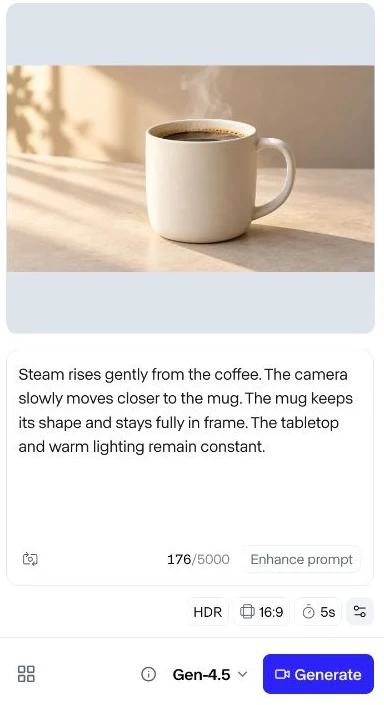
Use the same prompt on both to compare their setups:
Steam rises gently from the coffee. The camera slowly moves closer to the mug. The mug keeps its shape and stays fully in frame. The tabletop and warm lighting remain constant.
Edge: Pika for a fast setup; Runway for framing control. Runway documents 16:9, 9:16, 1:1, 4:3, 3:4 and 21:9 for Gen-4.5. Pika 2.5 offers 720p and 1080p. Our Pika image-to-video guide covers photo preparation, and Runway’s Gen-4.5 documentation lists its settings.
2. Text to video
Pika. Pika 2.5 accepts a text prompt with no source image, using the same resolution and duration choices.
Runway. Gen-4.5 accepts text alone, with the same ratio and duration controls as image input.
Edge: depends on framing needs. When the opening composition matters, start from a photo on either platform. Read text-to-video versus image-to-video to choose.
3. Keyframes and transitions
Pika. Pikaframes takes two to five ordered stills, and each adjacent pair becomes a transition. A two-frame, five-second setup quoted 20 credits at 720p and 30 at 1080p.
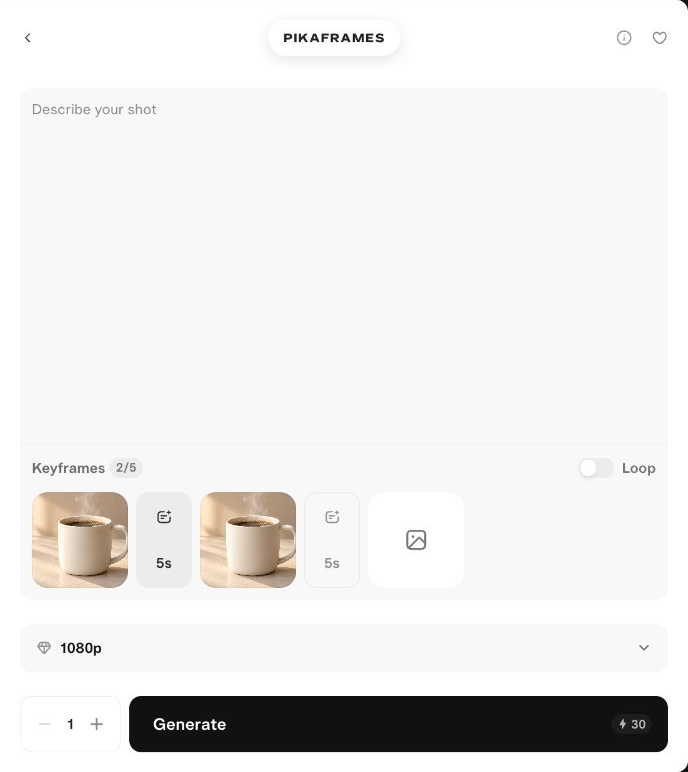
Runway. Open Video → Keyframe and add a First Video Frame and a Last Video Frame. The tab appears with models such as Seedance 2.5; Gen-4.5 shows only a first-frame slot.
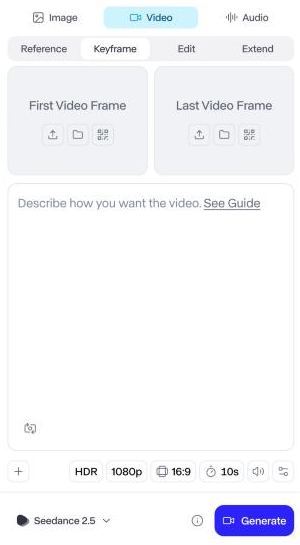
Edge: Pika for three or more stills; tie for a simple start-to-end transition. Check frame limits for the model you select. Compare routes in Pikaframes versus image-to-video.
4. Editing existing footage
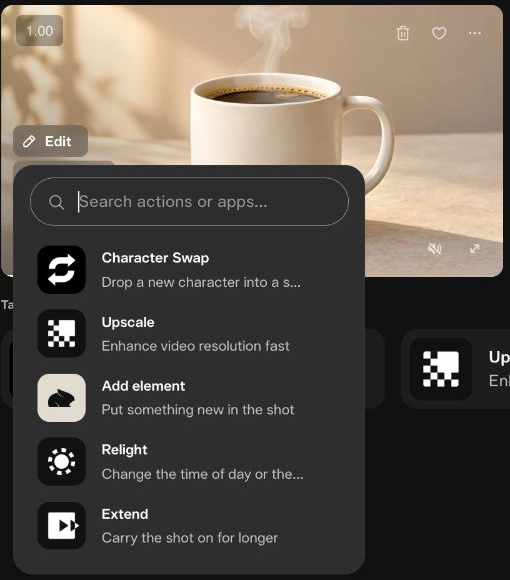
Pika. A finished clip’s menu lists Character Swap, Add element, Relight, Extend, Upscale, camera changes, trimming and soundtrack. Each app handles one kind of change.
Runway. Selecting Aleph 2.0 opens Edit Studio. Upload or select a clip, then describe the change or start from a preset: Swap Product, Change Lighting, Change Background or Remove Anything. Runway lists Aleph 2.0 at 140 credits per five seconds.
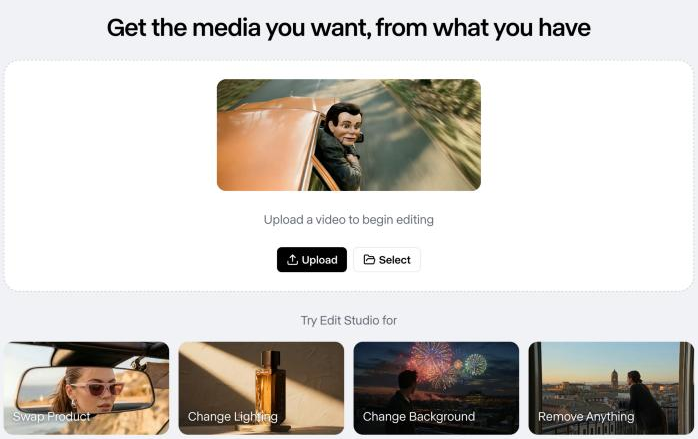
Edge: tie, with different styles. Pika splits edits into separate apps; Runway gathers them in one studio with presets. Our Pikadditions guide shows the addition workflow.
5. Character motion
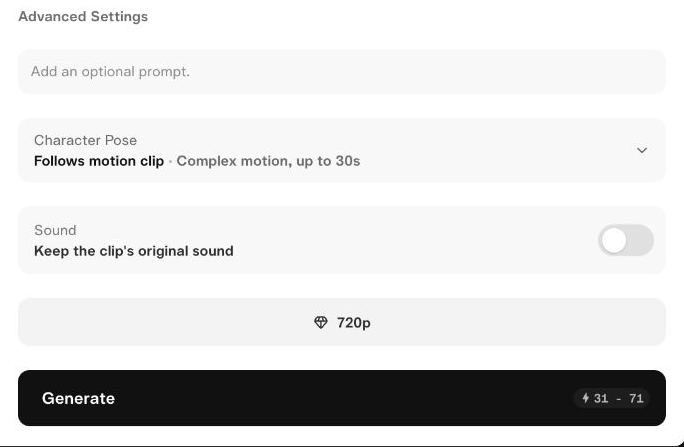
Pika. Motion Transfer pairs a character image with a motion clip. With a 5.33-second reference, it quoted 31–71 credits at 720p, sound off.
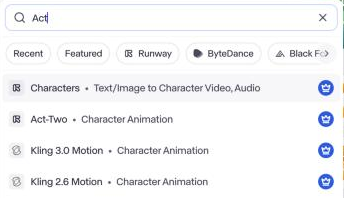
Runway. The model menu lists three character-animation routes: Act-Two, Kling 3.0 Motion and Kling 2.6 Motion.
Act-Two takes a driving performance of up to 30 seconds, with voice, gestures and facial expressions, plus a character image or video. You can record in the browser or select an asset.
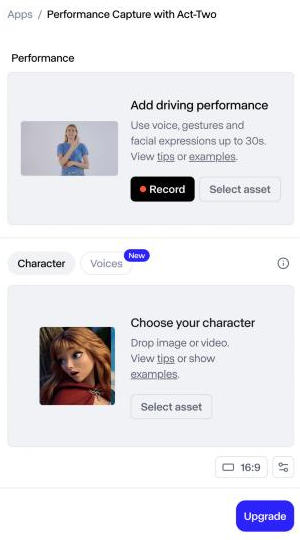
Edge: Runway for more choices, including facial performance capture. Each tool asks for different inputs; prepare footage for the one you choose. See our Motion Transfer guide.
6. Image generation
Pika. Image Studio runs named models such as Nano Banana 2.1 at 4 credits, GPT Image 2.6 at 3 and Seedream 5 Lite at 3 for a 1K image. Edit Image, Product Shot and Character Studio add focused still-image tools.
Runway. Image mode lists Gen-4 Image at 8 credits for 1080p, Gen-4 Image Turbo at 2 and Nano Banana Pro at 20 for 2K.
Edge: depends on the model. Both offer low-cost and higher-cost image options. Prepare a clean still before animating it; our Image Studio guide shows how.
7. Sound, speech and music
Pika. Separate Speech, SFX, Music and Soundtrack apps add voice, effects and scores to a clip.
Runway. The Audio panel uses Seed Audio 1.0 by default. Describe a sound, add up to three audio references, or create a character voice from one image. Lyria 3 and text to speech are also listed. Music, voice and sound effects start on Standard; Pro adds a custom voice clone.
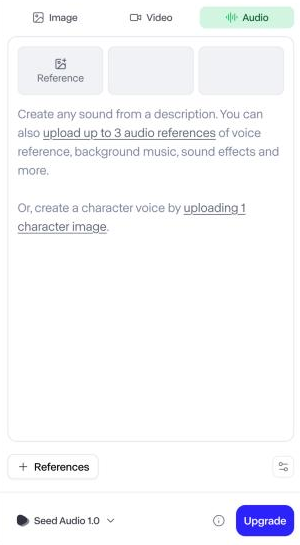
Edge: Runway for voice cloning; tie for basic audio. Treat sound as a separate step unless your chosen video model includes it. Start with the Pika Soundtrack guide.
8. Exports, resolution and upscaling
Pika. Pika 2.5 generates at 720p or 1080p, and a dedicated Upscale app enlarges finished clips.
Runway. Gen-4.5 generates at 720p. Standard lists 4K upscaling, Pro lists unlimited 4K video upscaling, and Max adds HDR, ProRes and image sequences.
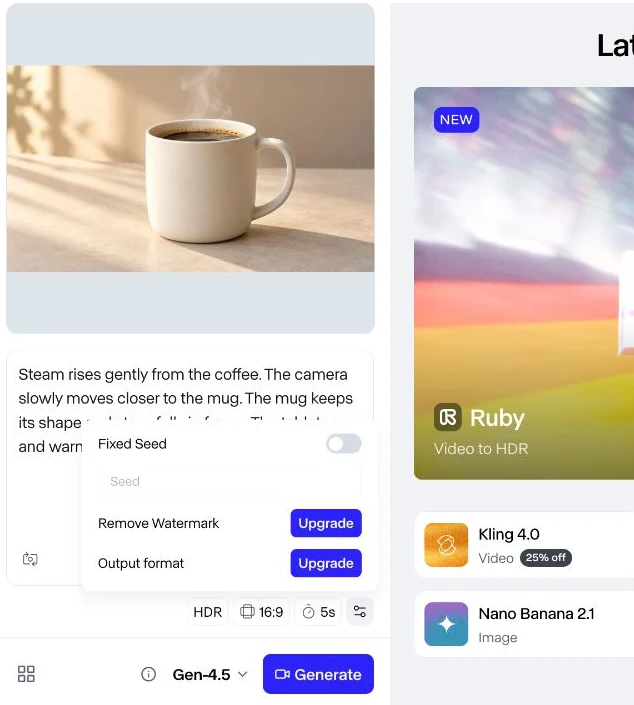
Edge: Runway for client delivery formats. Distinguish native generation, upscaling and export format before you promise a delivery spec.
9. Model choice
Pika. One balance runs Pika 2.5, Pika H3 Flex, Seedance, Wan and Kling 4.0. We ran seven of Pika’s video models on one prompt in our video model comparison. Kling 4.0 at 1080p costs 118 Pika credits per five-second clip.
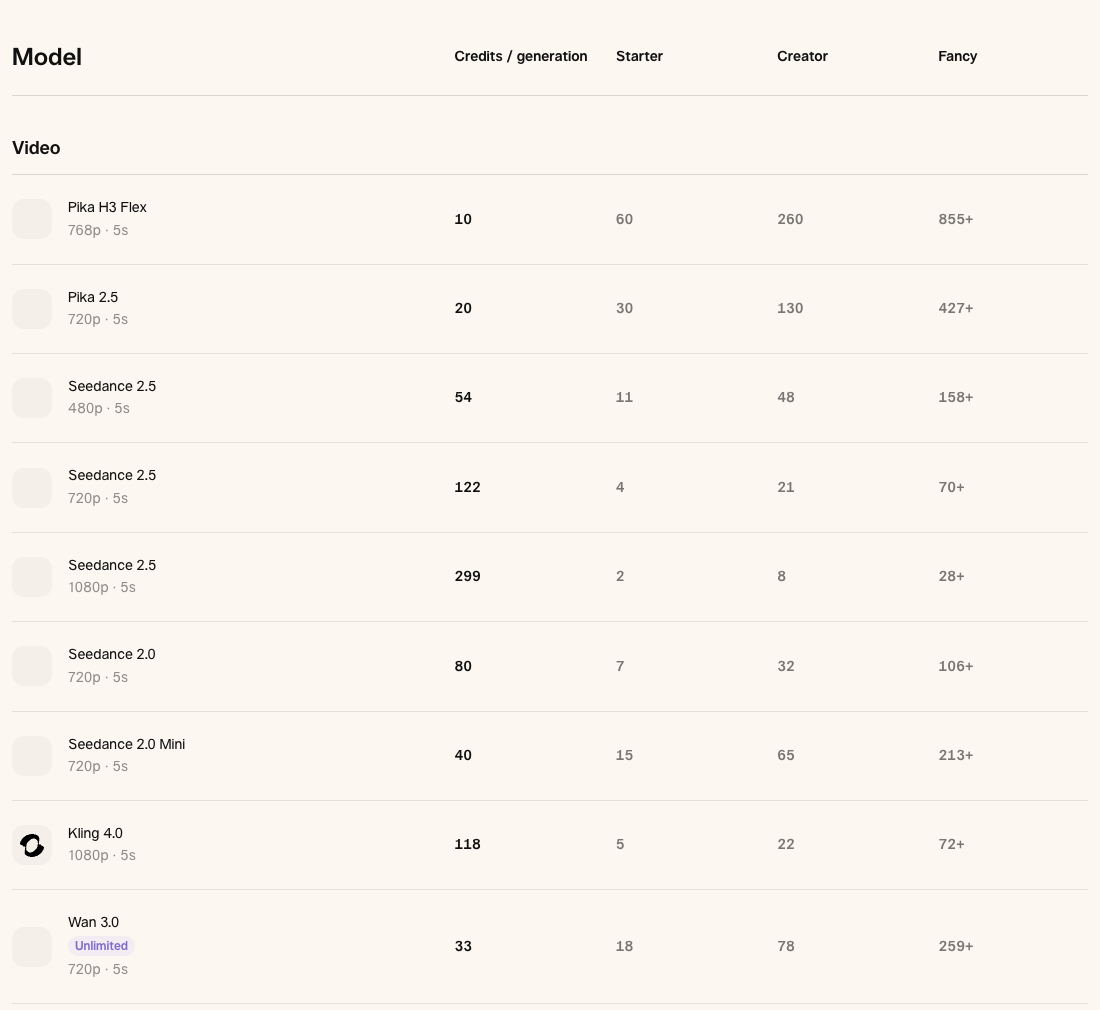
Runway. Runway lists Gen-4.5 at 60 credits per five seconds, Aleph 2.0 at 140, Seedance 2.0 Pro at 160 per four seconds and Kling 4.0 at 1080p for 118 per five seconds, with a temporary discount.
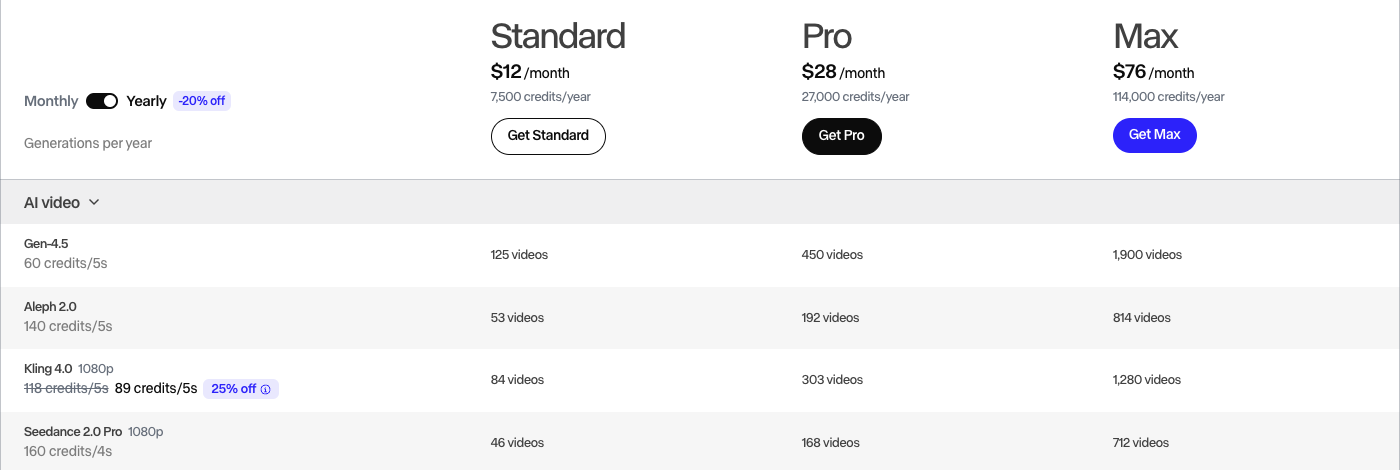
Edge: tie. Both hubs run third-party models. Kling 4.0 shows the same 118-credit list price on each, but Pika and Runway credits cost different amounts.
10. Projects and workflow
Pika. Library, Projects and Jobs keep sources and outputs together, while each app handles one stage.
Runway. The sidebar groups Agent, Tool, App Studio, Workflows, Plugins, Projects, Assets and Brand Kits. A separate Ads tab handles ad generation and publishing.

Edge: Runway for multi-stage production. Pika’s app-by-app approach suits shorter, single-deliverable jobs.
11. Pricing and credit cost
| Operation | Pika credits | Runway credits | Source |
|---|---|---|---|
| Five-second image to video | 20 (Pika 2.5, 720p) | 60 (Gen-4.5) | Pika form quote; Runway published rate |
| Two-frame transition, 720p, five seconds | 20 | Check the Keyframe quote | Pika form quote |
| Five-second footage edit | Varies by app | 140 (Aleph 2.0) | Runway published rate |
| Kling 4.0, 1080p, five seconds | 118 | 118 list, 89 with current discount | Both pricing pages |
| One image | 3–4 (1K models listed) | 2–8 (Gen-4 Image models) | Both pricing pages |
| Entry plan, monthly billing | Pika Starter | Runway Standard |
|---|---|---|
| Monthly price | $10 | $15 |
| Credits per month | 600 | 625 |
| Cost per 100 credits | About $1.67 | $2.40 |
| Five-second clips per month | About 30 (Pika 2.5, 720p) | About 10 (Gen-4.5) |
Edge: Pika for short-clip volume. The clip counts divide monthly credits by the rates above; retries, edits and audio reduce them. Prices and promotions change, so check Pika pricing and Runway pricing before buying. Our credit calculator and low-budget planning guide help you set a Pika budget.
Which tool fits your project
| You need | Choose | Why |
|---|---|---|
| Many short product clips on a small budget | Pika | 20-credit Pika 2.5 quote on a $10 plan |
| A specific aspect ratio such as 21:9 or 4:3 | Runway | Six documented Gen-4.5 ratios |
| A transition across three or more stills | Pika | Pikaframes accepts up to five stills |
| A prompt-driven change to existing footage | Runway | Aleph 2.0 editing model |
| One targeted edit, such as adding an object | Pika | Pikadditions and other single-task apps |
| ProRes, HDR or image-sequence delivery | Runway | Listed on the Max plan |
| Unmarked tests before paying | Pika | No watermark on the Free plan |
| A multi-stage campaign in one workspace | Runway | Projects, Sessions and Workflows |
- Tight budget: start on Pika Starter for short clips; Runway’s Free credits help you explore its interface first.
- Client work: confirm the commercial terms, watermark policy and export format on the plan you buy.
- New to AI video: Pika’s single-purpose forms keep each job’s choices in one view.
- Agency or team: compare Runway’s projects and workflows with your review process.
Switching between Pika and Runway
Moving from Pika to Runway
You gain aspect-ratio control, Aleph 2.0 editing, studio export formats and project workflows. You give up lower entry pricing, five-still Pikaframes sequences and unmarked free exports.
- Export finished clips and source images from Pika.
- Choose Gen-4.5 in Runway and set the ratio your edit needs.
- Rebuild one shot with the same prompt and duration.
- Compare the Runway quote with your Pika cost before moving a batch.
Moving from Runway to Pika
You gain lower credit costs for short clips, single-task edit apps and Pikaframes. You give up aspect-ratio choice, Runway’s workspace tools and HDR or ProRes output.
- Download your Runway clips and reference images.
- Crop each source to the frame you want, since Pika 2.5 follows the image.
- Run one five-second Pika 2.5 test with your usual prompt.
- Add sound afterward with Soundtrack, SFX or Speech.
What this comparison did not cover
This guide compares interfaces, published settings and published prices. We did not generate matched clips on both platforms, so it does not rank output quality, prompt accuracy, speed or success rates. Runway figures come from its pricing page and help center; Pika figures come from its pricing page and in-app quotes. Run one small test with your own source before buying a larger plan.
Final verdict
| Category | Edge | Reason |
|---|---|---|
| Cost per short clip | Pika | 20 Pika credits versus 60 Runway credits |
| Entry plan price | Pika | $10 versus $15 monthly |
| Free plan | Depends | Pika: no watermark; Runway: 125 credits |
| Aspect-ratio control | Runway | Six Gen-4.5 ratios |
| Keyframe sequences | Pika | Up to five ordered stills |
| Editing existing footage | Depends | Pika task apps; Runway Aleph 2.0 |
| Export formats | Runway | HDR, ProRes, image sequences on Max |
| Production workspace | Runway | Projects, Sessions, Workflows, Agent |
| Third-party models | Tie | Both include Kling 4.0 and Seedance |
Our pick for low-cost short clips: Pika · for production pipelines: Runway
Pika gives more short clips per dollar, unmarked exports and simple single-task apps. Runway costs more per clip but adds framing control, footage editing, studio export formats and a workspace for multi-stage projects.
Pick by the job, not the brand. Save your source, prompt and settings so your next test starts from the same place.
More Pika comparisons
- Pika vs Kling shows the same photo and prompt turned into two videos.
- Pikaframes vs image to video helps you pick a route for controlled transitions.
- Text to video vs image to video explains when a reference photo helps.
Frequently asked questions
Is Pika or Runway better for image-to-video?
Pika 2.5 offers a compact form with resolution and duration choices at a lower credit cost. Runway Gen-4.5 adds aspect-ratio control within a production workspace. This feature comparison does not establish an output-quality winner.
Which is cheaper, Pika or Runway?
On entry plans with monthly billing, Pika Starter lists 600 credits for $10 and Runway Standard lists 625 credits for $15. A five-second Pika 2.5 clip quoted 20 Pika credits, while Runway publishes 60 credits for five seconds of Gen-4.5.
Can I compare the tools before buying a plan?
Yes. Runway’s Free plan includes 125 one-time credits and a selection of models, but Gen-4.5 requires Standard or higher. Pika’s Free plan has no monthly credits, so you buy a credit pack to generate.
Does Runway Gen-4.5 support an ending image?
Not in the Gen-4.5 form, which shows only a First Video Frame slot. Runway’s Keyframe tab offers first and last frame slots with other models, such as Seedance 2.5. Pika’s ordered-frame route is Pikaframes, which accepts two to five stills.
Can I use Kling 4.0 in Pika or Runway?
Yes. Both pricing pages list Kling 4.0 at 1080p for 118 credits per five-second clip. Each platform’s credits have a different dollar cost, so compare the plan price as well.
Which tool should I use for commercial content?
Start with the licensing terms and delivery requirements. Pika lists a commercial license on Starter and higher paid plans. Check Runway’s current terms for your intended use, and confirm watermark and export requirements in either service.