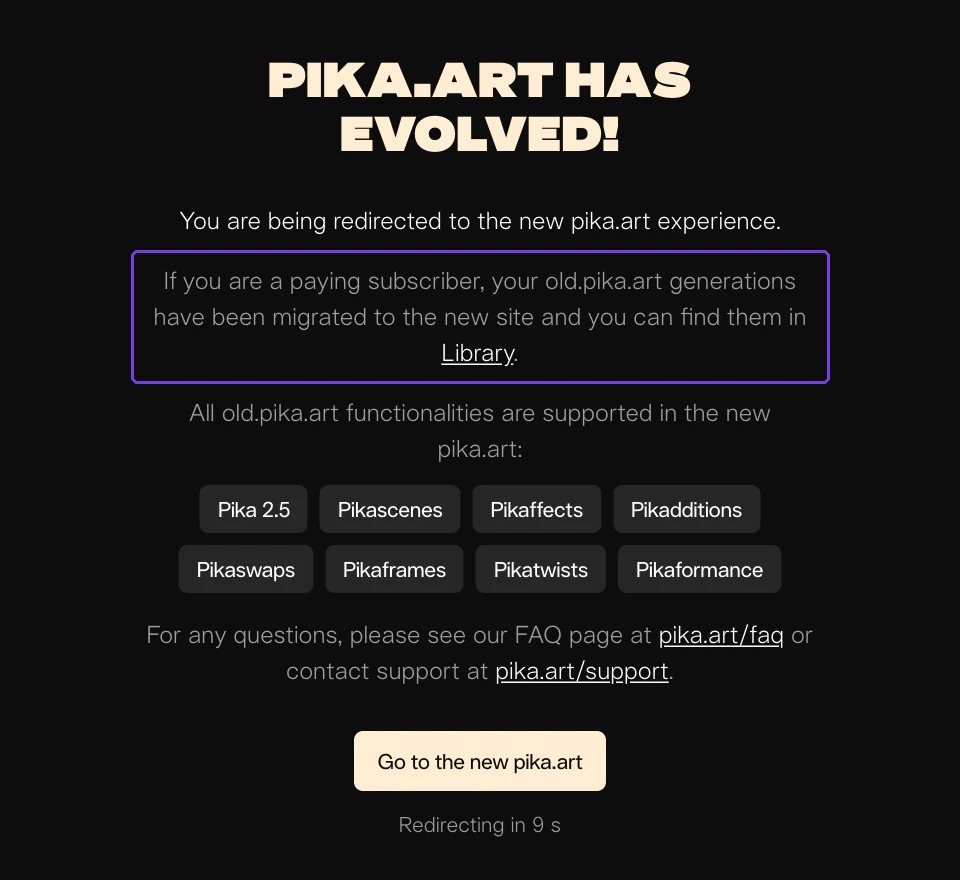
Your earlier Pika work has moved. The old site at old.pika.art is retired. If you had a paid plan, Pika moved your earlier creations into a project called OG Pika in your Library on the new site. Our Pika updates page explains what the redesigned workspace changed.
If you cannot see it, the most common cause is signing in a different way from before. Work through the steps below in order.
Quick answers
| Your situation | What to do |
|---|---|
| You had a paid plan and want your old videos | Open Library and look for the OG Pika project |
| Library is empty or your plan looks like Free | Sign out and sign in with the method you used before |
| You subscribed on old.pika.art | Check Subscription: Standard is now Starter, Pro is now Creator |
| You had a free account | Pika’s notices describe the move for paid accounts; contact support with your old sign-in details |
| You are looking for a feature such as Pikaffects | Find it in the apps catalog on the new site |
Step 1: open Library and switch to Project view
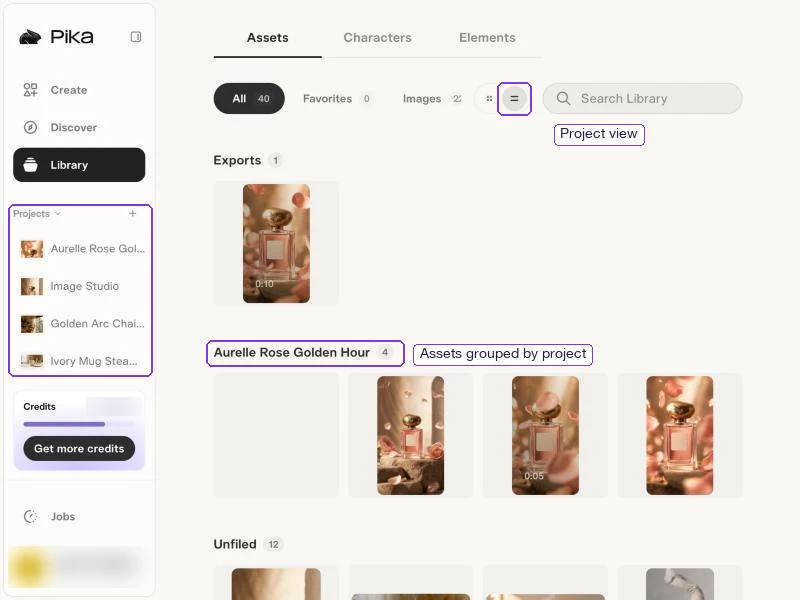
Sign in at create.pika.art and open Library from the sidebar. Choose Project view, the second layout button next to Search Library. Each project then appears as its own group, so a project named OG Pika is easy to spot.
You can also open Projects from the sidebar, or type part of an old prompt into Search Library.
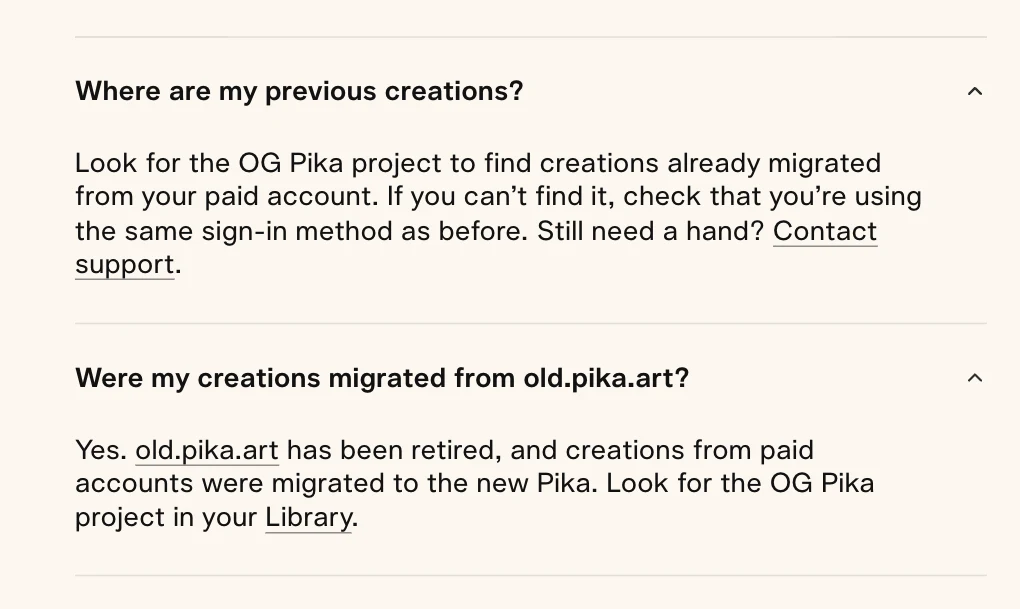
Pika’s FAQ confirms where migrated work goes:
Step 2: check that you are in the right account
Pika offers several sign-in buttons: Google, Apple, Discord and email. The FAQ warns that Google and Apple sign-ins can create separate accounts, even with the same email address. If you subscribed with one and now sign in with the other, you land in an empty account with no plan.
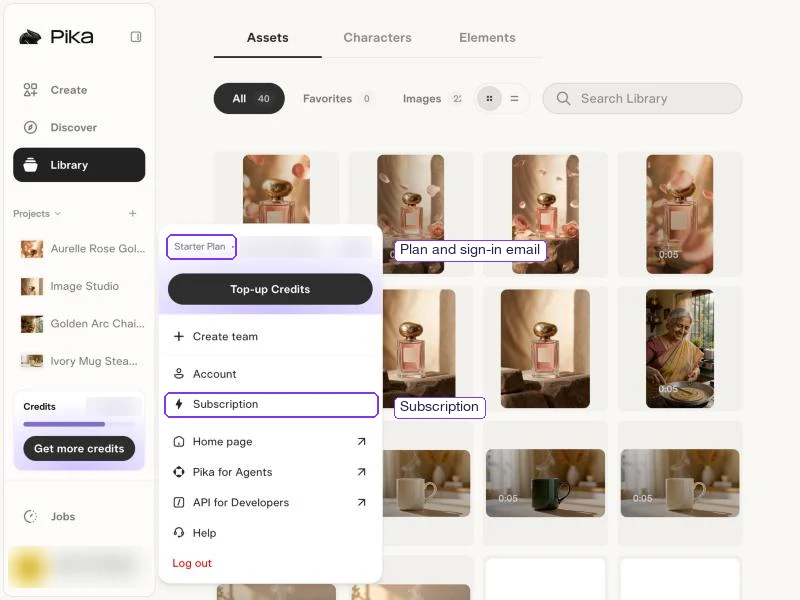
- Open the account menu at the bottom of the sidebar.
- Read the first line. It shows your current plan and the email you are signed in with.
- If it says Free or shows an unexpected email, choose Log out.
- Sign in again with the button you used on the old site.
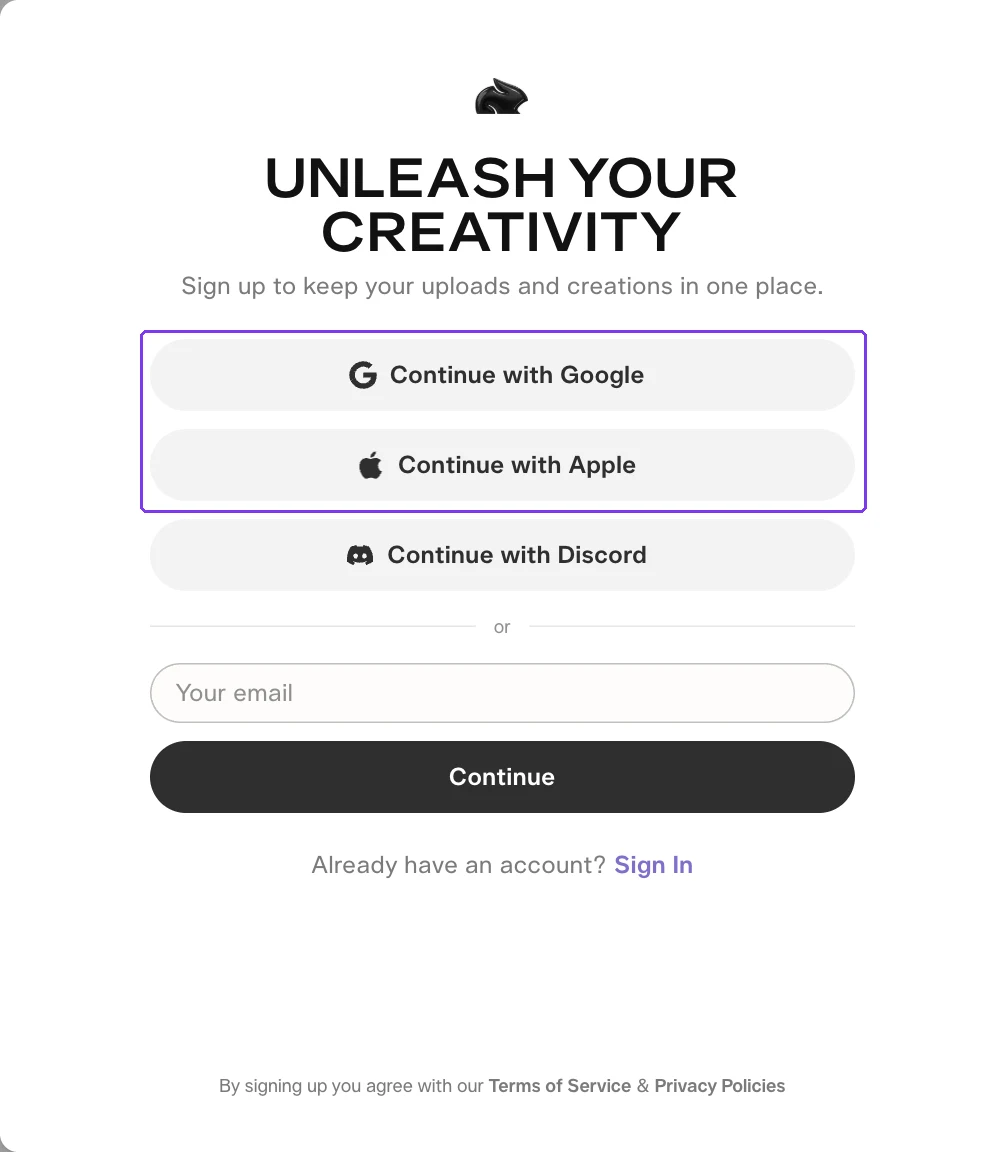
If you are unsure which method you used, try each one in a private browser window and check the account menu every time.
Step 3: confirm your plan carried over
Open Subscription from the account menu. Pika says subscriptions moved to the new site at the same price, with new names:
| Old plan name | New plan name |
|---|---|
| Standard | Starter |
| Pro | Creator |
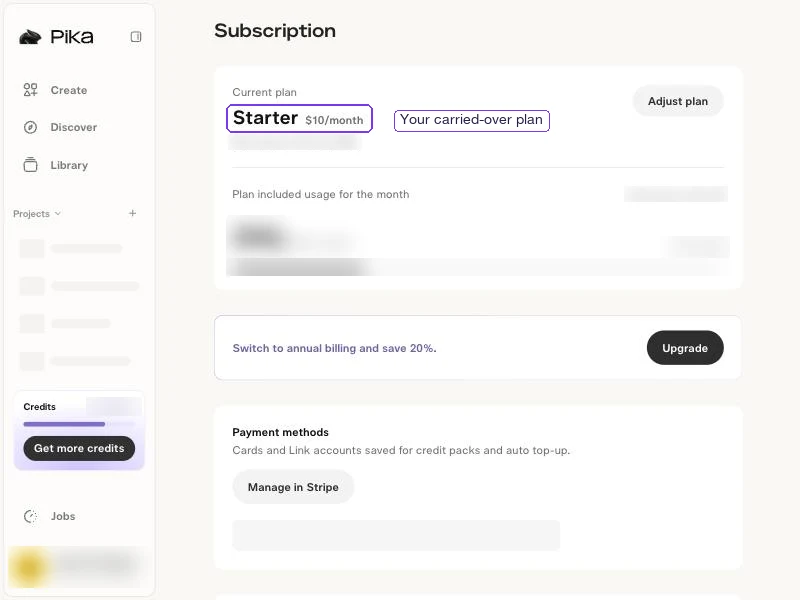
Top-up credits bought on the new site work only in Pika Create and Pika MCP. The Subscription page says they cannot be used with the API, the iOS app or old.pika.art.
Step 4: find old features on the new site
The old.pika.art notice lists its tools as supported on the new site, including Pika 2.5, Pikaffects, Pikadditions, Pikaswaps and Pikaframes. Search for them in the apps catalog under Create. These guides cover the current versions:
- Pikaffects
- Pikaframes
- Pikadditions
- Swap Anything for replacing something in an existing clip
- Pika 2.5
Step 5: contact support if the work is still missing
Use Pika support when the steps above do not find your work. Include:
- The sign-in method you used on old.pika.art (Google, Apple, Discord or email).
- The email address of that account.
- Your old plan name and roughly when you last used the old site.
- A screenshot of your Library in Project view, with balances and private assets covered.
Never send passwords or full payment-card details. This site is an independent guide and cannot see or change your account.
Download what matters
Once you find the OG Pika project, download the clips you want to keep. Open an asset and use its download button. A local copy protects your work from future platform changes.
Pika’s FAQ notes that files downloaded on the current plans have no Pika watermark, but older files that already had a watermark keep it.
Common questions
Is old.pika.art still available?
No. Pika’s FAQ says old.pika.art has been retired. Opening the address shows a notice and then sends you to the new site.
Why can’t I find the OG Pika project?
Check your sign-in method first. Google and Apple can lead to separate accounts. Then confirm the account menu shows a paid plan. If both look right, contact support with the details listed above.
Were free-account creations moved?
Pika’s notices describe the move for paid accounts and do not say free-account work was moved. Contact support if you need something from a free account.
Do I need a new subscription for the new Pika?
No. Pika says your login and plan carry over at the same price. Standard now shows as Starter and Pro as Creator.
Can I still use Pikaffects and Pikaframes?
Yes. Both are listed in the apps catalog on the new site.